
If you frequently use the screen recorder on iPhone and iPad you might appreciate knowing this easy tip that allows you to quickly stop a screen recording from anywhere, without having to access Control Center.
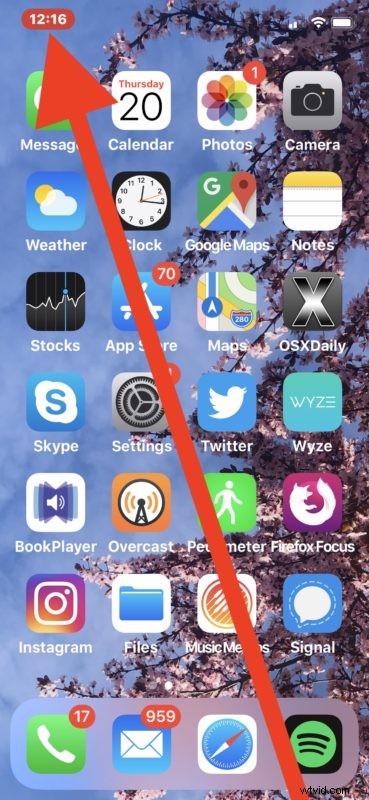
Once Screen Recording is active on any iPhone, iPad, or iPod touch, if you want to immediately stop the screen recording then simply tap on the red bar at the top of the screen.
Depending on which iPhone or iPad model you have the red stop bar can look different, or even be a button or an icon.
For example on iPhone 11 Pro, 11, 11 Pro Max, XS, XS Max, XR, and X, the clock turns red and tapping on that will stop the screen recording.
Meanwhile on any iPhone without a screen notch like the iPhone 8 Plus, iPhone 8, iPhone 7 Plus, 7, 6s, 6, and SE, and the iPod touch series, the entire top of the screen turns red and tapping on that will stop the screen recording.
And on any iPad the top of the screen shows a little recording icon, and tapping on that will stop the screen recording for any iPad quickly.
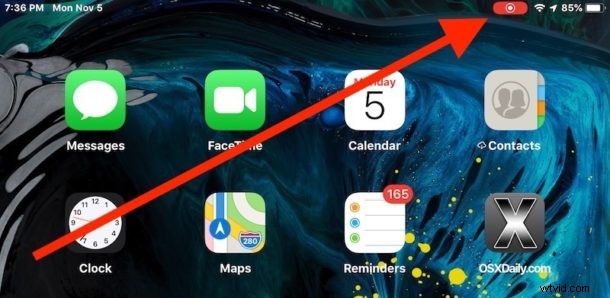
Regardless of what device you’re using screen recording on, tapping on the red item in the status bar at the top of the screen will stop that screen recording, and you’ll quickly get a notification stating the video of that screen recording has been saved to the Photos app.
Of course you can still stop (and start) screen recordings at any time through Control Center on iPhone, iPad, and iPod touch as well, but this handy tip may be faster for many users.
If you’re unfamiliar with the screen recording feature, you can learn how to use the screen recorder on iPhone, iPad, and iPod touch here.