
Some iPhone 12, iPhone 11, iPhone 11 Pro, iPhone 11 Pro Max, and iPad Pro users have discovered that iTunes does not recognize the new iPhone connected to a Mac. Instead, launching iTunes with iPhone 12, iPhone 11, iPad Pro, or iPhone 11 Pro connected via USB cable does nothing, and the iPhone does not show up in iTunes, it does not sync, backup, or appear to exist at all within iTunes. This is understandably frustrating if you rely on iTunes for device management, backing up, and syncing iPhone 11 or iPhone 11 Pro to a computer, so this walkthrough will aim to show you how to fix this problem on a Mac.
This guide is aimed at iPhone 11, iPhone 12, iPhone 12 Pro, iPhone 11 Pro, and iPad Pro not showing up in iTunes on MacOS Mojave or MacOS High Sierra. This issue should not appear in MacOS Catalina, Big Sur, Monterey, or later because iTunes no longer exists in those versions of macOS.
How to Get iTunes Working with iPhone 12, iPhone 11, iPhone 11 Pro, iPhone 11 Pro Max, iPad Pro on Mac
- Quit out of iTunes, which is not showing iPhone 11 / Pro / Pro Max
- Update iTunes to the latest version by going to the Apple menu and to “System Preferences” and then to “Software Update” and install any available Software Updates for iTunes and MacOS Mojave *
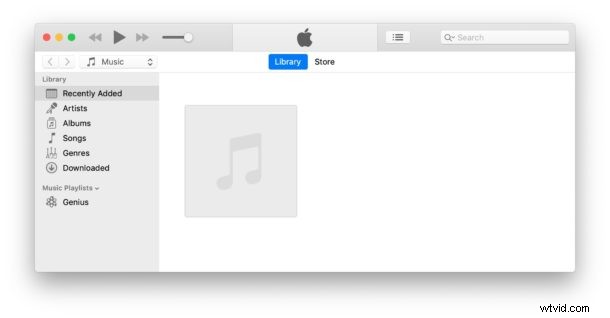
- Relaunch iTunes on the Mac
- Connect iPhone 11, iPhone 11 Pro, iPhone 11 Pro Max to the Mac with a USB cable as usual
- Unlock the iPhone 11 and choose to “Trust” the Mac
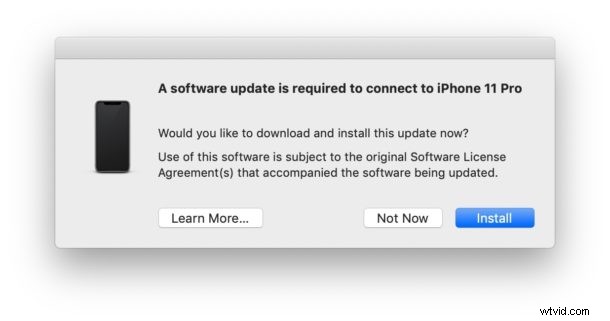
- Option 1: A pop-up message stating “A software update is required to connect to iPhone – would you like to download and install this update now?” may appear on the screen, if so click on “Install” and skip to step #9
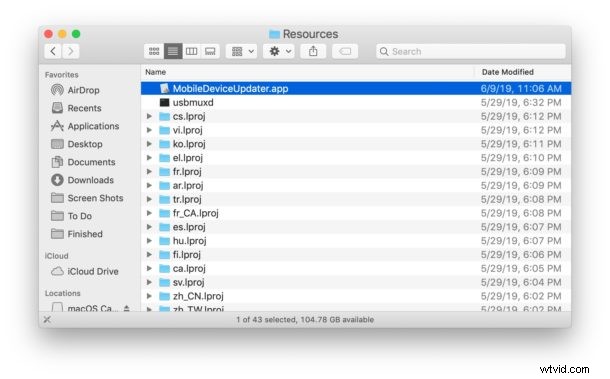
- Option 2: If the pop-up message asking to install a software update does NOT appear on screen, go to the Finder then pull down the “Go” menu and choose “Go To Folder” and enter the following folder path exactly:
- Launch the application named “MobileDeviceUpdater.app” in that directory
- Agree to “Install” when the alert says pop-up message stating “A software update is required to connect to iPhone – would you like to download and install this update now?”
- Quit and relaunch iTunes when prompted to finish the update by choosing “Close Application and Install”
- iTunes will relaunch and iPhone 11, iPhone 11 Pro, iPhone 11 Pro Max will now be available to backup, sync, and connect to as usual in iTunes
/System/Library/PrivateFrameworks/MobileDevice.framework/Versions/Current/Resources
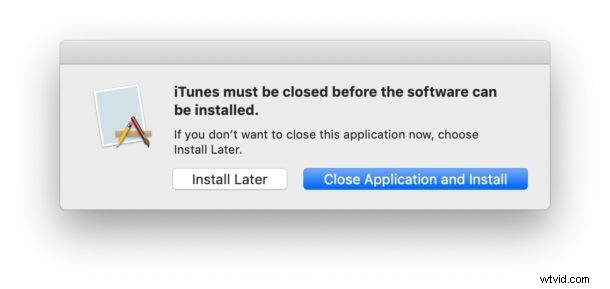
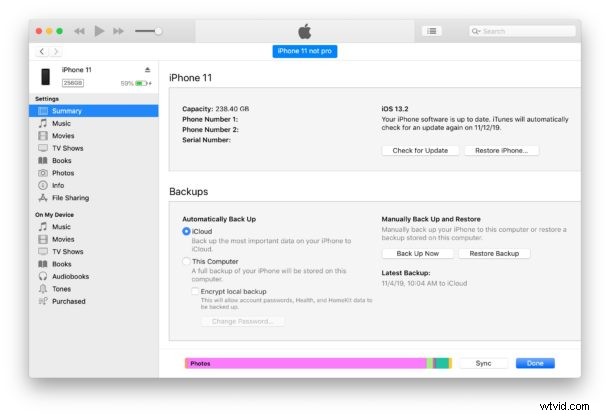
It’s notable that the iTunes software update required is not available in the typical Software Update sections of macOS.
Additionally, the necessary software update prompt does not always appear in iTunes on its own, or it may be hidden behind the primary iTunes screen, or even on another display or Space if you use multiple screens and desktops on the Mac. Nonetheless, it is necessary to install this software update to iTunes in order for the Mac and iTunes to recognize, use, and connect to iPhone 11, iPhone 11 Pro, iPhone 11 Pro Max.
* Recall that you can ignore MacOS Catalina software update if you don’t want to install that system software version on the Mac.
You can also manually download a new version of iTunes from Apple here but you will still need to update it manually through Software Update or the App Store to the latest version, and then run through the same process outlined above to download and install the auxiliary update to get iTunes to recognize the new iPhones, including iPhone 11, iPhone 11 Pro, and iPhone 11 Pro Max.
For what it’s worth, a similar problem can exist in Windows iTunes for trying to get iPhone 11, iPhone 11 Pro, iPhone 11 Pro Max to show up, connect, and sync in iTunes for Windows PC.
This obviously heavily focused on iPhone 11, but the same tips apply to iPhone 12 and iPad Pro. Basically any new Apple device trying to run with iTunes.