
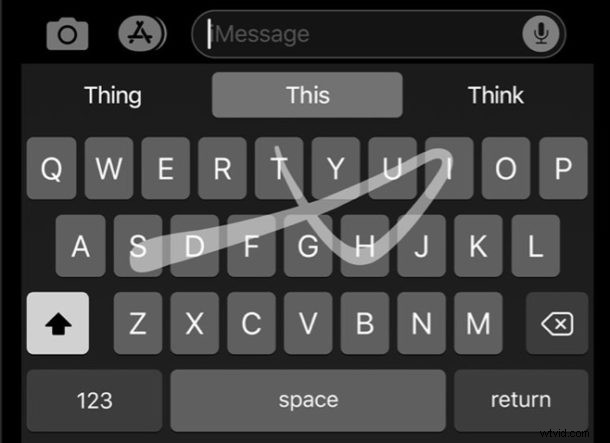
One of the best features of iOS 13 is the new QuickPath keyboard on iPhone and iPad. It makes it easier to type one-handed by swiping your thumb across the keyboard, rather than hunting and pecking at individual keys.
Here we will demonstrate how to use QuickPath swiping keyboard, and also how to turn the feature on (or off) for iPhone or iPad.
Using gestures to type on the digital keyboard might seem – and it definitely feels – counterintuitive at first, but once you get used to it you’ll be flying through words and sentences in no time. If this sounds interesting to you, it’s certainly worth getting over the learning curve and you’ll be quickly typing and swiping out words faster than before.
How to Use QuickPath Swipe Keyboard on iPhone
As an example of how QuickPath swipe keyboard works, typing the word “Apple” just requires that you tap and hold on the “A” and then swipe through the “p”, “l”, and “e” characters in order. Don’t worry, the keyboard will figure out the double “p” for you.
Once you’re done you just lift your thumb and your word will appear.
The animated GIF below shows typing out a complete sentence using this the QuickPath swipe keyboard gestures on an iPhone:
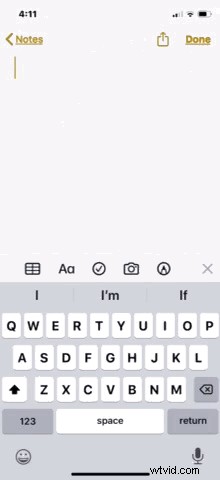
Note that QuickPath also supports punctuation so swiping to a period will end the sentence without you needing to lift your thumb.
This is one of those features where you really have to try out yourself, and practice makes perfect.
Using QuickPath Swipe-to-Type on iPad
We’re obviously focusing on iPhone here, but this feature actually exists on iPad too. Interestingly, the QuickPath capability is only available on iPad when the floating keyboard is used.
You can activate the floating keyboard on iPad by pinching inwards on the normal keyboard view.
Once the floating keyboard is active on iPad, the usage of QuickPath is the same as on iPhone.
How to Enable (or Disable) QuickPath Swipe Keyboard on iPhone
You should find that QuickPath is enabled by default, but it’s easy to turn on if needed.
- Open the Settings app and tap “General’
- Tap “Keyboard”
- Make sure that “Slide to Type” is in the “On” position to enable it. Toggle to the “Off” position if you’d like to disable it Note: This option is called “Slide on Floating Keyboard to Type” on iPad
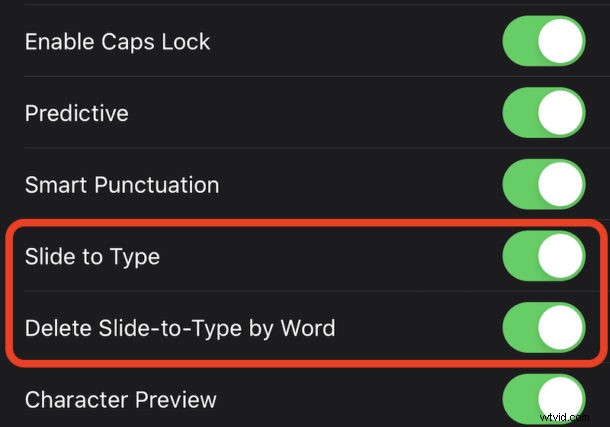
You’ll also notice another option in this settings area called “Delete Slide-to-Type by Word”. Whenon, this feature will automatically delete a whole word when the backspace button is pressed. If you plan on correcting misidentified words rather than retrying them, it might be a good idea to turn that off.
QuickPath is pretty great once you get used to it, but it might take a little practice to perfect your typing with it. Stick with it for a few days at least, and see how you fare. Once you get accustomed to using QuickPath and up to speed with it, you’ll probably find tap typing to be slower and might not want to go back to it on the iPhone and iPad keyboard.
If for some reason you don’t like the QuickPath gesture keyboard, you can always disable QuickPath by going back to the Keyboard Settings as described above, and toggling the setting for Slide to Type to the OFF position.
We think that this feature is one of the unsung heroes of iOS 13 but we’d love to know how you get on. Are you a QuickPath convert or do you think keyboards were just fine when we stabbed at them with our fingers? Let us know your thoughts and experiences in the comments below.