
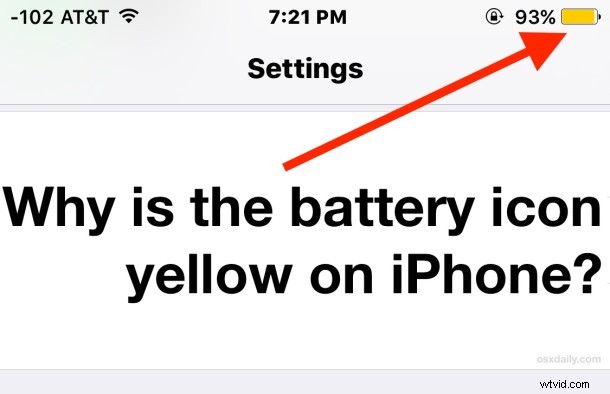
Have you ever wondered why the battery icon on iPhone is yellow sometimes? Wonder no more, because the yellow battery icon means the iPhone is in Low Power Mode. We’ll explain a little bit about this and how it works, and how to fix it if you want your green battery back.
What the Yellow Battery Icon Means on iPhone
First, understand that Low Power Mode on iPhone is an excellent battery life extending feature that works by adjusting some of the functions of the device. This includes dimming the display slightly, stopping Mail push and fetch, turning off background app refresh, turning off Hey Siri, and a few other iOS features. By turning these features off, the battery life of the iPhone is extended dramatically, and when Low Power Mode is enabled the iPhone battery icon is yellow to demonstrate this.
Low Power Mode can be turned on directly and intentionally as described here for those looking to boost battery performance, but it will also turn itself on automatically when the iPhone battery reduces to 20% or lower life remaining. That latter scenario is when users typically discover the iPhone battery has turned yellow and wonder what’s going on.
When Low Power Mode has been enabled due to a low battery, the battery icon will stay yellow and the feature will stay on even when charging until the capacity reaches at least 80%, when it will turn itself off. On the other hand, if Low Power Mode has been turned on manually, the feature will stay on until the battery is 100% charged.
Fix the Yellow Battery Icon on iPhone by Turning Off Low Power Mode
If you want to turn off Low Power Mode and rid the yellow battery icon at any time, you can do either of the following:
- Let the iPhone battery charge to at least 80% when it will turn itself off automatically, changing the yellow battery icon back to the green icon – if the iPhone won’t charge follow these troubleshooting steps to fix it
- Disable the power saving feature yourself
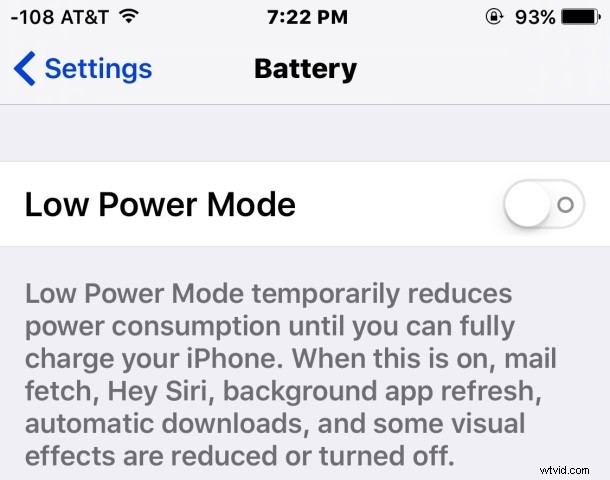
If you want to turn off the feature yourself, you can do so by adjusting the setting through Battery options on iPhone:
- Open the Settings app and go to “Battery”
- Toggle the switch for Low Power Mode to the OFF Position
- Exit out of Settings
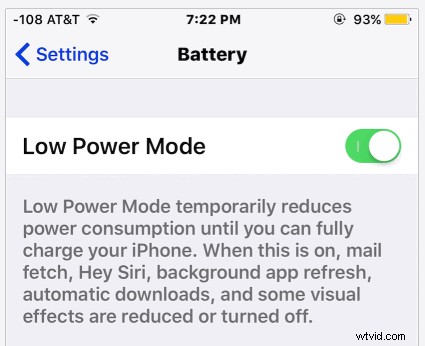
Either trick works to disable the feature, so charge up the iPhone or turn it off yourself, whatever you prefer.
Do keep in mind that Low Power Mode offers impressive battery life improvements, so if you don’t mind some of the features it turns off going away while it’s enabled, you can use the option to boost the battery performance of an iPhone dramatically. In fact, enabling Low Power Mode is the single most effective means of boosting battery life on an iPhone with any device running iOS 9 or newer.