
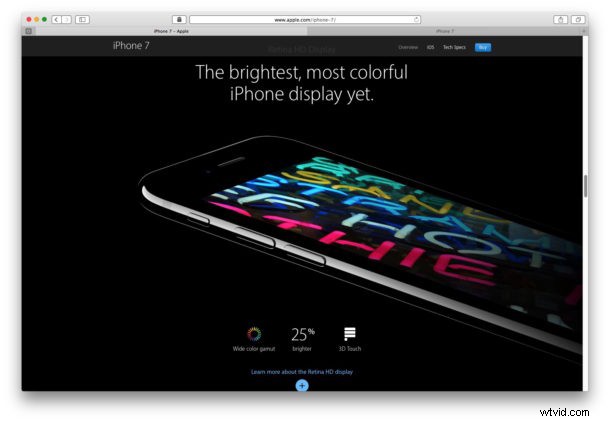
Some iPhone 7 and iPhone 7 Plus owners have found their new iPhone screen brightness appears dimmer than prior iPhone models. For some devices with a perceived less bright display, placing the iPhone 7 next to an iPhone 6s or earlier and turning the screen brightness up to 100% may reveal an apparent discrepancy in the display brightness (and some may notice the screen looks more warmer too, but you can fix the yellow screen with a simple adjustment). Apple markets the new iPhone 7 display as 25% brighter than prior screens, so what’s going on?
If your iPhone 7 or iPhone 7 Plus looks to have a dimmer screen, don’t panic, it might be software related. We’ll show you a simple trick that could boost the brightness level on some iPhone 7 screens that look dimmer than expected.
Dim iPhone 7 Screen? Reset the Device Settings
Resetting the devices settings may have a positive impact on screen brightness, here’s what you can do:
- Open the “Settings” app on the iPhone 7 or iPhone 7 Plus and go to “General”
- Scroll to the very bottom and choose “Reset”
- Select “Reset All Settings” and confirm that you want to “Reset All Settings”, this process won’t impact data but it does effect any settings related customizations to the device including wi-fi, text size, etc
- Let the iPhone 7 reboot and reset settings, it will show a progress bar on the screen and turn back on by itself
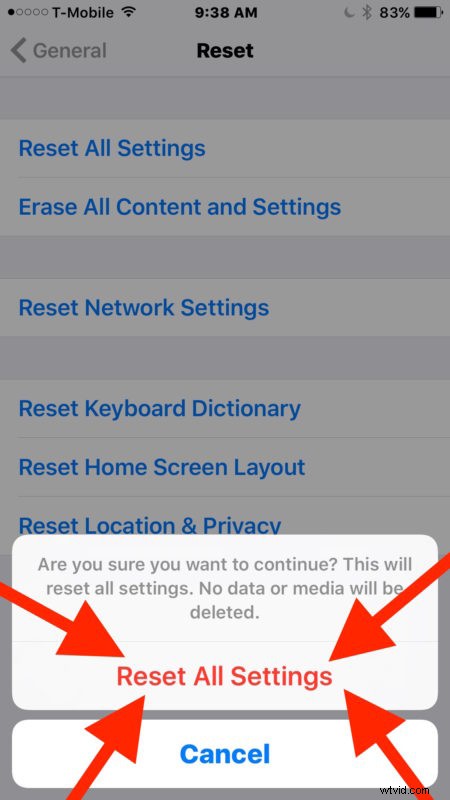
Be careful to choose only “Reset All Settings”. We simply want to trash the device settings only, nothing else.
The recommendation to reset settings has been passed along from Apple Support, and a variety of users are reporting varying degrees of success with the trick at improving the display brightness of their iPhone 7 Plus units. I used this trick on my iPhone 7 Plus and it seems to have helped boost the brightness a bit, but do note it will also remove any adjustments made to the warmer screen color and you’ll need to set those again if desired.
iPhone 7 Screen Brightness Still Low? Find Bright Light
One final thing worth trying for an iPhone 7 screen that seems dim or less bright is to make sure Automatic Brightness setting is turned ON, and then bring the device outside into direct sun light, or indoors under very bright lighting. This should trigger the ambient light sensor to boost the brightness to maximum level.
The idea of an iPhone 7 screen being brightest in very high ambient lighting with Automatic Brightness turned on is mentioned in a display review of the iPhone 7 by DisplayMate from here:
You can insure that Automatic Brightness is enabled by going to Settings > Display & Brightness and toggling the switch ON if it happened to be off.
Does your iPhone 7 or iPhone 7 Plus display seem 25% brighter than the prior iPhone display as Apple advertises? If your display looks dimmer or less bright, did you follow the advice above and notice an improvement? Let us know your experience with iPhone 7 display brightness in the comments below.