
Is your battery draining faster with iOS 10? It shouldn’t be, but some people have felt that updating to iOS 10 has reduced the battery life on their iPhone, iPad, or iPod touch. If you suspect that updating to iOS 10 has changed your battery life for the worse, read on to learn some potential reasons for this, as well as some reasonable solutions.
0: Wait! Are you using it more?
iOS 10 brings a lot of improvements and changes to the iPhone, iPad, and iPod touch experience, a side effect of that is people tend to use their devices a lot more right after updating to a new iOS release. Well, when you use your device more, the battery drains faster.
This is a very common occurrence with new iOS updates as people explore the new features on their iPhones and iPads, so consider this if you feel the device is draining faster than usual… maybe you’re just using the device more than you realize?
Fortunately it’s really easy to check how long you’ve been using your iPhone or iPad since it was last charged, which should give you an idea of battery life and your usage. Go to “Settings” and then to “Battery” and scroll down to see “Time Since Last Full Charge” to see the usage and standby times, which gives you an idea of how well the battery is performing.
1: Plug it in overnight
This might sound like odd advice, but one of the best things to do after updating to iOS 10 is to plug in your iPhone, iPad, or iPod touch, let the screen turn off, and do nothing for an extended period of time. Letting it sit plugged in overnight while you sleep is perfect for this.
This can help because iOS 10 does a lot of indexing and scanning of your pictures and data in the background, for features ranging from Spotlight to new Siri abilities to the Photos sorting and searching functions. While you can certainly use your iPhone or iPad while those background tasks are taking place, the device might appear slower or might seem to have a rapidly draining battery, when in fact it’s just iOS 10 doing what it needs to do to be entirely usable. For large devices that are nearly full of photos and other stuff, the indexing and maintenance processes can take many hours, sometimes extending beyond even 12 hours. So wait a day or two and make sure it has been plugged in and not in use for a notable amount of that time.
2: Restart
A common trick that may help battery life is to restart the iPhone, iPad, or iPod touch. You can do the typical restart of turning the device off and then back on again, or force reboot. Sometimes a simple device reboot does the trick.
3: Follow the Battery Life Advice in Battery Settings
New to iOS 10 is the ability for the device to specifically recommend battery saving suggestions to prolong battery life. Typically this means making adjustments to usage like reducing the devices screen brightness.
- Go to Settings > Battery > look for “Battery Life Suggestions”
You’ll see what is offered for your device, then follow that advice. And yes, it’s good advice.
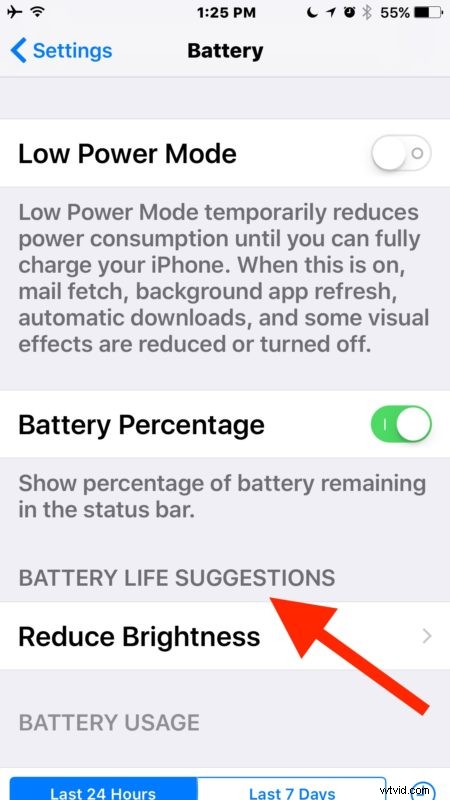
You can then tap on each item to jump directly to it in Settings. And yes really, reducing your screen brightness will have a big impact on battery life.
4: Disable Background App Refresh
Background App Refresh is a nice feature but in practice it tends to consume more battery life by allowing apps to do more activity in the background. Thus, disabling Background App Refresh tends to increase battery life, and many users don’t even notice the difference from turning it off.
- Open Settings and go to to “General”, choose “Background App Refresh” and turn the top switch to the OFF position to disable the feature
5: Use Reduce Motion
Reducing the amount of visual effects in iOS may offer a minor improvement to battery life:
- Go to Settings > Accessibility > Reduce Motion > ON
Note doing this will cause iMessage effects to not work so only adjust Motion if you don’t care about the fancy message lasers, slams, and confetti type effects.
6: Disable Location Services You Don’t Need or Use
Location services and GPS usage can hit the battery particularly hard if they are used extensively, so disabling some of the location features can help your battery last longer.
- Open Settings > Privacy > Location Services
- Adjust settings appropriate for your usage, setting to “Never” or “While Using” as needed per app and feature
This is universally good advice for prolonging battery life and doesn’t apply just to iOS 10.
7: Backup and Restore
If your device is really struggling with battery life draining rapidly with iOS 10, you might want to try backing it up and restoring it. This is a common troubleshooting technique and it’s likely what Apple will walk you through if you contact their support line.
You’ll want to backup your device to iTunes or iCloud, then restore the device to that newly made backup. This entire process can take a while, but it can sometimes help.
8: Fed up? Consider a downgrade
If you’ve tried everything, you’ve let the iPhone or iPad sit plugged in for 48 hours unused, none of the recommendations work, and you’re just entirely fed up, you could always downgrade back to the prior iOS version. This is only available for a limited time as Apple continues to sign the older iOS 9.3.5 builds, and to be done properly it requires access to a backup made from iOS 9 as well. If you’re interested in this rather dramatic approach, you can learn how to downgrade iOS 10 to iOS 9.3.5 here.
–
How is your battery life with iOS 10? No difference? Is it better or worse? Did the above tips help? Let us know in the comments below.