
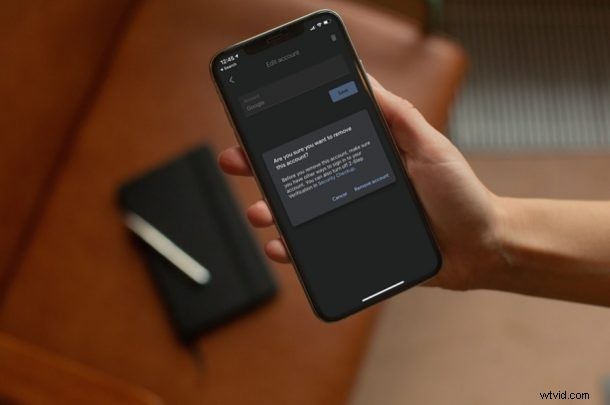
Do you still see two-factor authentication codes for accounts that you no longer use in the Google Authenticator App? Then, it’s time to clean up your list of accounts. A moment of your time is all it takes to remove old accounts from your Google Authenticator app.
Google Authenticator is used by millions of users around the globe to receive two-factor authentication codes and securely sign in to their online accounts. Considering 2FA has almost become a standard for online accounts, it’s completely normal to see a page full of codes in the Authenticator app. But, more often than not, you may still see codes for accounts that you no longer use and the accounts that you disabled 2FA for. Hence, you may want to make sure that the app is not ridden with outdated data.
How to Remove Old Accounts from Google Authenticator on iPhone
Removing an existing account from the Authenticator app is actually pretty straightforward, but a lot of users seem to overlook the option. Here’s what you need to do:
- First, open the Google Authenticator app on your iPhone.

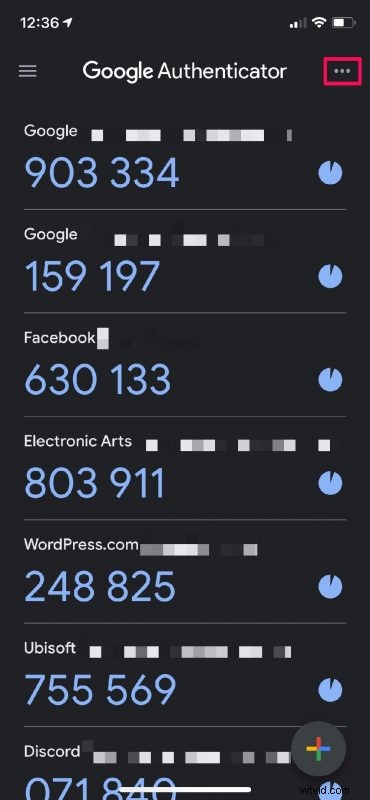
- When you’re on the main screen with the list of all your 2FA codes, tap on the triple-dot icon at the top-right corner.
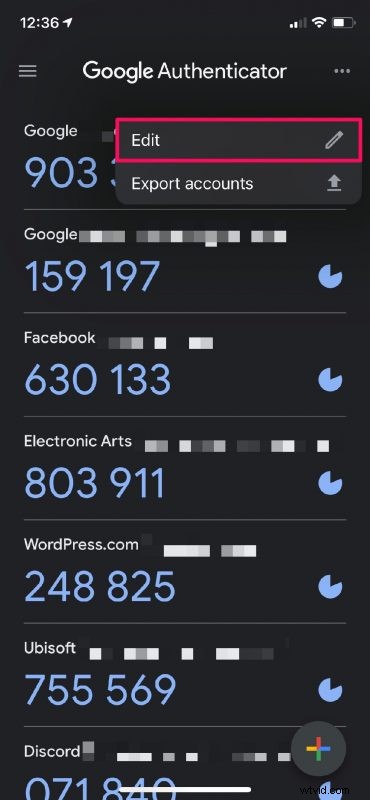
- Next, choose “Edit” from the context menu to proceed.
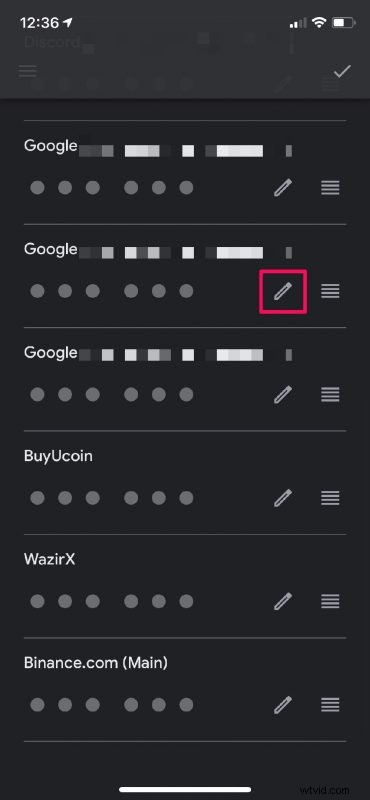
- This will take you to the menu where you can rearrange all your accounts. Here, tap on the pencil icon next to the account that you want to remove.
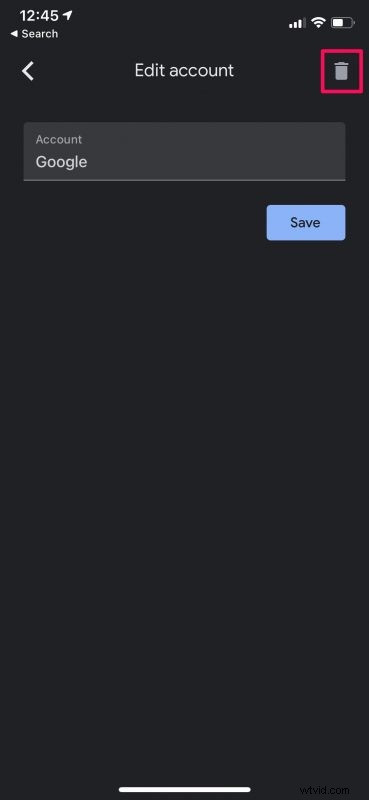
- Now, tap on the trashcan icon to delete the account from the Authenticator app.
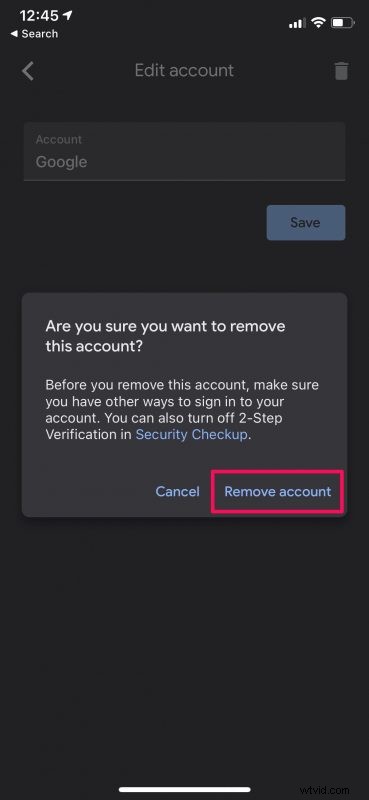
- When you’re prompted to confirm, choose “Remove account” and you’re good to go.
Now, you know exactly how to remove an old account from Google Authenticator.
You can repeat the above steps to delete other existing 2FA accounts that you no longer need or use and clean up the list of codes that show up in the Authenticator app.
In the same menu, you’ll be able to rename your 2FA account and make sure they’re easier to find the next time you open the app. You can rearrange your account codes in the order of their importance and organize them better.
If you’re planning to upgrade to a new iPhone in the near future, it’s important to make sure you move your Google Authenticator account from your current device before you sell or give it away. Otherwise, you may end up losing all your codes and get locked out of your online accounts.
Hopefully, there are no more unwanted accounts in your Google Authenticator app. How many accounts did you remove today and how often do you rely on Google Authenticator? Have you tried out other authenticator apps like Authy and Microsoft Authenticator? Let us know your experiences and voice out your opinions in the comments section down below.