
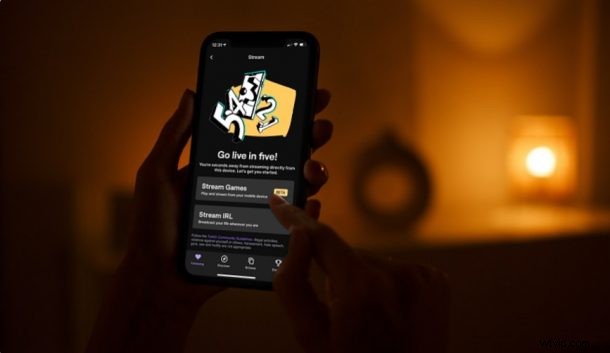
Are you interested in live streaming the games that you play on your iPhone or iPad to an audience through Twitch? If so, you can go live within a matter of seconds and broadcast your gaming stream to Twitch right from iPhone or iPad.
If you’re a regular user of the Twitch app for iOS or ipadOS, you probably already know there’s a LIVE button that lets you stream content from your iPhone’s camera. While this is nice to have, what many gamers really wanted was the ability to simply broadcast their gaming sessions and stream them to Twitch. After years of waiting, Twitch has finally rolled out this feature to its mobile app. Want to try this out yourself? Read along to learn how to broadcast iPhone or iPad games on Twitch the easy way.
How to Broadcast iPhone / iPad Games on Twitch
First and foremost, you need to install the latest version of the Twitch app on your device. Also, make sure you’ve signed into the app with your Twitch before you go ahead with the steps below:
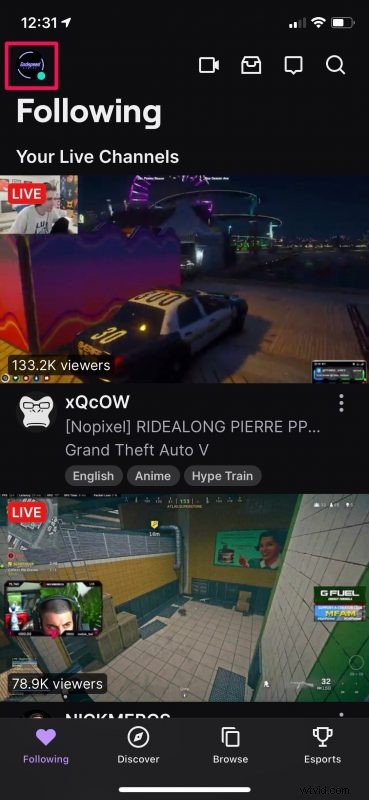
- When you’re on the home page of your Twitch app, tap on your profile icon located at the top-left corner of your screen.
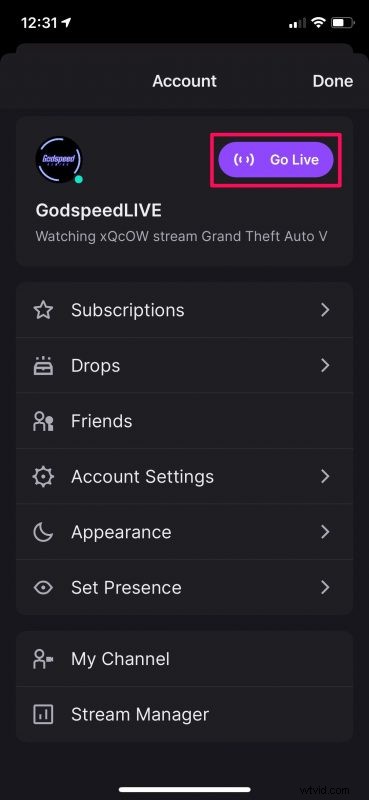
- This will bring up the account menu as you can see here. Tap on “Go Live” located next to your Twitch username to proceed.
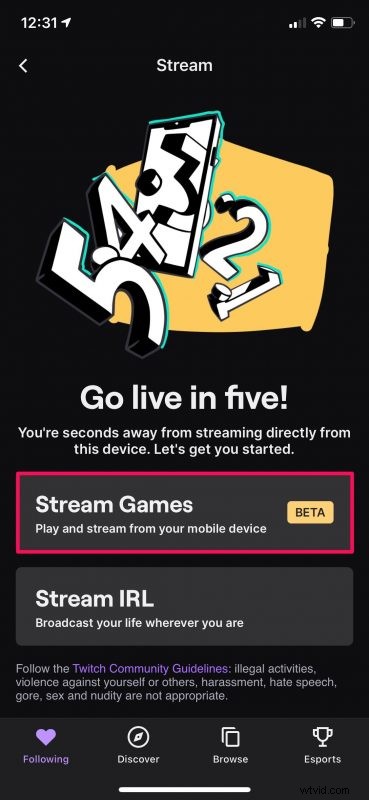
- Next, you need to select the option “Stream Games” to continue with the live stream set-up.
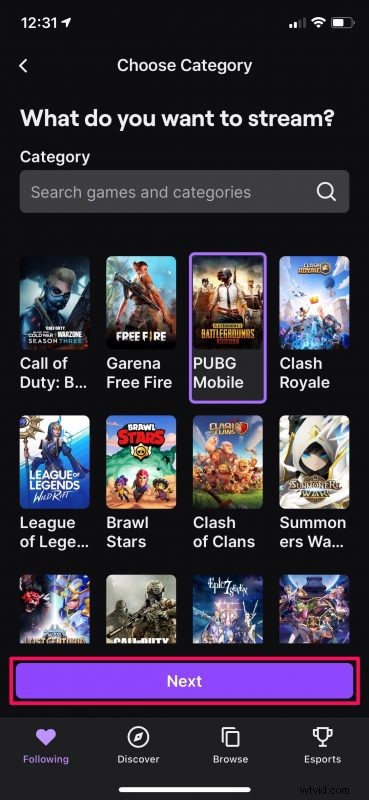
- In this step, you’ll be able to choose the game that you want to live stream from the list of available categories. Tap on “Next” when you’re done.
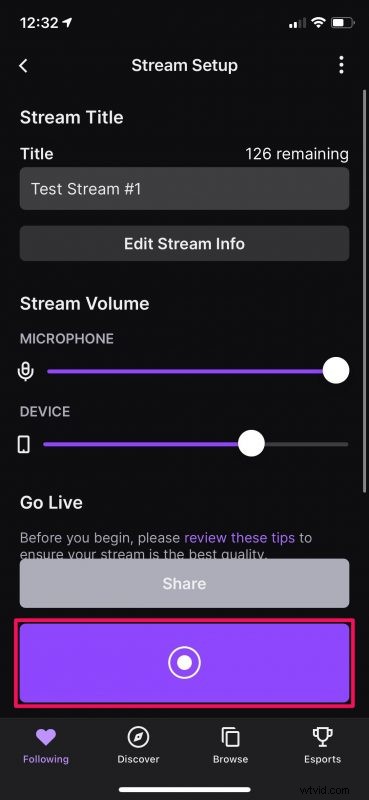
- Now, you’ll have access to your stream dashboard. You can change your stream title here and adjust your microphone and device volume if needed. When you’re ready, tap on the big purple LIVE button.
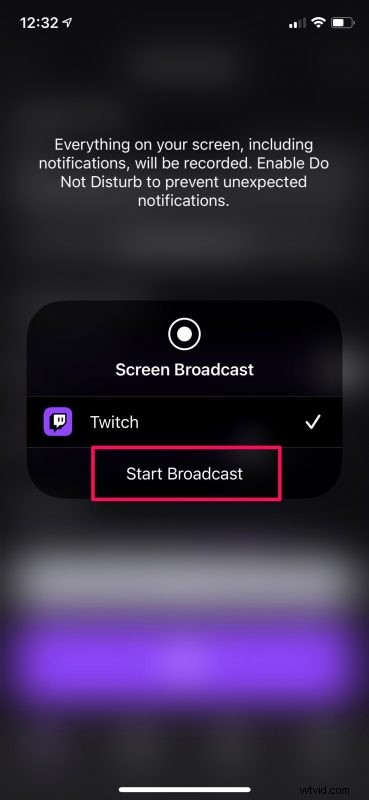
- This will bring up the iOS screen recording menu on your screen. Here, tap on “Start Broadcast” and then launch the game that you want to play and stream.
That’s pretty much all you have to do. As you can see, streaming games to Twitch from your iPhone or iPad is a lot more straightforward now.
The moment you press the Start Broadcast button, there’ll be a short 3-second countdown after which everything that’s displayed on your screen will be broadcasted to your Twitch audience. So, make sure you minimize the Twitch app and launch the game that you want to play as quickly as possible.
When you want to stop the broadcast at any point, you can go back to the Twitch app and press the LIVE button from your stream dashboard again. Or, you can do it while you’re still in-game using the screen recording toggle in the iOS / ipadOS Control Center. It’s worth noting that the game streaming feature is currently still in beta, so don’t expect it to be flawless.
This feature wouldn’t have been possible if it wasn’t for the built-in screen recording feature that Apple brought to iOS and iPadOS a few years ago. It has unlocked screen sharing features on not just Twitch, but also other apps like Zoom, Discord, Facebook Messenger, etc.
Although we were focusing on the iPhone in this article, you can follow the exact same steps to live stream games from your iPad to Twitch too.
Are you streaming games on your iPhone and iPad? What do you think of this functionality? Share your thoughts and experiences in the comments.