
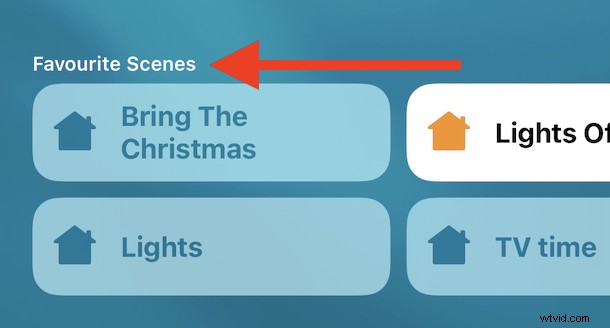
Whether you’re just dipping your toe into home automation with HomeKit or have been collecting accessories for years, you’re no doubt already finding out that it’s no fun to have to go hunting for your favorite or most-used accessories in the Home app. Thankfully Apple seems to know that as well because there’s a handy way to add specific accessories or even whole scenes to a list of favorites into the Home app on iPhone and iPad.
By marking specific accessories or scenes as a favorite you’re not only elevating them above the rest of your setup, but also putting them in their own special place within the Home app. It’ll make them easier to find than ever – and ease of use is important if our smart homes are going to work for us rather than against us.
Setting a HomeKit Accessory or Scene as a Favorite in Home for iOS / iPadOS
Get your iPhone or iPad that is configured with HomeKit to get started:
- Open the Home app on iPhone or iPad
- Tap the “Rooms” tab at the bottom of the screen.
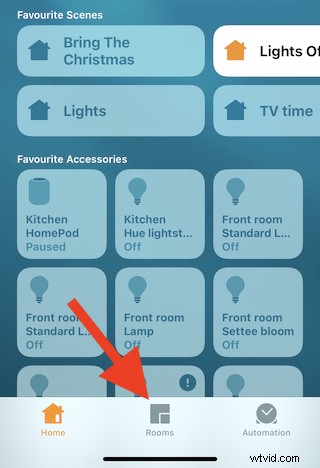
- Swipe through your rooms to find the one that the accessory or scene is in.
- Tap and hold on the accessory or scene that you’d like to set as a favorite.
- Toggle “Include in Favorites” to the “On” position.
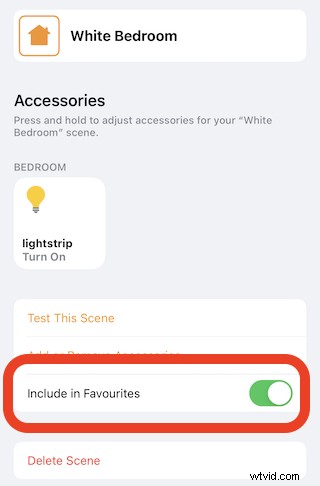
- To remove an accessory or scene, switch the same setting to the “Off” position instead.
You’ll now see those accessories and scenes in the Favorites sections when you first open the Home app on your iPhone. You’ll see them in Control Center, too.
The Home app isn’t just the place to find lights, fans, and other accessories, either. You can find the settings for your HomePod there as well.
The same Home app – and any accessories configured within it – can be used on your iPad or iPhone as well thanks to the magic if iCloud so long as it is signed in to the same Apple ID, so if you use multiple devices you’re good to go.
Do you have any favorites added to Home app? What do you think of HomeKit? Share your thoughts in the comments.