REC

Recommended: Video Production, Editing & Gear Maintenance Guide

 WTVID >> WTVID >  >> Filming equipment >> Cell phones

How to Easily Remove Favorites from iPhone Phone App

How to Easily Remove Favorites from iPhone Phone App

The iPhone Favorites list in the Phone app offers a fast way to dial “favorite” contacts. The Favorites contact list is undeniably convenient, and you may decide you want to change what numbers are shown here or who are in that favorites list. A friend recently asked how to remove an iPhone favorite from their contacts list without removing it from their phone completely, and that’s exactly what we’ll show you how to do here.

It’s very easy to remove a favorite from the Favorite contacts list on iPhone, here is all you need to do:

How to Remove a Contact from iPhone Favorites List

This will not delete the contact from the phone or the general contacts list, it only removes the contact from the Favorites list in Phone app:

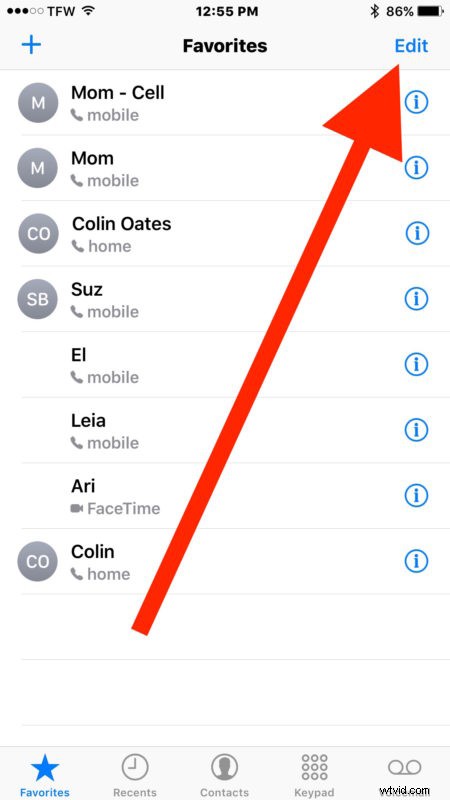
  1. Open the “Phone” app on iPhone then choose the “Favorites” tab
  2. How to Easily Remove Favorites from iPhone Phone App

  3. Tap the “Edit” button in the corner
  4. How to Easily Remove Favorites from iPhone Phone App

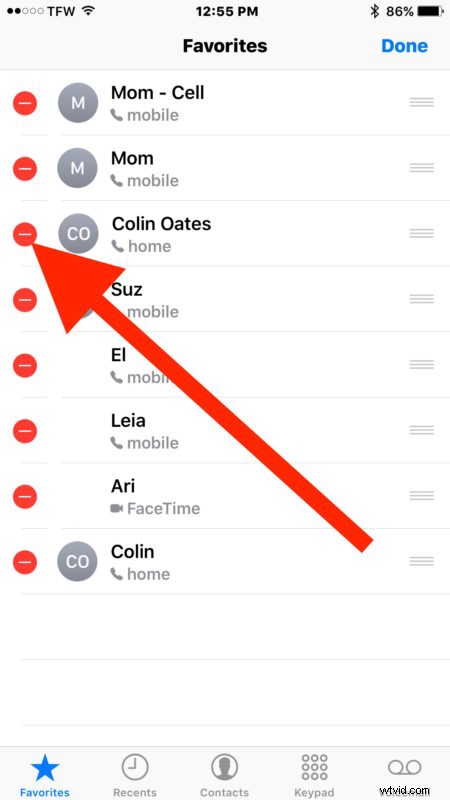
  5. Tap the red (-) minus button next to the favorite contact you’d like to remove from the Favorites list
  6. How to Easily Remove Favorites from iPhone Phone App

  7. Now tap the red “Delete” button that appears to remove that contact from the favorites list
  8. How to Easily Remove Favorites from iPhone Phone App

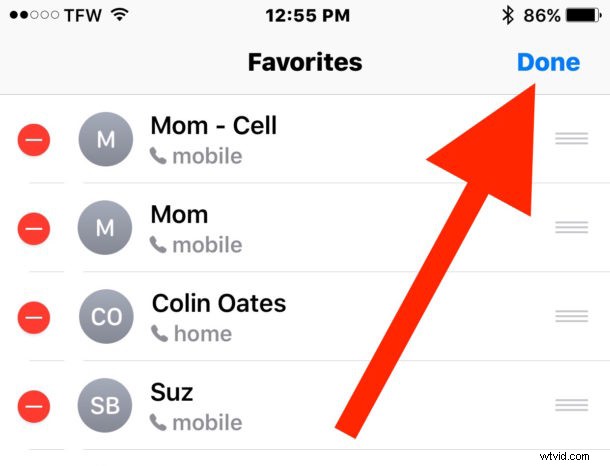
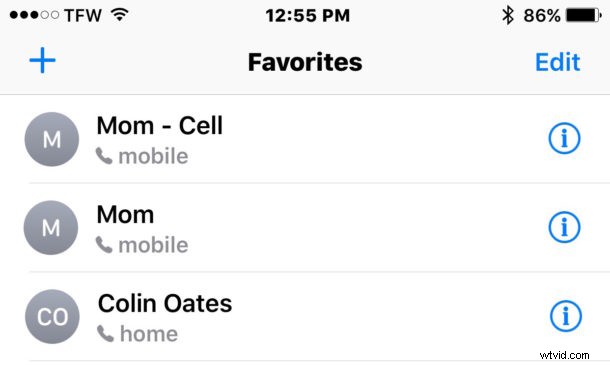
  9. Repeat with other contacts as desired, when finished tap “Done”
  10. How to Easily Remove Favorites from iPhone Phone App

As mentioned before, this only removes the contact from the Favorites list, it does not remove the contact from the iPhone or iCloud.

If you accidentally removed a contact from Favorites that you’d like to re-add, bringing them back is just as easy. To add a new favorite to the Favorites list, just hit the + plus button in the Favorites app to browse the contact list and choose who to add.


  1. Block Unknown Callers & No Caller ID on iPhone: Easy Step-by-Step Guide

  2. How to Easily Remove Unwanted Keyboard Languages from iPhone or iPad

  3. How to Downgrade iOS 12 to iOS 11.4.1 on iPhone or iPad – Limited Time Guide

  4. How to Easily Remove Screen Time Limits on iPhone & iPad: Step-by-Step Guide

  5. How to Delete Unwanted Birthdays from iPhone Calendar: Easy Step-by-Step Guide

Cell phones
  1. How to Easily Forget and Remove Bluetooth Devices from iPhone or iPad

  2. How to Easily Remove Holidays from iPhone & iPad Calendar – Step-by-Step Guide

  3. Step-by-Step Guide: Remove Payment Method from Apple ID on iPhone & iPad

  4. How to Easily Remove a Family Member from Family Sharing on iPhone

  5. How to View All Blocked Numbers on iPhone: Easy Step-by-Step Guide

  6. How to Safely Remove AirTag from Find My on iPhone & iPad: Step-by-Step Guide

  7. Ultimate Guide: How to Use Safari Reading List on iPhone, iPad, and Mac

  8. How to Easily Remove HomeKit Accessories from iPhone or iPad: Step-by-Step Guide