

Want to put a website directly on your iPhone or iPad home screen for super easy and quick access? If you have a website you visit often (like osxdaily.com of course) you may want to add that website to the Home Screen of iPhone or iPad. This places an icon for the chosen website on your devices home screen that can then be tapped on like any other app icon, and when tapped it opens that chosen webpage in Safari on iPhone, iPad, or iPod touch.
Adding a website to the home screen of iOS and iPadOS can be done with any website, whether you bookmark the site or not. This process is really simple with the latest versions of iOS and ipadOS system software, so read on to learn how to add a website to to the Home Screen of iPhone or iPad.
How to Add Websites to Home Screen of iPhone & iPad
Here’s how you can add any website to the Home Screen of iPhone or iPad for quick access:
- Open Safari on the iPhone or iPad
- Navigate to the website you want to add to the home screen (for example osxdaily.com) either by navigating to it directly or via bookmark
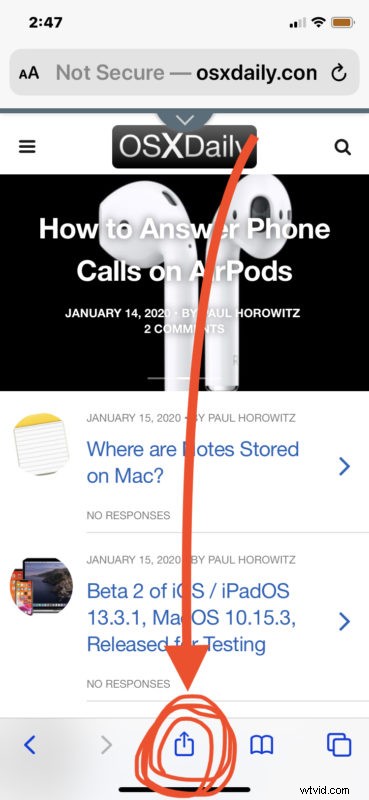
- Tap on the Share icon, it looks like a box with an arrow coming out of the top
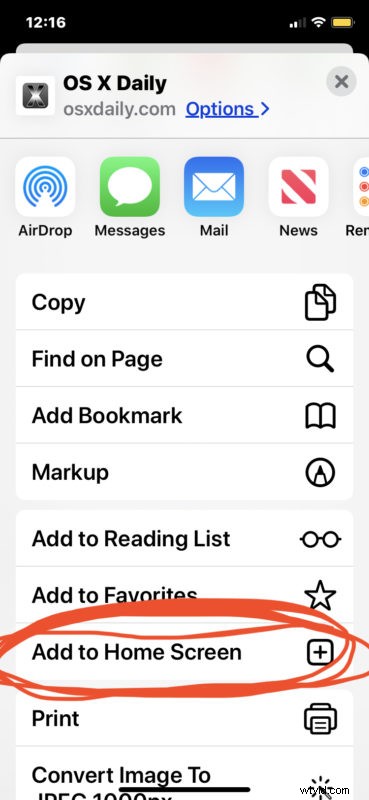
- Scroll through the list of sharing options and choose “Add to Home Screen”
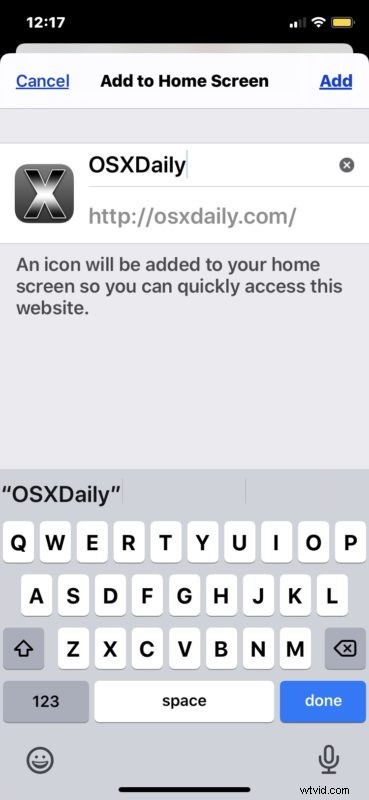
- Give the home screen icon a name (like “OSXDaily.com”) and tap “Add”
- Return to the Home Screen of iPhone or iPad to find the newly created website available as an icon
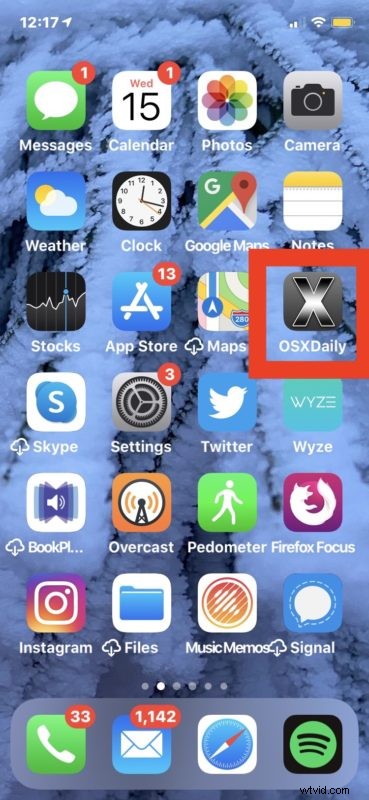
You can move the added home screen website icon to anywhere you want, including to the Dock. Moving these website links on the home screen is the same as rearranging and moving app icons on Home Screen of iPhone and iPad, as is removing and deleting them.
This offers a super simple way to quickly access websites right from the home screen of an iPhone, iPad, or iPod touch.
Once a website home screen icon has been added, tapping on it behaves like any other app except that it launches Safari and goes immediately to the website you chose to add.
These home screen shortcuts to websites differ from general bookmarks, and they also differ from Safari Favorites list collection of bookmarks too. In fact, you don’t have to bookmark a site to add it to the devices home screen at all, though if you’re looking at a site frequently (and we certainly hope you browse osxdaily.com every day at least) it’d be a good idea to bookmark it.
For best results with most websites, you’ll want to pick the home page or root domain of the website rather than a specific article or section. For example, rather than adding this particular article to your device home screen, you’d want to add the root domain of “osxdaily.com” so that when the Home Screen icon is tapped the site launches to the home page.
You can add as many websites to the Home Screen of iOS and iPadOS as you want, so if you have a handful of favorite sites you visit frequently add them all to your devices home screen for easy access.
(Note that this articles screenshot set demonstrate this feature with Safari on iOS 13.3 but it looks the same in iPadOS 13 and later as well, whereas earlier versions of iOS had a slightly different look to “Add to Home Screen” option in Safari Sharing actions menu. You can also add bookmarks to the home screen with Chrome, but that’s a topic for another article.)
Go ahead and try this out yourself by adding osxdaily.com to your devices home screen if you’d like!
Do you put webpages on your iPhone or iPad Home Screen for easy access? Share your experiences and opinions on this capability in the comments.