
 iCloud Drive is a wonderfully useful feature that allows files to not only be stored in iCloud, but also be easily accessible to retrieve or edit from any other Mac or iOS device using the same Apple ID. While iOS has long been able to save files to iCloud, the latest versions of iOS now allow for iCloud Drive to appear as an icon on the Home Screen of devices, thereby enabling a user accessible file system of sorts on the iPhone, iPad, and iPod touch.
From iCloud Drive, users can browse files and open them directly from iCloud, and any changes made on one device will sync instantly to all others accessing that same file from iCloud Drive, whether they’re on iOS or Mac OS X. Users have the option to enable iCloud Drive and show it on the home screen when setting up iOS 9 or later for the first time, but many may have overlooked it or ignored it, thus here’s how to make sure you have iCloud Drive available as an icon on the Home Screen of an iPhone or iPad.
How to Enable iCloud Drive in iOS and Show the Icon on Home Screen
If you haven’t already done so, you need to both enable iCloud Drive in iOS and then allow iCloud Drive to appear as an icon on the Home Screen of the iPad, iPhone, or iPod touch.
- Open the Settings app and head to “iCloud”
- Locate “iCloud Drive” in the list, and toggle the switch for “iCloud Drive” to the ON position
- Next locate “Show on Home Screen” and turn that to the ON position as well
- Exit out of Settings and you’ll find the iCloud Drive icon on the Home Screen of iOS
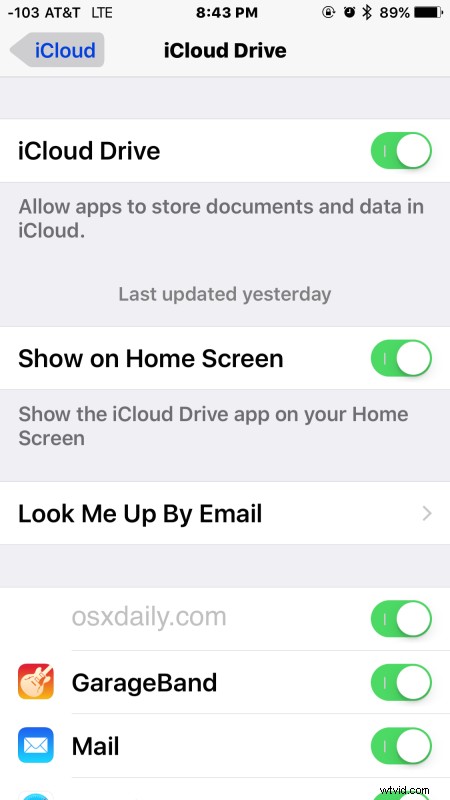
Note that iCloud Drive is now referred to as the “Files” app on modern versions of iOS and iPadOS, and iCloud Drive is now a section within the Files app.
iCloud Drive as an application really behaves like a simple user file system for iOS, where you can search files, then open, view, and edit files directly from the app into a compatible application as well. You can also use iCloud Drive to view pictures and media that are stored in iCloud on any device using the same Apple ID.
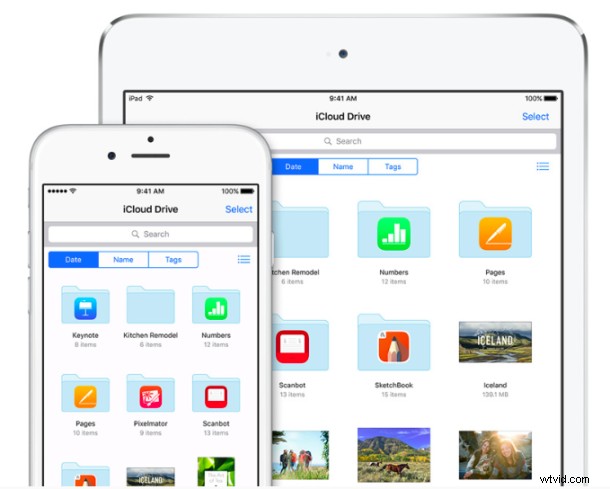
To try this yourself, you’ll need iOS 9.0 or later on any device, but for the most optimal uses, you’ll want to also have a Mac with iCloud Drive too. If you haven’t created any iCloud documents, you can copy files to iCloud Drive from a Mac in OS X and you’ll quickly find them available in iCloud Drive on the iPhone or iPad in iOS.
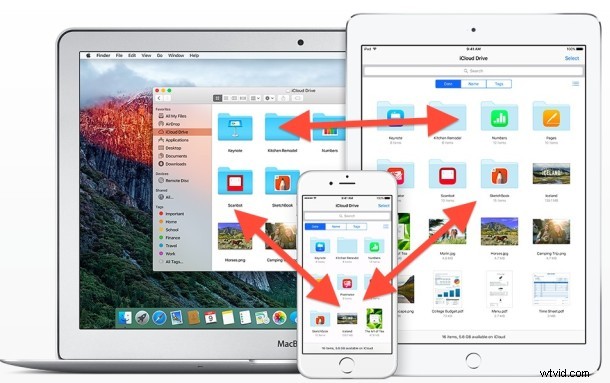
One notable thing missing in iCloud Drive in iOS at the moment is a similar direct copying ability to that like offered in Mac OS X, and as of now there isn’t a method of copying a photo or movie directly into iCloud Drive from the Photos app, though you can save modified photos or videos directly into iCloud Drive. Nonetheless, iCloud Drive is a really useful feature and for any user who has wished iOS to have a direct user accessible file system of their stuff, this and Photos app is about as close as it gets currently.