
Do you use Google Chrome instead of Safari as your preferred web browser on your iOS device? Perhaps you have even set Chrome as the default browser on your iPhone or iPad. In that case, you might be interested in learning how you can add Chrome bookmarks to your iPhone or iPad home screen.
Unlike Safari that comes pre-installed on iOS and iPadOS devices, third-party web browsers like Chrome and Firefox have multiple limitations. For example, you lose access to features like being able to add web page bookmarks to your home screen for quick access, whereas Safari has been capable of doing that since the beginning. However, we have a workaround that you can use to add any web page to your home screen and make sure it opens in Chrome rather than Safari.
Here we’ll be walking you through the steps to add Chrome bookmarks and other websites to the home screen on your iPhone and iPad.
How to Add Chrome Bookmarks to iPhone & iPad Homescreen
To achieve this, we’ll be making use of the Shortcuts app that comes pre-installed on modern iOS and iPadOS versions from 13 and up. . If your device is running iOS 12 or if you can’t find the app on your device, download Shortcuts from the App Store.
- Open “Shortcuts” on your iPhone or iPad.

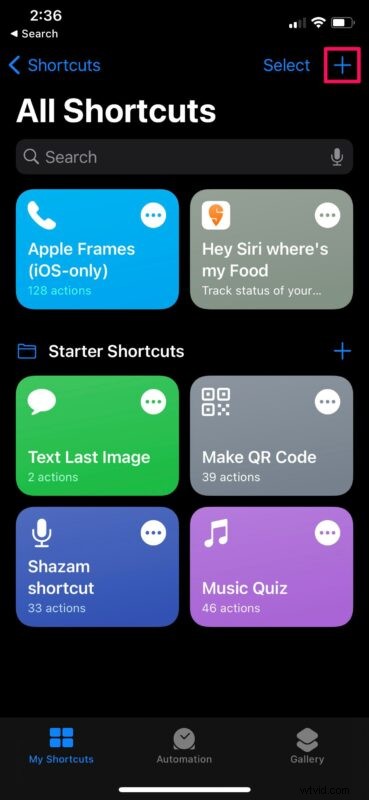
- Head over to the “My Shortcuts” section of the app and tap on the “+” icon at the top-right corner of your screen.
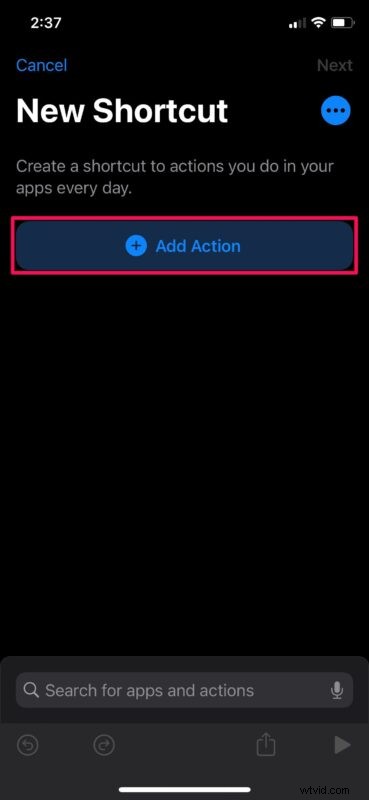
- Next, tap on “Add Action” to get started with a new shortcut.
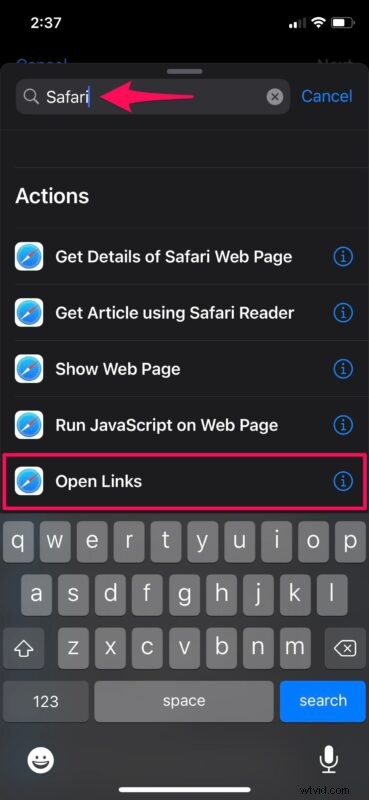
- Now, type “Safari” in the search bar and scroll down to the “Actions” category. Here, choose “Open Links” action, as shown below.
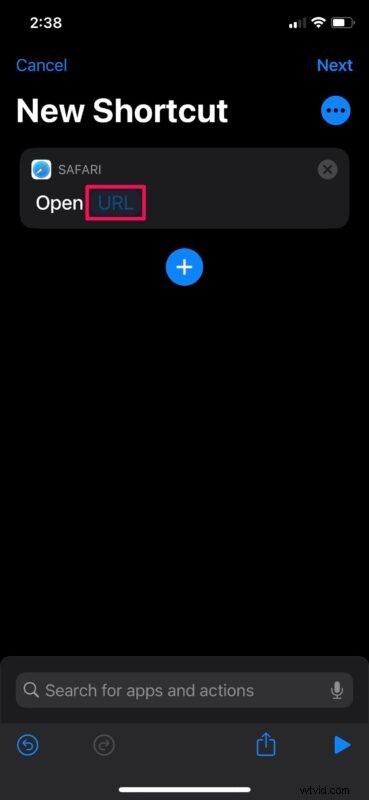
- Now, tap on the “URL” part of the Safari card to proceed to the next step.
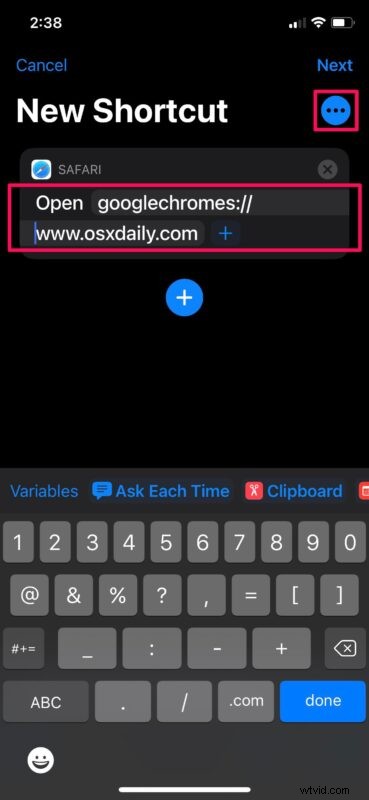
- Type “googlechromes://” followed by the website URL of your Chrome bookmark. For example, if you want to add a shortcut to open OSXDaily in Chrome, you’ll need to type “googlechromes://www.osxdaily.com”. Once you’re done, tap on the triple-dot icon to continue.
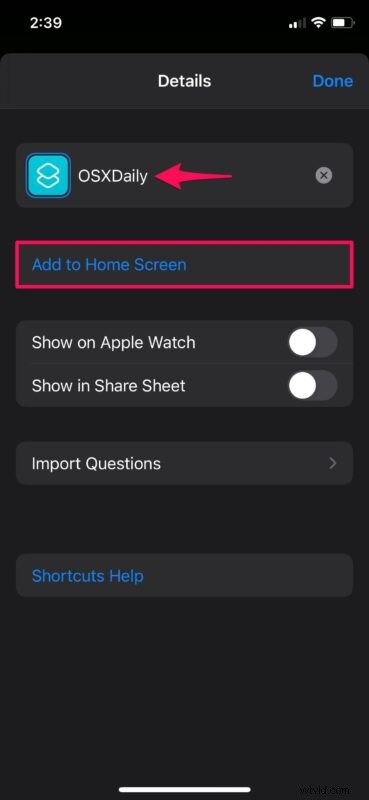
- Give a name for your shortcut and tap on “Add to Home Screen”.
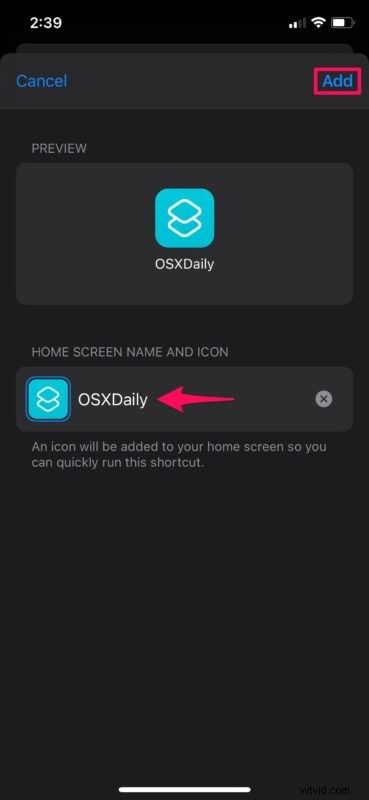
- As for the last step, you’ll be able to choose a desired home screen name and icon. Tap on “Add” to save the changes.
- You’ll be able to find the new shortcut in your home screen. Tap on it to open the website directly in Google Chrome.
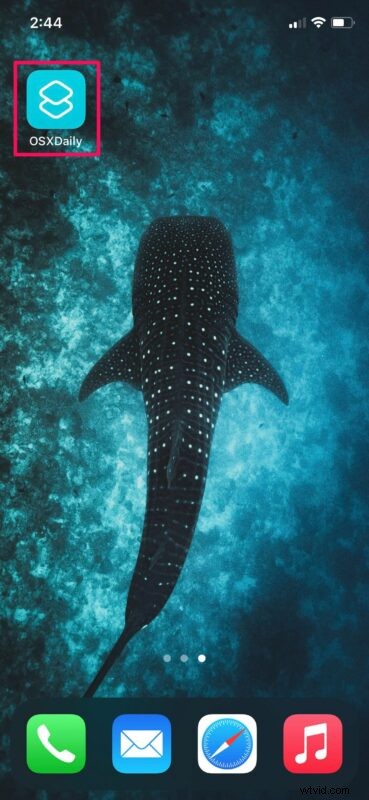
There you go. You’ve successfully learned how to add Chrome bookmarks to your iOS or iPadOS home screen using the Shortcuts app. It’s not as seamless as adding a home screen bookmark with Safari, but it works.
It’s worth noting that upon tapping this shortcut icon, you’ll be taken to the Shortcuts app for a split second before Chome opens up with your configured website. Likewise, you can create multiple shortcuts to open multiple URLs and use this method to launch your Chrome bookmarks quickly from the home screen.
That being said, if you use Safari and if you’re not aware of its native “add to home screen” feature, you can read this to learn how to add a website to the home screen of your iPhone or iPad from Safari. And if you use Safari as your primary browser anyway, that’ll probably be desired.
It’s unclear if Google Chrome and other third-party browsers will support this feature natively, but if they don’t you’ll have to rely on Apple’s Shortcuts app to create custom actions and scripts as shown here. For now, this is as close as you can get to launching websites directly in Chrome rather than Safari, though with modern iOS and ipadOS versions you can also set Chrome as the default browser on the iPhone, iPad, or iPod touch, which is an appreciated feature for many users.
Were you able to set up the shortcut properly and open bookmarks directly in Chrome? What do you think about this neat workaround? Do you have another solution to launching websites and bookmarks directly into Chrome from the home screen of an iPhone or iPad? Share your experiences, opinions, and thoughts in the comments.