
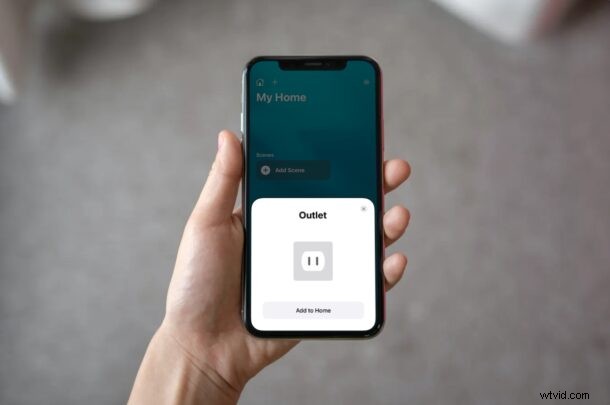
Are you trying to set up a smart home or a room with Apple HomeKit accessories? If this is your first accessory, you may have trouble setting everything up. Fortunately, it’s pretty easy and Apple makes the process pretty straightforward with the Home app.
HomeKit is Apple’s response to Amazon Alexa and Google Home which is here to take over your home. Smart home accessories allow you to use voice commands to perform various important functions and with home hubs like the HomePod and Apple TV, you can automate their operation too. Nowadays, an increasing number of smart equipment are compatible across all three major smart home platforms, including things like cameras, speakers, doorbells, thermostats, power outlets, lighting systems, and much more. If you’re looking to pair an accessory that works with HomeKit, read along and you’ll be adding your new HomeKit accessory using your iPhone and iPad.
How to Add HomeKit Accessory on iPhone & iPad
We’ll be making use of the built-in Home app to add your new accessory. If you can’t find the app on your device, you can download it from the App Store. Once you’re ready, make sure the accessory is powered on and nearby before proceeding with the following steps:
- Launch the Home app on your iPhone or iPad.

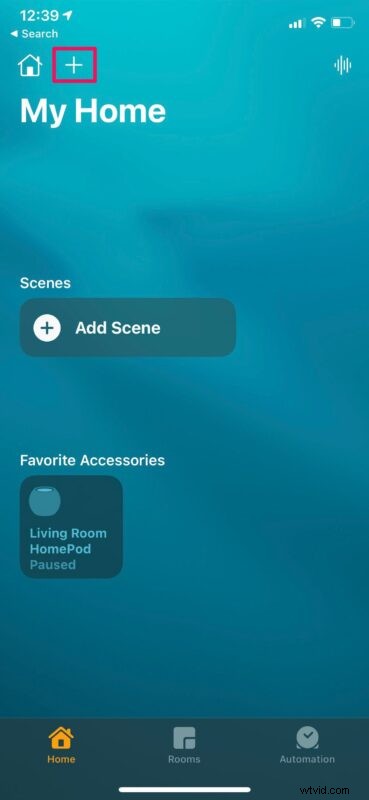
- Check if you’re in the Home section of the app and tap on the “+” icon located at the top as shown below.
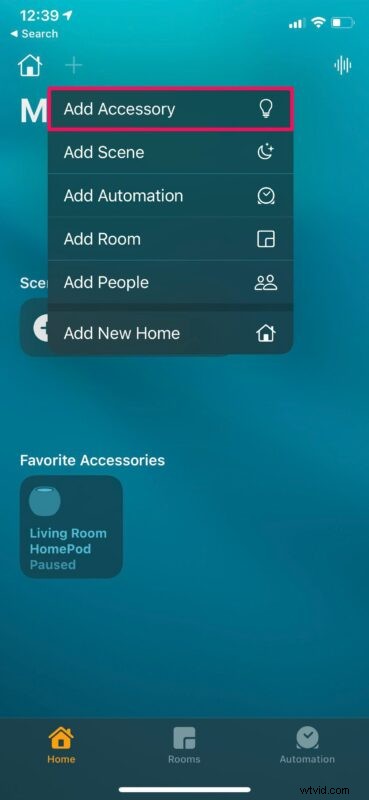
- Now, tap on “Add Accessory” from the context menu to get started.
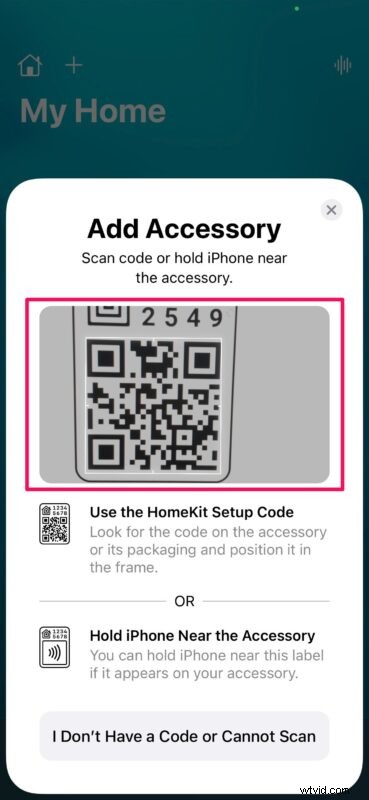
- This will bring up the QR code scanner within the HomePod. Look for the HomeKit setup code which is typically shown on the accessory or in its packaging box. Alternatively, you may have the option to pair it with NFC depending on the accessory you have. If you see the NFC label instead of a QR code, hold your iPhone next to the label.
- Once scanned, the accessory you’re trying to pair will show up within the Home app. Now, simply tap on “Add to Home”.
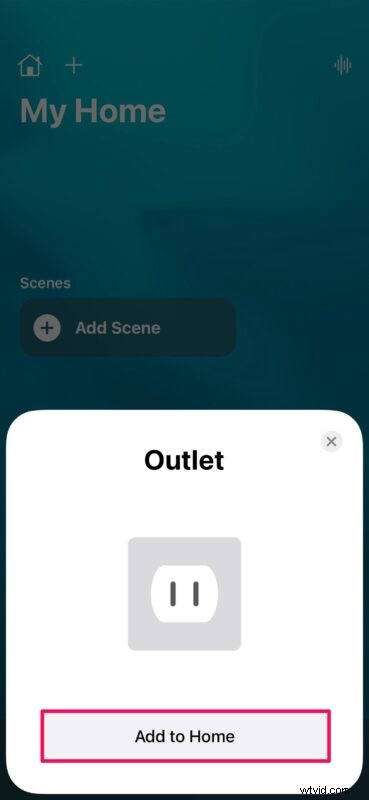
- At this point, you simply need to wait a few seconds for the pairing process to complete, and once it’s done, you’ll be able to control the accessory using the Home app.
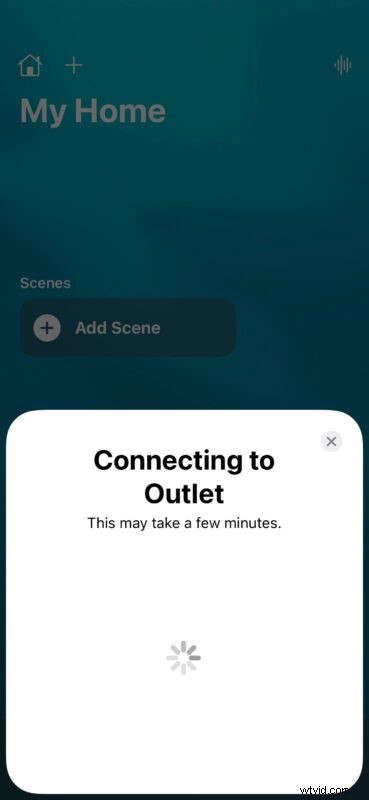
You’ve successfully paired your first HomeKit accessory with your iPhone or iPad.
You can repeat the above steps to add other HomeKit accessories and configure your smart home, if that’s what you’re trying to accomplish here.
Some accessories may need additional hardware to work with HomeKit, so check the manual to make sure you’ve met the requirements before the pairing process.
If the accessory didn’t come with a code or you’re unable to scan for whatever reason, the Home app will attempt to find the device if you choose “I Don’t Have a Code or Cannot Scan”. To be detected, the accessory must support HomeKit or AirPlay 2. You can also manually enter the 8-digit code above the QR code or NFC label and finish the pairing process if you’re just not able to scan it.
Now you know how to set up, pair, and configure Apple HomeKit accessories using your iPhone and iPad. How many HomeKit accessories do you have currently? Do you use a HomePod or Apple TV as your home hub? Share your thoughts, experiences, and opinions in the comments.