
Create an Instagram stop motion video
Stop Motion is a filming technique originally applied for shooting puppet-animated films. A puppet was set in a certain posture, a picture was taken, then the animator changed the puppet’s position a little bit and took the next frame, and so on.
Nowadays it’s just one of the visual effects and you can even apply it to a recorded clip. Instagram Stop Motion videos inevitably draw viewers’ attention and gather more likes than static pictures or regular shootings.
And here’s where we can help you!
First and foremost, all the Clideo tools are free for files up to 500 MB. You don’t have to register or buy a paid subscription to enjoy the full functionality of our service without any ads or banners. It is compatible with all the operating systems and device types.
Just follow three simple steps.
Upload an initial video
Open Clideo’s Stop Motion Maker and hit the “Choose file” pane to select a shooting from your personal device.
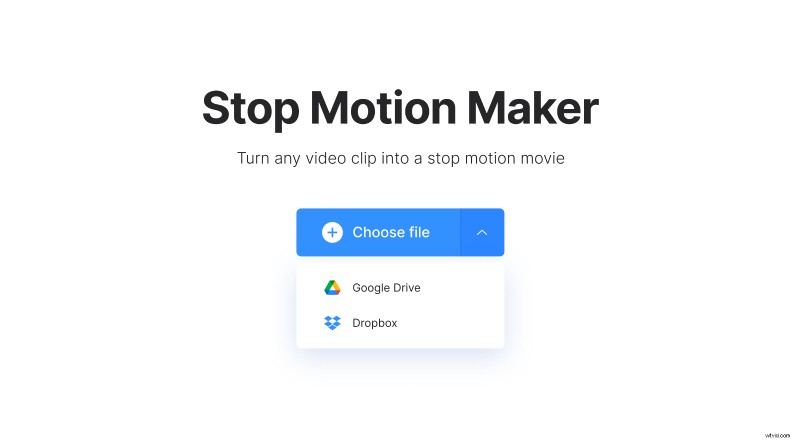
Another option – hover the cursor over the face-down arrow to call a menu. From over there you can import files from your Google Drive or Dropbox cloud storage accounts.
Create a Stop Motion video for Instagram
First of all, select a speed: slow, medium or fast. Then decide on a clip rate: this setting means how often the service will take a frame from the original video.
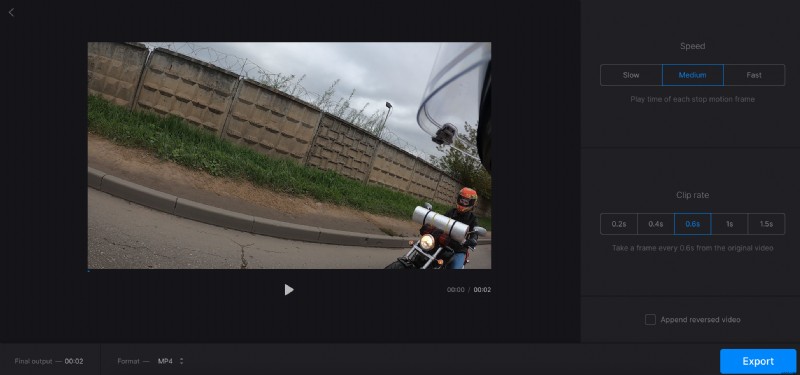
If you tick the box “Append reversed video”, the clip will become two times longer as it will be played back right after the end.
You can change an output format below the player if you want. Instagram accepts MP4 and MOV.
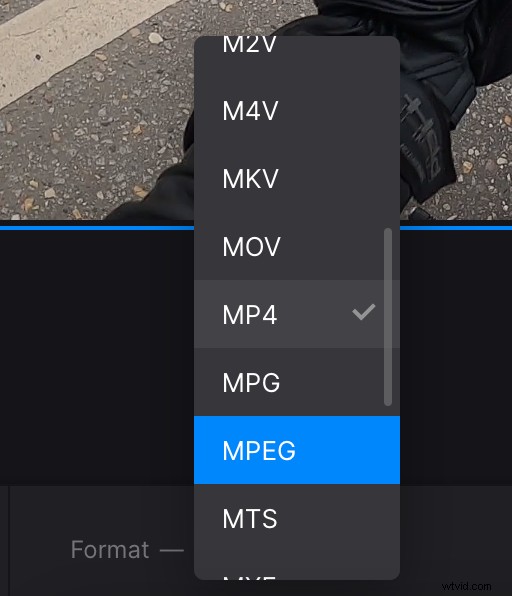
When you are done, hit “Export” and get ready to revise the result.
Save the edited clip
Give the shooting the final run to check if everything is just fine. If so, save the recording to your personal device, Google Drive or Dropbox.
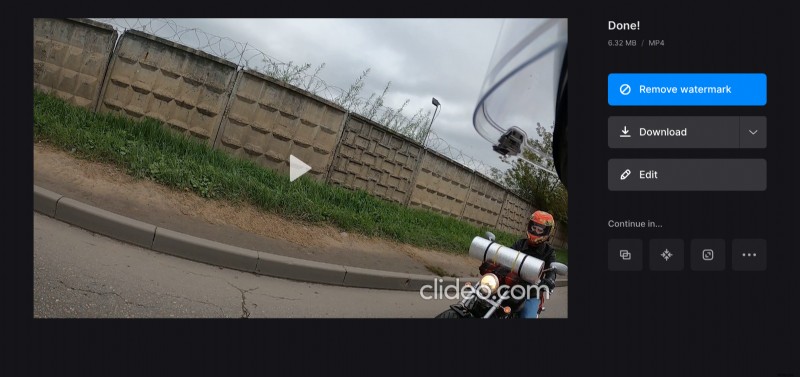
If you want to alter anything, hit the “Edit” pane. The system will ask you, if you are sure, press “Ok” and keep working.
Clideo Pro subscribers can also upload the edited video to other tools right away, without previous saving and make them meet Instagram specs.