
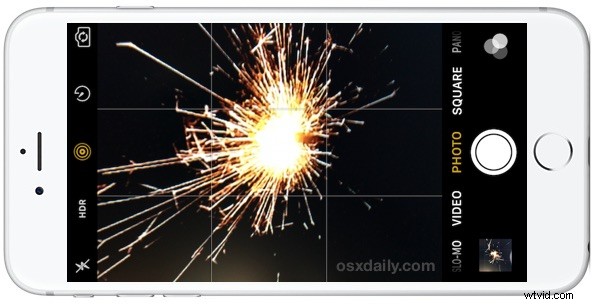
Action sequences are notoriously difficult to get a picture of, and that’s where taking photos with Live Photo on iPhone can be particularly great. This is especially true with any activity shots or moving items, whether it’s for sports, people goofing around, or various celebrations. For those with newer iPhone models, using the ability to shoot Live Photos with the newer cameras is a great way to get action sequences that are otherwise impossible to capture. As you’ll see, snapping Live Photos makes for a great way to capture the excitement and action of any event, sports, firework report, or even some fun with a backyard sparkler.
For the less familiar, Live Photos are basically mini-videos that can easily be shared or converted into looping gifs. If you’re already familiar with Live Photos, try it out during a firework extravaganza or celebration, you’ll almost certainly enjoy the results. For a quick overview of how Live Photos works to snap pictures, read on on:
How to Take Live Photos with iPhone Camera
The key to taking Live Photos is for the iPhone to be compatible with the feature (all 3D Touch compatible devices have it, including iPhone 7s, 6s and 6s Plus, as does iPhone SE), and then to be sure the feature is enabled and used properly:
- Open the iPhone Camera app as usual, and go to the Photo option
- Toggle the switch for Live Photos so that it’s turned on, it looks like a ring of concentric dotted circles and it will turn yellow when enabled
- Take pictures of your subject as usual and hold the camera steady, the Live Photo will create automatically
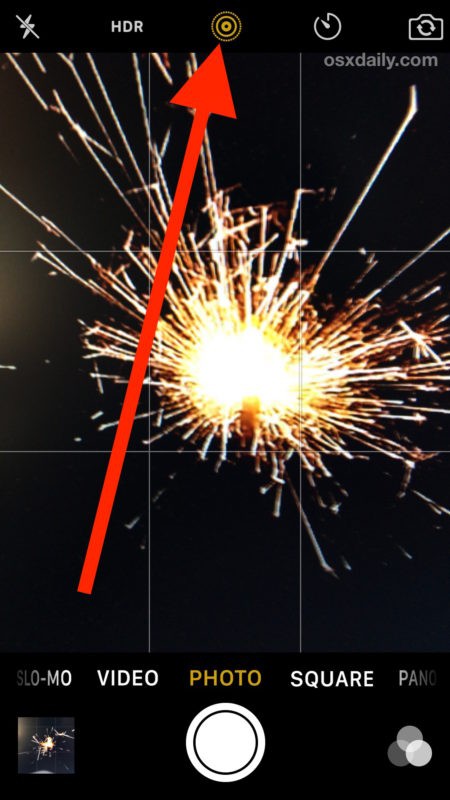
The Live Photos setting will stay enabled once you have toggled the switch on, so take as many Live Photos as you want with iPhone camera, and you can then go back later to the Photos app to review them all.
Viewing the Live Photo by default is just a matter of a finding the picture in Photos app, then using a hard press on 3D Touch equipped iPhone models to see the Live Photo play. On iPhone SE, bringing up the picture in Photos app and then using a long tap will play the Live Photo animation in a similar way.
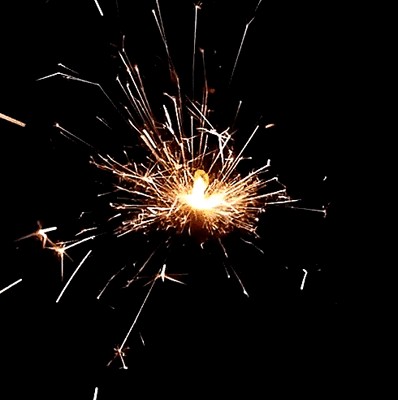
Here is a Live Photo take with iPhone of a sparkler, then converted to an animated GIF:
Live Photos Photography Tips
- Keep the iPhone camera extra steady for longer than usual when taking a Live Photo, this is because a few seconds are captured on both the front and back end of the shot to capture the Live Photo moment
- Try to take Live Photos in bright lighting (like daylight or under bright lights), or of a brightly lit object (like fireworks) for best results
- Review the Live Photos afterwards and ditch the ones that didn’t turn out well, they take up a bit more space than a typical picture and can quickly eat up storage on iPhone
- Use a third party tool to turn the Live Photo into an animated GIF afterwards, which can make for a better cross-platform compatible format to share a Live Photo with, two excellent choices are:
- Converting Live Photos into animated GIF with Gif Toaster app (free)
- Google Motion Stills (free) stabilizes and generates GIFs of Live Photos
- Toggle the feature off when you are finished using it, otherwise Live Photos will stay on and every picture taken on iPhone will be a live photo
- You can turn a Live Photo into a regular still photo as well if you decide one particular picture works better as a still shot rather than an animated image
As with much else in the technology world, the key is to have fun, experiment, and try things out. The more iPhone photos you take with Live Photo, the more you’ll learn the intricacies of the feature, including what works well and what doesn’t. Apple offers a variety of examples of Live Photos on their iPhone Camera website as well, demonstrating they work well with any action or activity going on, even a dog moving his head around:
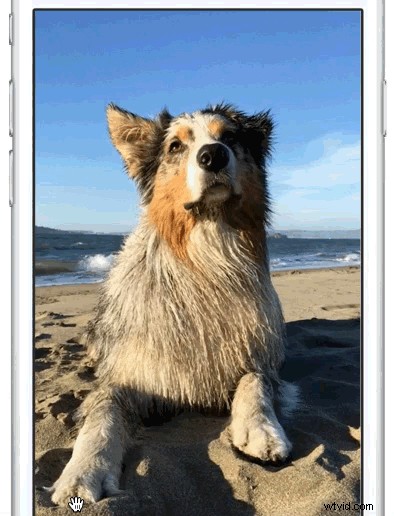
Many iPhone users may have disabled the Live Photo option for various reasons, so that’s why it’s important to double-check and confirm the feature is enabled. You can always turn it off again easily by toggling the same camera setting, but for events like firework shows, close-ups of pie eating contests (ok maybe not that), and any other amusing live action, the Live Photos is just about perfect.
Live Photos are particularly good for fireworks and events, for the former you may want to review some tips to take pictures of fireworks or even record a video of the firework show.
Anyway, have fun out there, and take some Live Photos!