
Using Portrait Mode to achieve a depth effect on photos may be limited to certain iPhone models with dual-camera lenses, but a variety of third party apps are bringing similar portrait mode photography features to all other iPhones too. Instagram is one of them, with a “Focus” feature that captures pictures using a similar depth effect as Portrait Mode does.
While Instagram Focus mode isn’t perfect, it may be good enough for many iPhone users who want to have a depth effect with a blurred background behind their subject.
Since this uses Instagram, you’ll obviously need an Instagram account and the app installed on your iPhone to use the Focus mode feature.
How to Use Instagram Focus Mode for Portrait-Like Photos on Any iPhone
Instagram Focus mode works best with faces, and it actually says “Find a face” when you try to use the feature, so for now that should be what you’re trying to take a picture of with the depth effect. Here’s how to access this Focus feature and how it works:
- Open Instagram on the iPhone if you have not done so yet
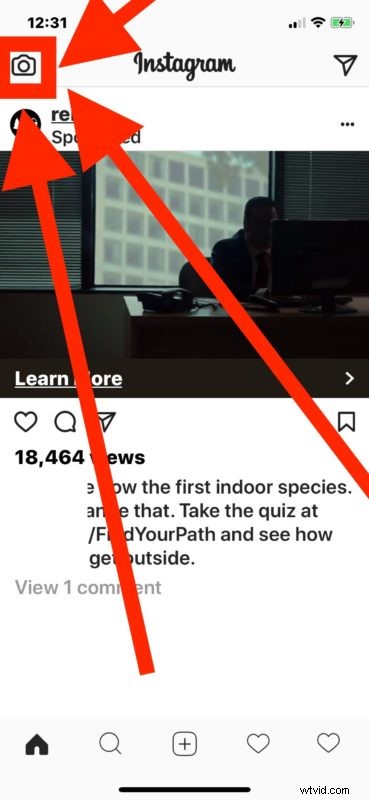
- From the home screen of Instagram, tap the Camera icon in the top left (or swipe to the right to access the camera that way)
- Swipe over on the camera mode options until you see “Focus” and choose that
- Snap your “Focus” photo of a persons face
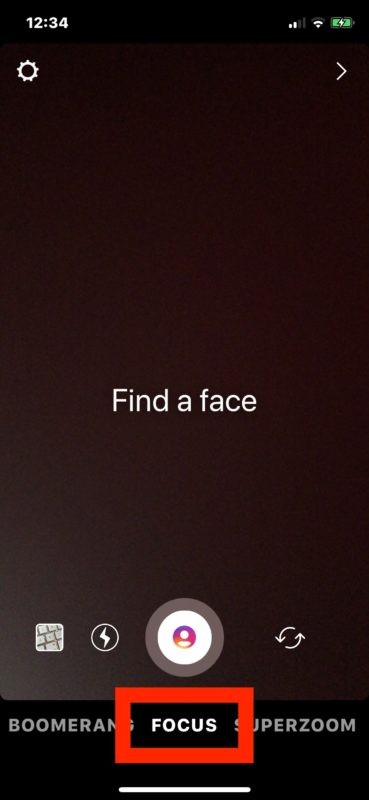
When a photo of a person (and their face) is snapped in Focus mode, the background will blur and be out of focus, emphasizing the foreground and subject of the photo.
This is obviously just a software trick, but that’s how most of these depth effect features work, regardless of the app, including how Portrait Mode on iPhone, iPhone X, iPhone 8 Plus, and iPhone 7 Plus works too, along with similar depth and portrait type features on Android phones, and other various third party iOS apps.
Of course you can also manually apply blurs to Instagram photos when editing them within the app, which may achieve a similar effect too, but the Focus mode aims to simplify the process by doing it for you, and by focusing on faces too.
And yes while this is geared towards iPhone, it should work the same on Android Instagram as well, and even Instagram on an iPad if you installed the iPhone app onto an iPad.
If this sort of thing interests you, try it out!