
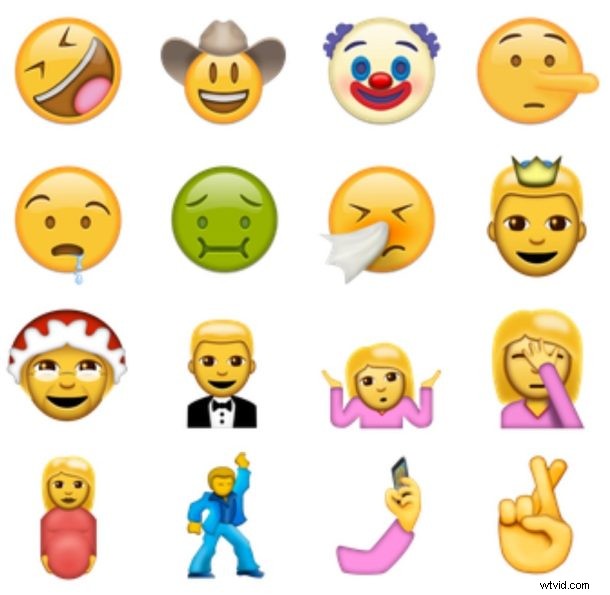
iOS 10 is probably going to include 72 new emoji characters as part of the Unicode 9.0 standard, but you don’t have to wait for the next generation operating system if you want to start having fun with the new emojis right now.
Using a little copy and paste trickery, you can get ahold of the new Emoji icons and use them right now, and use them on any iPhone, iPad, or even a Mac, PC or Android if desired.
Note this is a workaround that uses images of the Emoji, as they are not yet included in the Emoji keyboard in iOS or elsewhere, regardless of the system version. It’s assumed that the Unicode 9 emojis will be bundled with a future iOS 10 Emoji keyboard, but at the moment it’s not included in the installed beta version.
Using New Emoji Icons with a Copy & Paste Trick
- Go to Emojipedia here and scroll down a bit until you start seeing the emojis
- Tap and hold to select, and drag down until you get to the bottom of the emoji list, then choose “Copy”
- Switch over to the Notes app in iOS and create a new note, then tap and hold then select “Paste”
- To use an individual Emoji, tap and hold on it and choose copy, then paste it into an iMessage, email, or elsewhere
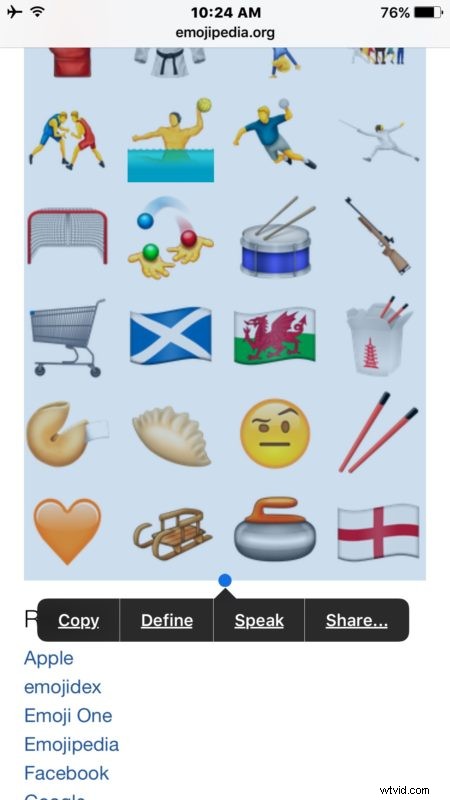
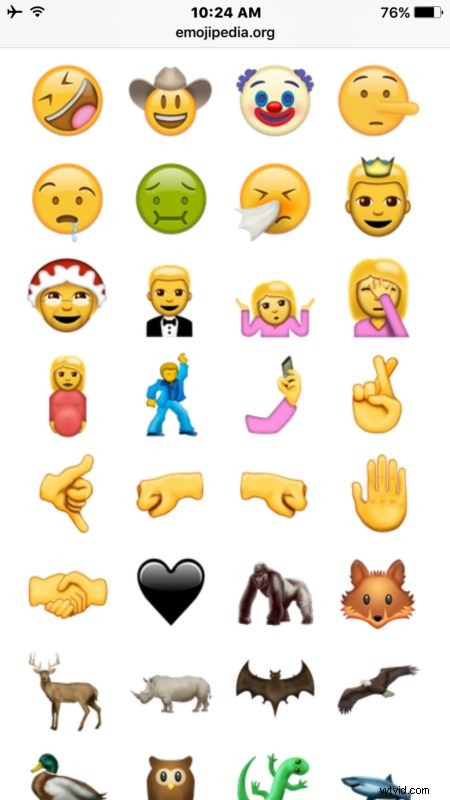
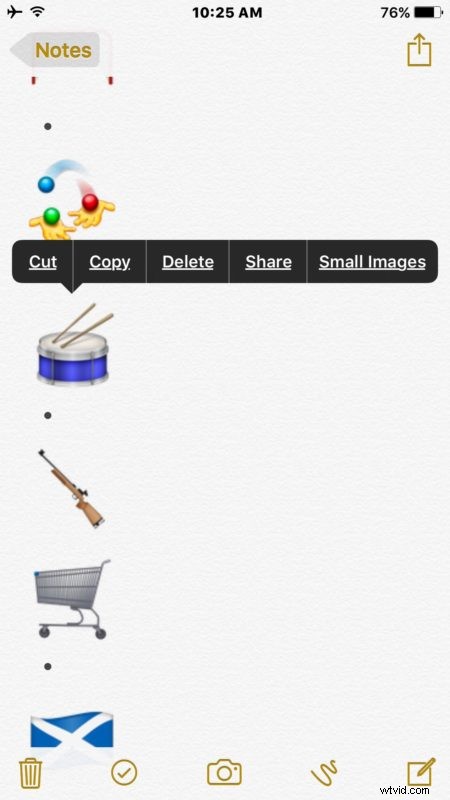
This focuses on copying and pasting for use in iOS, but it would work the same on the Mac, Android, or Windows too.
As mentioned before, this is very much a workaround, because these are image files and not the full resolution Emoji icons themselves. Basically this means if you look at them up close or at larger resolution you’ll find they become pixelated sooner than they would otherwise. Additionally, since they are images rather than Emoji characters, they render as an image rather than a special character, and don’t scale up or down the same. Nonetheless if your primary communications method is in Messages app, it works fine to get the point across.
Heads up to iDownloadblog for finding the trick.