
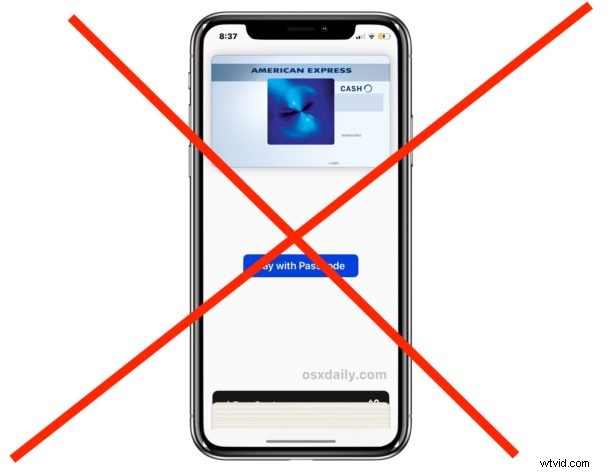
Ever picked up iPhone XS, XR, X and found Apple Pay credit cards on screen? Or have you pulled iPhone X out of a pocket or bag and discovered that Apple Pay is open on the lock screen? This is from a new Apple Pay access feature that iPhone X enables by default, which allows the devices side power button to be pressed twice to bring up the Apple Pay wallet screen.
If you’re an iPhone X user who is frequently bringing up the Apple Pay screen when you don’t want to, you can disable the feature that causes Apple Pay to present itself when the side button is double-pressed. This will prevent Apple Pay from constantly coming up accidentally or unintentionally while handling iPhone X.
It’s worth mentioning that turning off side-button activated Apple Pay and Wallet on iPhone X will prevent the feature from coming up side button presses, but it does not disable Apple Pay or the wallet feature entirely. Instead, if you turn off the Side Button activation of Apple Pay and Wallet, then you’ll have to just manually open the app when you want to use the payment feature on iPhone X series.
The double-press Side Button to access Apple Pay on iPhone X feature is basically the equivalent of double-click Home button to access Apple Pay on the lock screen of other iPhone models. But, since iPhone X has no Home button, the Side power button triggers the event instead. Anyway, let’s turn this off for users who don’t want it.
How to Turn Off Apple Pay Side Button Access on iPhone X, iPhone XS, iPhone XR, iPhone XS Max
- Open the “Settings” app and go to “Wallet & Apple Pay”
- Locate the “Double-Click Side Button” and toggle OFF
- Exit out of Settings
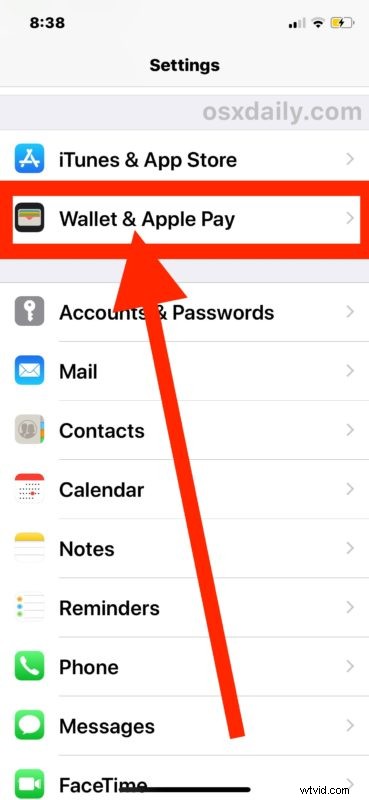
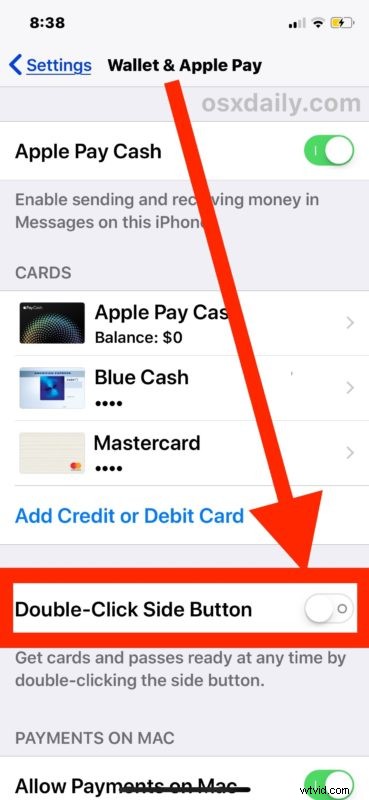
Now you can double-press the side button as many times as you want, whether intentionally or not, and it will turn on or off the iPhone X screen, but Apple Pay and Wallet will not show up.
To open Apple Pay and Wallet after turning this feature off, you’ll want to unlock your iPhone X and then find the Wallet app, opening it directly. That might be slightly slower for some users, depending on how and where you keep Wallet app.
I don’t know about anyone else, but personally I am constantly unintentionally opening Apple Pay on my iPhone X lock screen whether I want to or not. I suspect it’s just a side effect of how easy it is to hit that power side button, which many people also use to turn on the devices screen or access Siri, amongst performing other tasks like changing the device volume, taking screenshots on iPhone X, force rebooting, and initiating device power downs.
Of course if you regularly use the Side Power Button access for Apple Pay then you won’t want to turn this feature off. And if you do like the idea of this feature but aren’t using it, then setup Apple Pay on the iPhone, or add a new card to Apple Pay, so that you can use the feature quickly like this.
How to Enable Apple Pay Lock Screen Access on iPhone X
Enabling or re-enabling the lock screen access of Apple Pay on iPhone X is just a matter of reversing this setting option.
- Open “Settings” app on iPhone and go to “Wallet & Apple Pay”
- Find “Double-Click Side Button” option and toggle to the ON position
If you turn this feature on (which is the default of iPhone X with Apple Pay) then you can double-press the Side Power button to access Apple Pay at any time, whether the screen is locked or not.
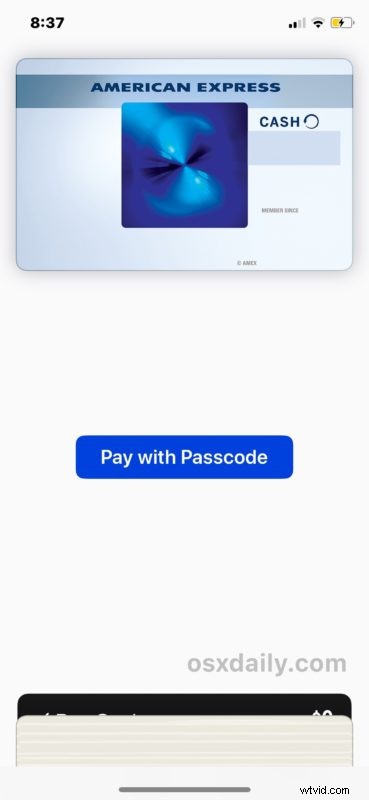
Again, this double-power button pressing Wallet access is specific to iPhone X (and surely whatever other iPhone models will not have the Home button), but if you find yourself accidentally opening Apple Pay on other iPhone devices than you can stop Apple Pay lock screen access on other iPhone too by turning off the Home button shortcut.
This is one of those shortcut features that is a matter of personal preference, and likely how much you use (or don’t use) Apple Pay will determine if you like it or not. Fortunately, you can easily change this to suit your own needs.