

Is someone bothering you by constantly trying to call you on FaceTime? Regardless of whether it’s a random phone number of it’s someone in your contacts, you can easily block these callers on your iPhone and iPad.
Blocking is a feature that’s available on almost all social networks, video calling, and phone calling services today. You can even block contacts on iPhone completely if you want to. This is to make sure that users have complete control over who can try to communicate with them. As a result, you have preventive measures to stop any further annoyances, spam, or harassment.
Apple’s built-in FaceTime service is no exception in that regard, providing a convenient way to block and unblock other users. And that’s what we’ll be focusing on here; blocking a FaceTime caller on your iPhone or iPad.
How to Block Facetime Callers on iPhone & iPad
If you’re trying to block a random caller in FaceTime, you’ll need to add them to your contacts list first before you’re able to add them to the blocked list. Simply follow the steps below to get started.
- Open “Settings” from the home screen of your iPhone or iPad.

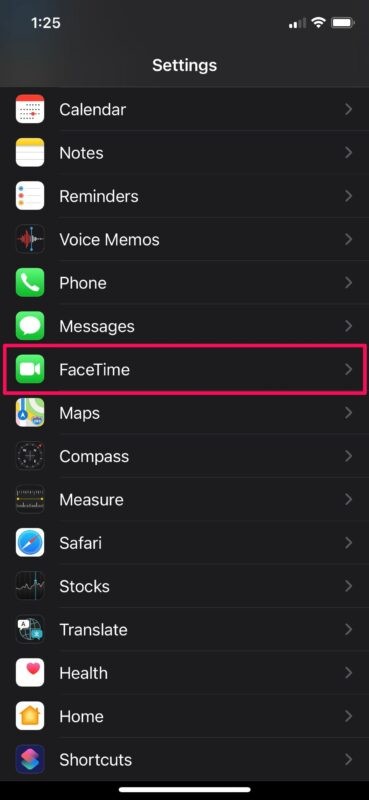
- In the settings menu, scroll down and tap on “FaceTime”.
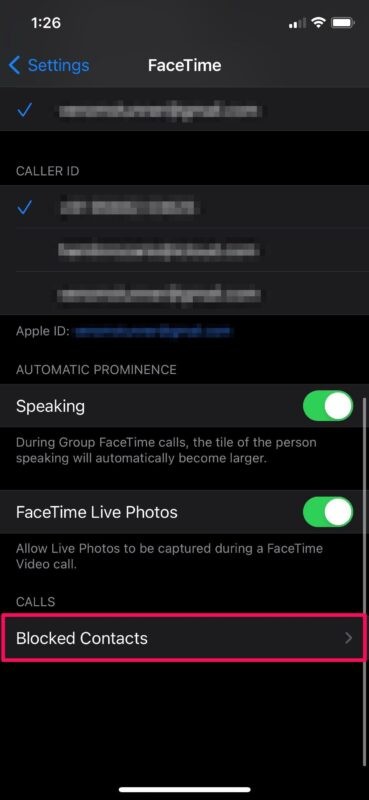
- Next, scroll to the bottom of the FaceTime settings menu and tap on “Blocked Contacts”.
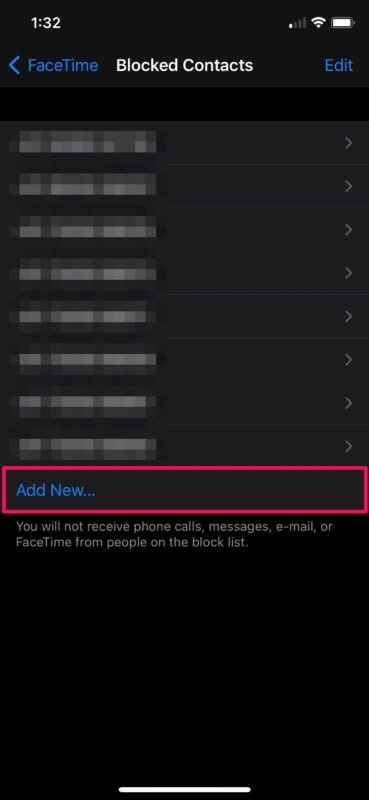
- Now, choose “Add New” to add a new contact to the blocked list.
- This will launch the contacts book on your device. Just choose the contact you want to add to this list and you’re all set.
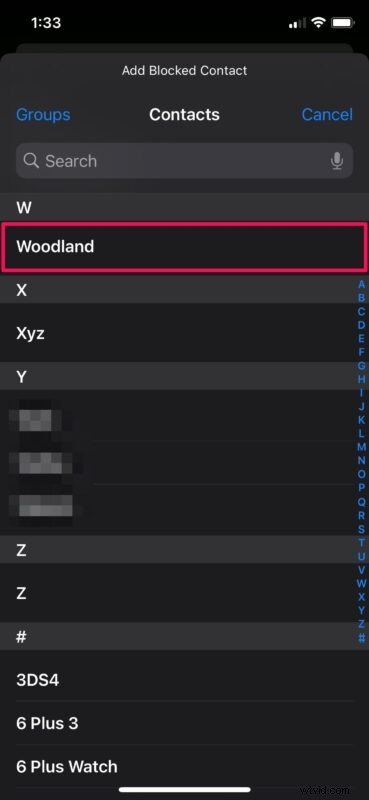
There you go. Now you’ve learned how to block someone on FaceTime using your iPhone and iPad.
There’s one important thing to keep in mind when you do this. When you block someone on FaceTime, you will also no longer receive regular phone calls, messages, and e-mail from this person. So, if you were looking to block someone just on FaceTime and keep them unblocked on everything else, you’re out of luck, since there’s no such option currently.
You can follow the same steps to see the list of all blocked numbers and contacts on your iOS or iPadOS device. You can use this to unblock any of the contacts or add anyone else if you prefer.
Alternatively, you can block someone from your recent callers list. This way, you don’t need to manually add a random phone number to your contacts, just to block them. You can use the same menu to unblock the caller too.
What do you think of this capability? Do you wish you could selectively block FaceTime calls but allow other methods of communication or a particular contact or person? Let us know your thoughts in the comments.