
 Ever received a junk iMessage to an iPhone or iPad from someone you don’t know, or that is clearly spam? With new versions of the Messages app, there is a simple way to report the spammy iMessage sender as such to Apple, which helps them to detect and reduce junk bulk iMessages.
Reporting iMessage spam as junk and deleting the message is done in one single workflow:
How to Use Reporting & Trashing of iMessage Spam on iPhone, iPad
- When a junk spam iMessage arrives, open it as usual
- At the bottom of the iMessage look for the message “The sender is not in your contacts list. Report Junk” – tap on the Report Junk button, then confirm that you want to delete the message and report it as junk
Once confirmed, Messages app will back out of the junk message and return to the inbox.
With the iMessage reported as spam and trashed, the message is removed from the iPhone, iPad, or iPod touch, and there shouldn’t be any need to have further interaction with the message.
Here is an example of a common type of iMessage spam coming from iCloud spammers:
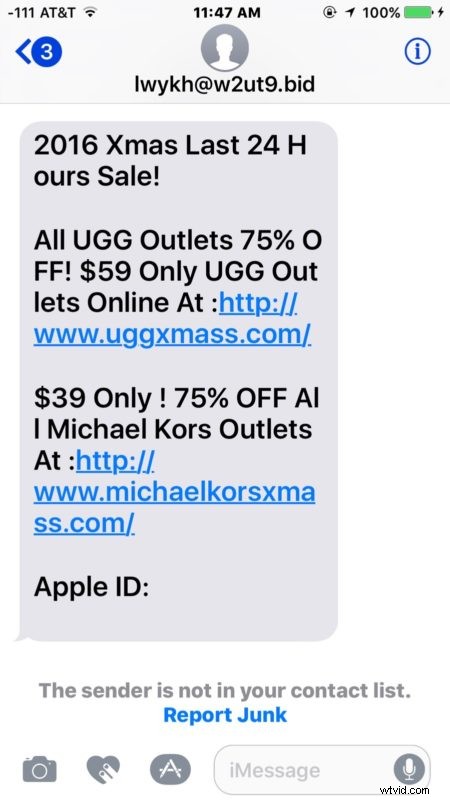
If you see these type of junk messages, be sure to report them to Apple as described above.
If you get a ton of strange junk messages, you might find this to be a helpful option to pair with unknown message sender filtering on iPhone and iPad, which automatically sorts our message senders who are not in Contacts address book into a separate message inbox.
It’s worth mentioning that once in a blue moon legitimate contacts can wind up with malware, adware, or junkware that attempts to solicit the iOS contacts list with messages to download apps or sign up for some junk service. That won’t necessarily arrive with a similar “report junk” option since it’s from a known contact, but if the sender is annoying anyway you can always choose to block the contact in iOS thereby preventing messages, FaceTime, and calls from that person, or just delete the message as they arrive.
This option for reporting senders as junk is also available on the Mac in the same way, and you can block iMessages in Mac OS X which also carries over to iOS devices.