
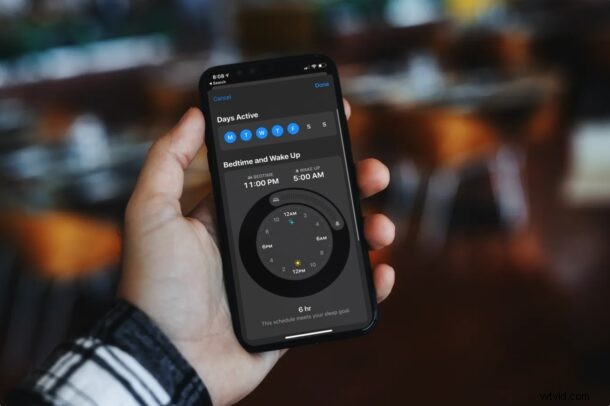
Did you know that your iPhone can now help you track your sleep and overall help you prioritize your sleep in the long run? You may want to try using this feature if you’re struggling to maintain a fixed sleep schedule. You can set this feature up within a matter of minutes.
The sleep tracking feature helps iPhone users easily monitor how long they’re sleeping and adhere to a specific schedule. The sleep tracking functionality includes features like wind down time and bedtime reminders that can help you improve your sleeping habits. When Sleep Mode is on, your iPhone will turn on Do Not Disturb and dim the lock screen to minimize the distractions during your bedtime.
Sleep tracking is built into Apple’s Health app if you were trying to find it yourself. In this article, we’ll be guiding you through setting up a sleep schedule on your iPhone.
How to Set Up Sleep Schedule on iPhone
As mentioned earlier, this is a new feature, and to take advantage of it, you’ll need an iPhone running iOS 14 or later. So, make sure your device is updated before proceeding with the steps below:
- First of all, launch the built-in Health app on your iPhone.

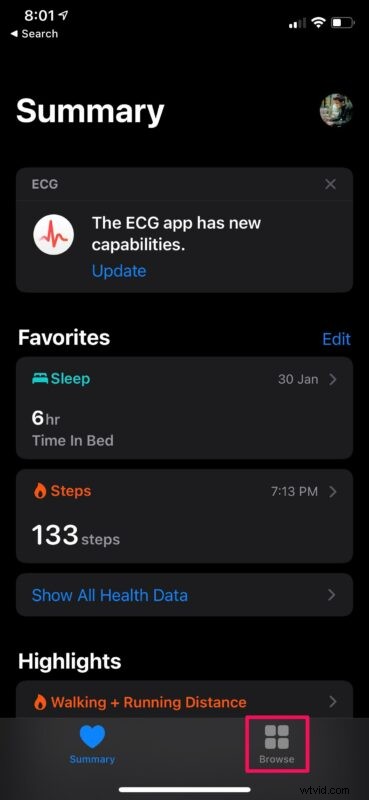
- This will take you to the Summary section of the app. Head over to the “Browse” section from the bottom menu.
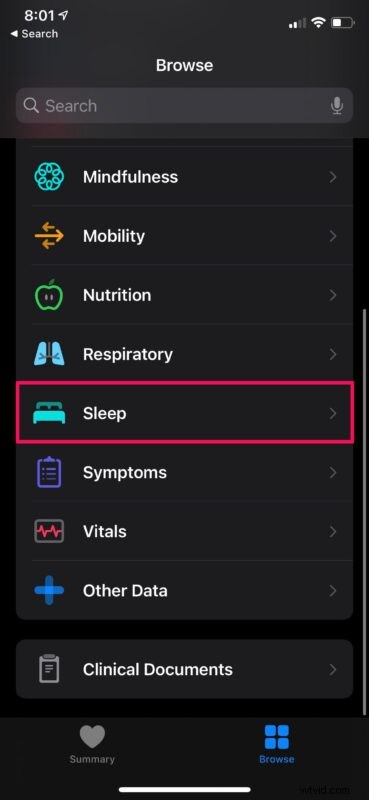
- In the Browse menu, scroll down and select “Sleep” to get started.
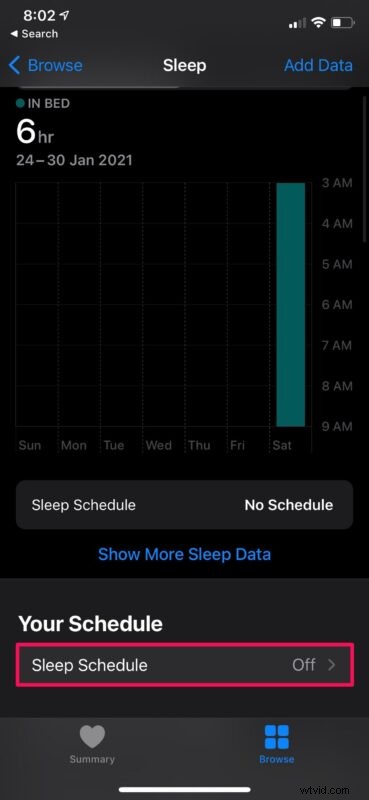
- Here, you may see a graph, but right below it, you’ll find the Sleep Schedule feature. Tap on it to access its options.
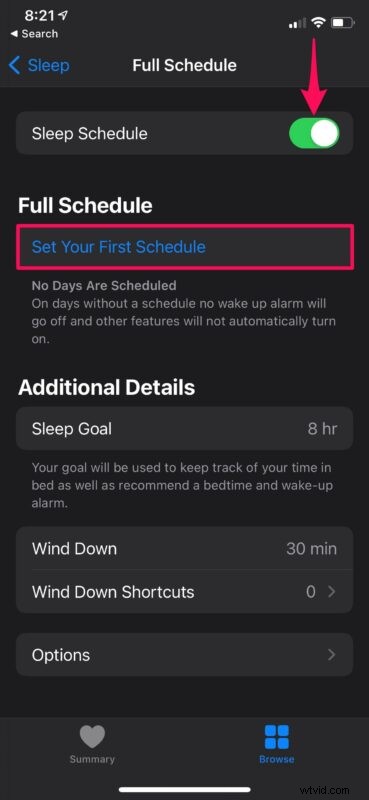
- Now, simply use the toggle to enable it. Tap on “Set Your First Schedule” to create a new sleep schedule.
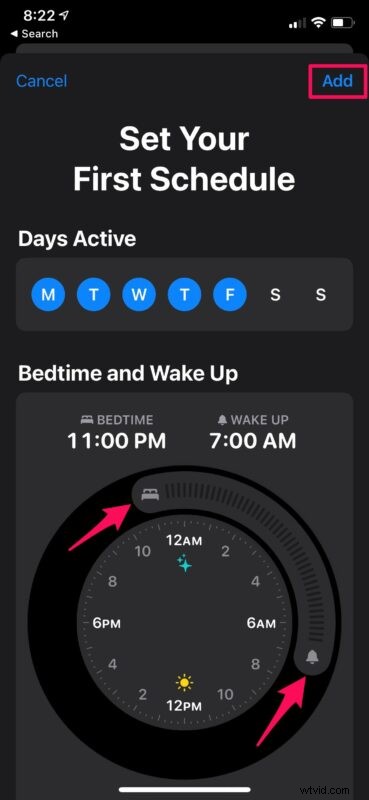
- In this menu, you can personalize your schedule by sliding or dragging the slider as indicated in the screenshot below. You’ll also be able to choose the active days for utilizing the sleep schedule. Once you’re done configuring, tap on “Add” to save it.
- This will take you back to the previous menu. Here, under Additional Details, you’ll be able to set your Sleep Goal and Wind Down duration according to your preference.
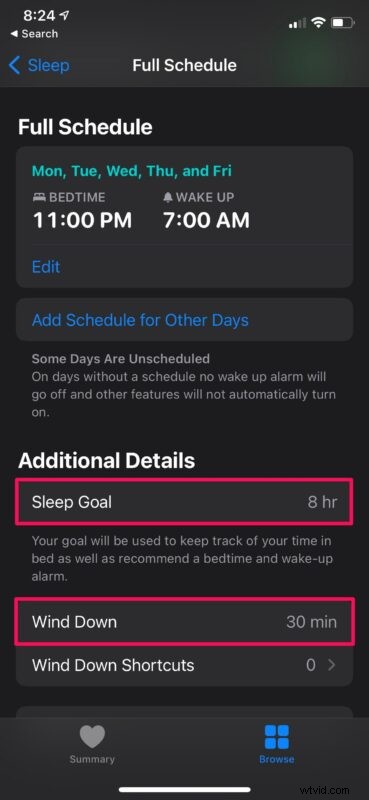
There you go. You’ve successfully set up and customized your very first sleep schedule.
When sleep tracking is enabled, you’ll get reminders when it’s close to your scheduled bedtime and your iPhone will start winding own to help you get ready for your bedtime. Moreover, you can customize the wind-down action with shortcuts. For example, you can choose to automatically launch a meditation app or play relaxing songs before heading to bed.
With Sleep Schedule turned on, your iPhone will be able to track your time in bed with your iPhone and get a better understanding of your sleep patterns by analyzing when you pick up and use your iPhone at night during bedtime. Unlike several other features that are shared between the iPhone and iPad, sleep tracking cannot be accessed on an iPad, since Apple’s Health app isn’t available for iPadOS just yet.
If you use an Apple Watch as a companion device, your Apple Watch can track your sleep better than your iPhone. Apple Watch can make use of its built-in accelerometer to notice the subtle movements associated with breathing to identify if you’re sleeping or awake. However, you will need to wear your Apple Watch during your bedtime, which is something many people may not do, particularly if they use the Apple Watch as a nightstand clock.
Hopefully, you were able to improve your sleep with the help of Sleep Schedule on your iPhone. What’s your sleep goal set to? Do you use this feature on your Apple Watch as well, and wear it all night? Share your personal experiences and drop your valuable opinions on this new health feature in the comments section down below.