
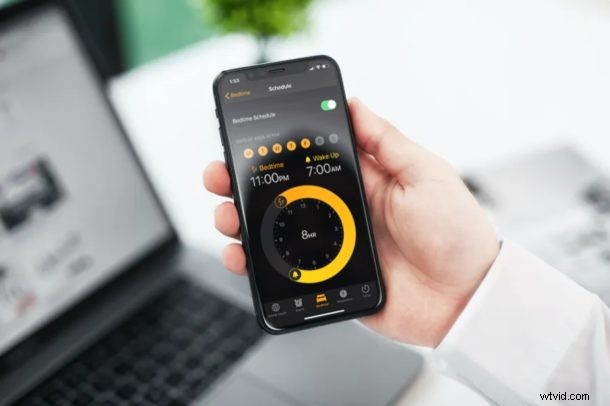
Is your sleeping schedule all over the place at the moment? If so, you can easily get into a proper bedtime routine with the help of Bedtime on your iPhone.
Apple’s Bedtime feature is baked into the default Clock app on iOS devices. This can be used to track your sleep on a daily basis. Although Bedtime isn’t going to force you to sleep, you can at least try to co-operate with the app for a more consistent sleeping pattern. Bedtime also analyzes your sleeping pattern and sends this data to the Health app that’s pre-installed on your device.
Feeling motivated to take advantage of Bedtime to track your sleeping schedule? Look no further, as we’ll be guiding you through the steps to set up and use Bedtime on both your iPhone and iPad.
How to Use Bedtime for Sleep Tracking on Your iPhone
Setting up and configuring Bedtime within the Clock app is a fairly simple and straightforward procedure. Simply follow the steps below to get started.
- Open the default “Clock” app on your iPhone or iPad.
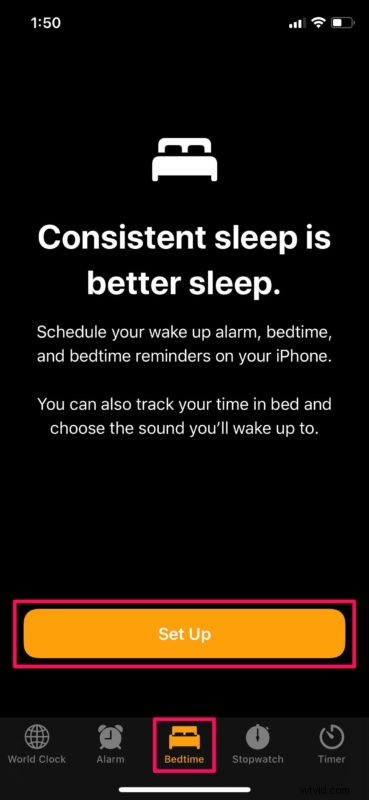
- Head over to the “Bedtime” section and tap on “Set Up”. You’ll only see this menu if you haven’t fiddled with Bedtime before.
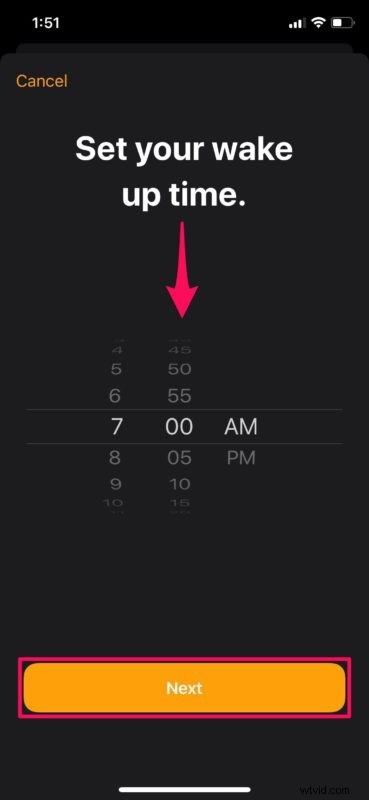
- Now, set a preferred wake up time using the dial and tap on “Next”.
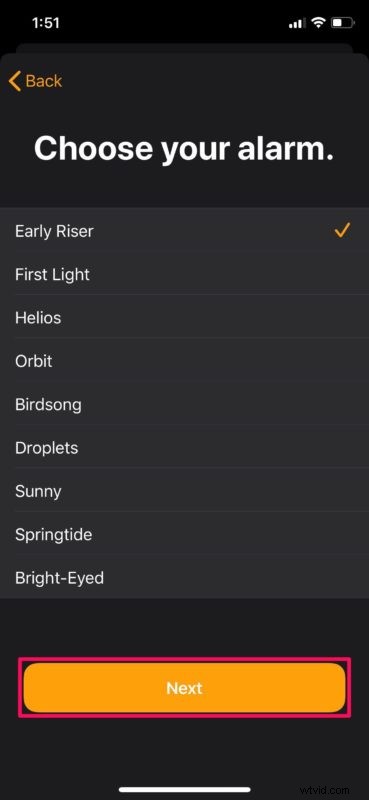
- In this step, you can choose your preferred alarm. There are nine different options to choose from. Once you’re done, tap “Next”.
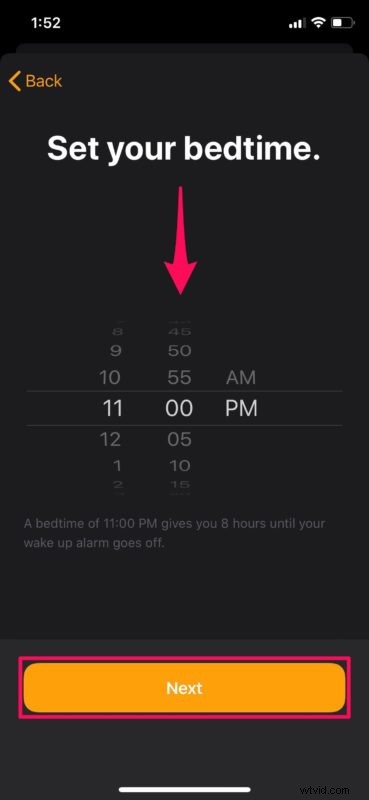
- Now, you need to set your bedtime, similar to how you set your wake up time. Tap “Next” when you’re done.
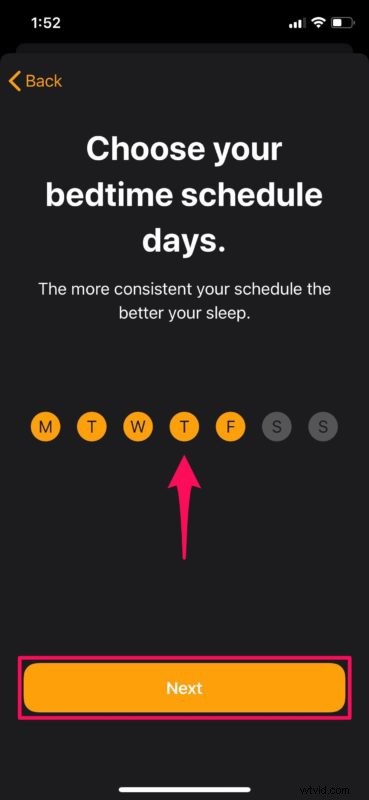
- Here, you can choose the days to keep Bedtime turned on or off. Simply tap on the days of the week to customize your bedtime schedule. Once you’re done, tap on “Next”.
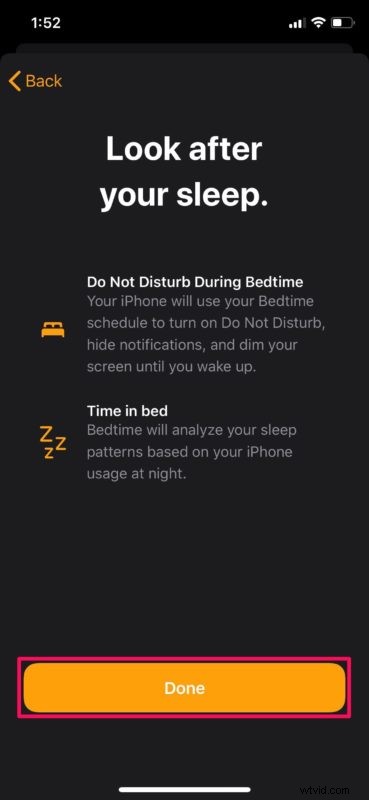
- You’re almost set. Tap on “Done” to confirm all your settings and start using Bedtime.
- If you want to change your Bedtime schedule at any time, tap on your schedule in the Bedtime section of the Clock app, as shown in the screenshot below.
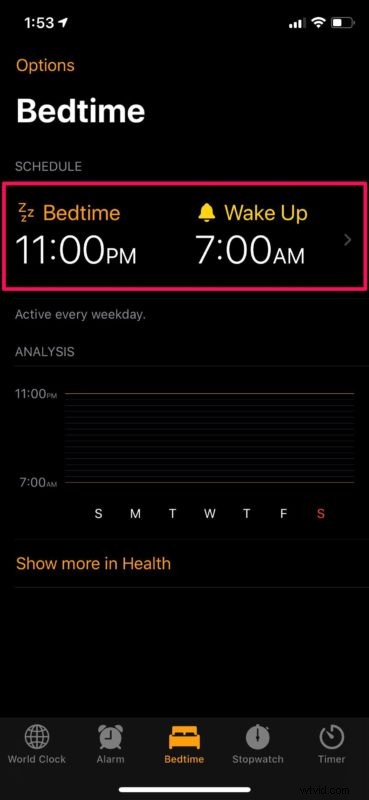
- Now, you can change your bedtime and wake up time by simply using the clock. You also have the option to turn off Bedtime completely.
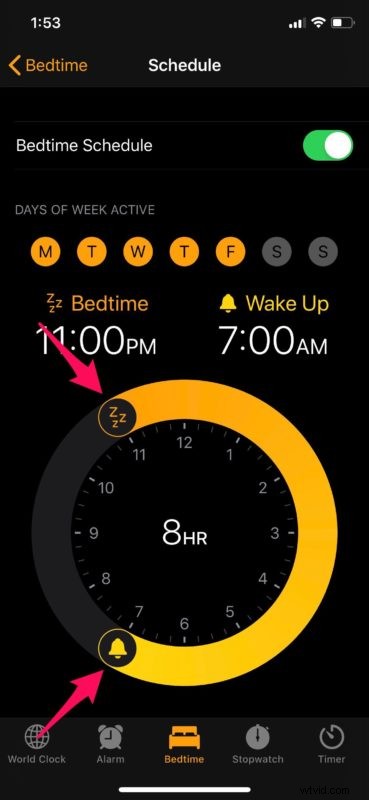
That’s about it, now you have successfully set up Bedtime on your iPhone for your use.
For a detailed sleep analysis, you can choose to “Show more in Health” in the Bedtime menu. Be mindful that Bedtime only shows the amount of time you spent in bed, and not the time you were actually sleeping or moving around. Even the Apple Watch isn’t capable of doing that (entirely yet anyway), though some third party sleep trackers can report actual bedtime behavior as well if you’re interested in that sort of thing.
Alternatively, you can also manually enter how much time you sleep by heading over to the Sleep category within the Health app.
By default, during Bedtime, Do Not Disturb is automatically turned on to mute calls and alerts that you receive when your iPhone is locked. Lock screen is dimmed and all the notifications go to your history. However, this is not mandatory, and it can be turned off by visiting “Options” in the Bedtime menu.
if you try to cheat and start using your device during Bedtime, you won’t get credit for that. Plus, if you snooze the alarm instead of waking up, the time you stay in bed gets updated accordingly.
We hope you were able to properly set up Bedtime on your iOS device without any hiccups. Have you tried any other third-party apps to track your sleep before? If so, how do they stack up to Apple’s Bedtime? Do share your thoughts and experience in the comments section down below, and don’t forget to check out more Health related articles too.