
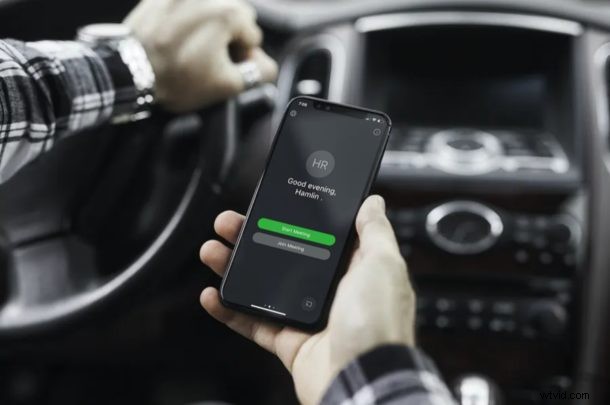
Cisco Webex Meetings is a business-oriented video conferencing solution that currently offers a free way to set up and organize video calls for remote meetings, work or online classes during this social distancing period.
Webex makes video conferencing quite easy, so whether you’re telecommuting, working with people remotely, or stuck at home in quarantine, if you have an iPhone or iPad you’ll find Webex is another excellent video conferencing option. It can be considered as an alternative video calling solution to Zoom, especially if you have concerns about Zoom for whatever reason. Plus, Cisco allows up to 100 participants in a meeting with no time limits unlike Zoom.
Looking forward to use Webex for your next online meeting? Don’t worry, we got you covered. In this article, we’ll guide you through the necessary steps in order to set up and use Webex meetings for videoconferencing on both the iPhone and iPad.
How to Use Webex Meetings for Videoconferencing on iPhone & iPad.
Before you get started, you’ll need to sign up for a Webex Meetings account if you don’t have one already. Although you can join meetings without an account, you cannot start or schedule meetings without one. Additionally, you’ll need to install the Cisco Webex Meetings app from the Apple App Store. Now, simply follow the steps below.
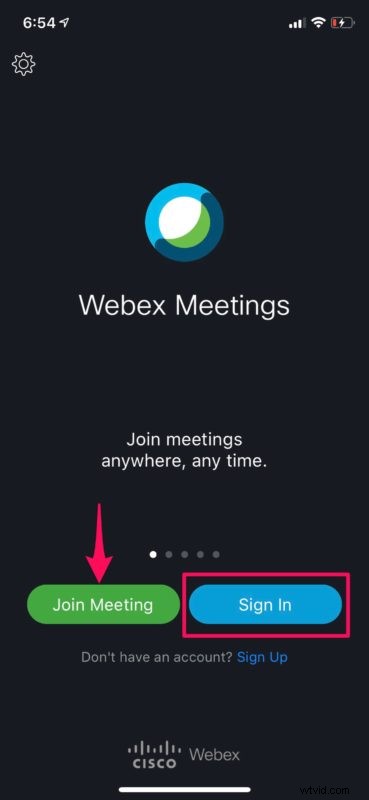
- Open the “Webex Meet” app on your iPhone or iPad.

- If you’re just trying to join an ongoing meeting, you can tap on “Join Meeting” and type in the Meeting number or URL. In order to start a new meeting, sign in with your Webex account.
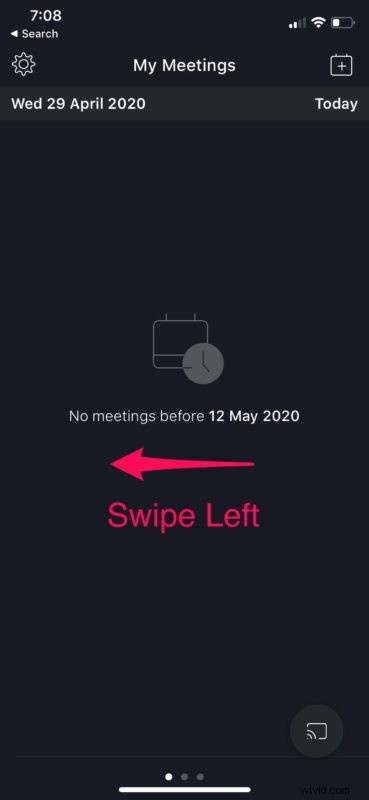
- Once you’re in the main menu of the app, swipe left to visit the next page.
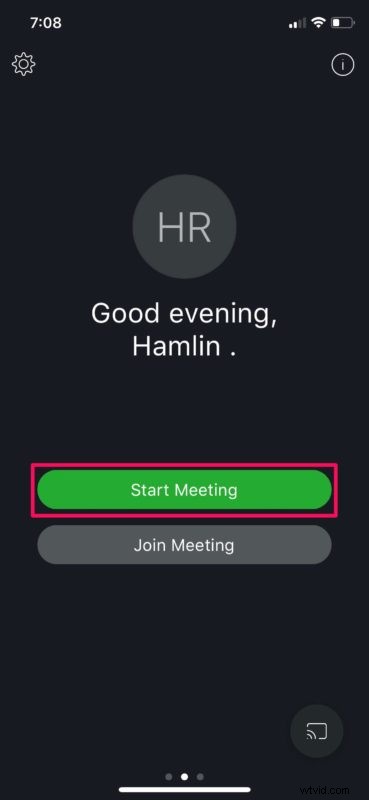
- Now, tap on “Start Meeting” as shown in the screenshot below.
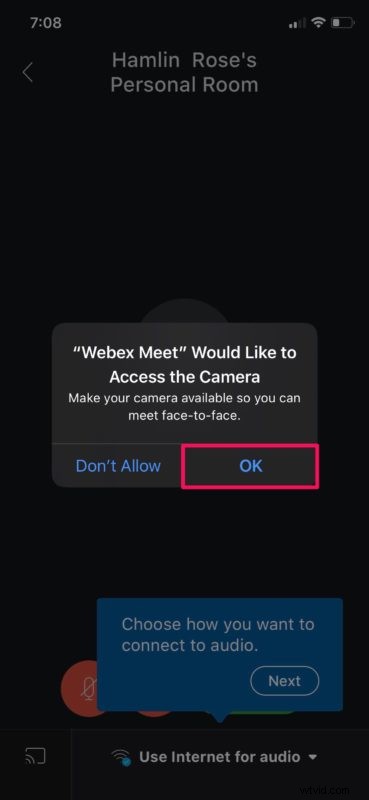
- Webex Meet will ask you for permissions to access the Camera. Press “OK” to confirm.
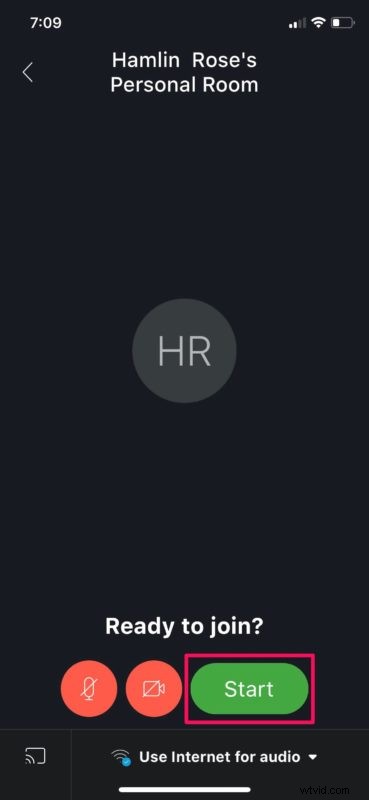
- Now, tap on “Start” to begin the video call session.
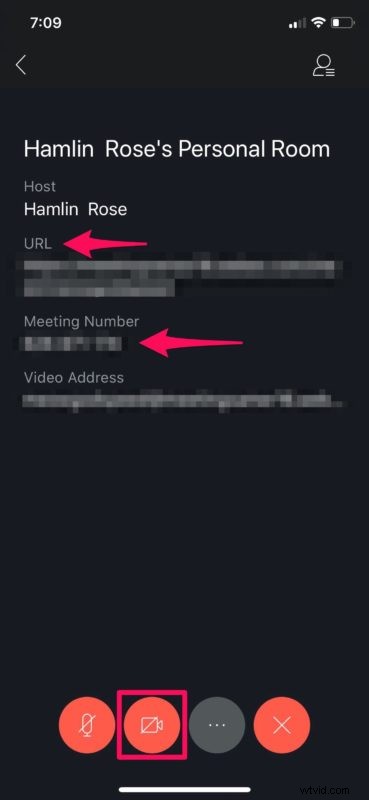
- Other people will be able to join the video conference by using the Webex meeting URL or number as shown below. Only share this with the people you want to join. Tap on the “video” icon to begin transmitting video from your iPhone or iPad.
- Tap on “Start My Video” in the pop-up to confirm.
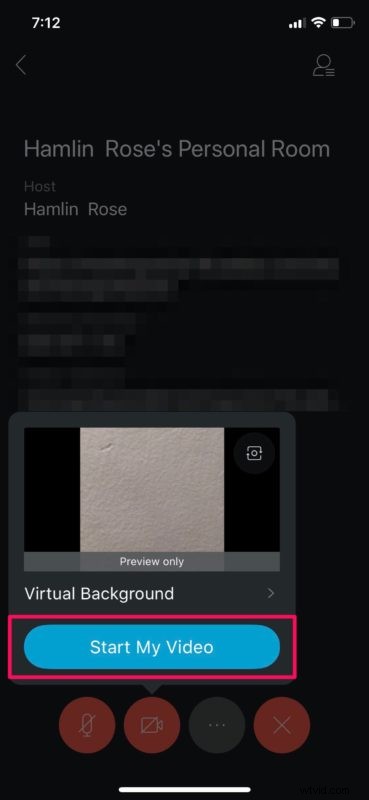
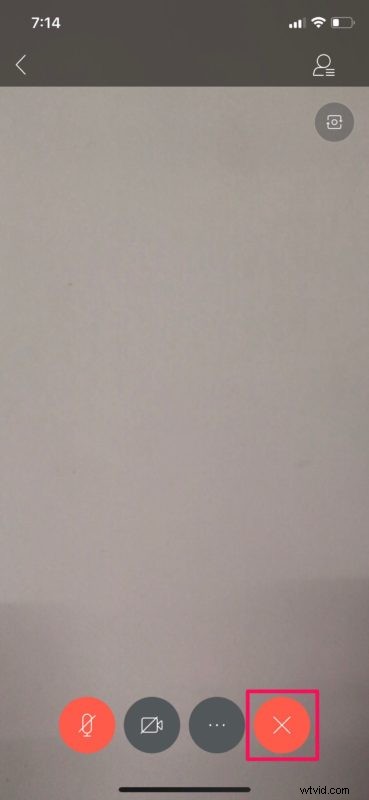
- As you can see here, you have successfully started a video calling session using Webex. In order to leave the meeting at any time, tap on the “X” icon as shown below.
There you go. Now you know how to set up and use Webex Meetings for videoconferencing right from your iPhone or iPad. That was easy, right?
Once you’ve set up an online meeting using Webex on your iPhone or iPad, other people who has access to your meeting number or URL can easily join your meeting regardless of what device they’re using. Webex Meetings app is available on Android and Windows too.
Cisco claims to provide high-level security and privacy policies. There’s also an option to enable end-toe-end encryption for users who really need it. Due to the COVID-19 situation, the company is currently offering free access to Webex Meetings to promote working from home too. Users get access to all enterprise features which include unlimited access with no time limit on meetings.
Looking for other options? If you’re not quite content with Webex Meetings, there are several other video conferencing solutions you can choose from. For example, you can try out Zoom which lets you start a 40-minute online meeting with up to 100 participants for free. Or, if you’re looking for a more personal video calling solution to reach out to your friends and family, you can use Skype for group video calling. Group FaceTime is yet another option to group call other iOS and Mac users.
We hope you were able to use Cisco’s Webex for your online meeting without any issues. What other video conferencing software have you tried before? How do they stack up to Webex Meetings? Do let us know your thoughts and opinions in the comments section down below.