
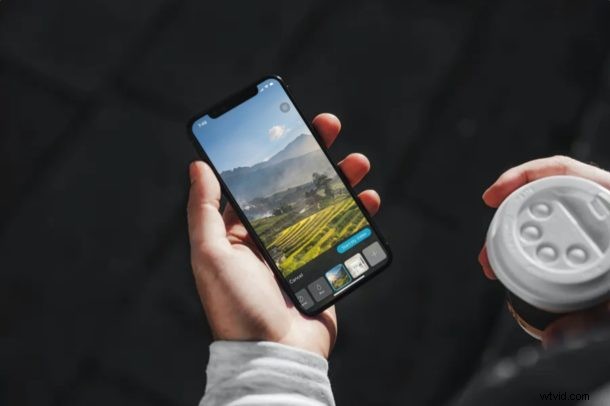
If you use Cisco’s Webex Meetings to make or join video conference calls for remote meetings, online classrooms, or social events during this self-isolation period or otherwise, you’ll be interested in the Virtual Backgrounds feature that this service has to offer.
Webex’s Virtual Backgrounds feature allows users to mask their actual backgrounds using an image in real-time during a conference call. This is extremely helpful in scenarios where your room is just a mess or if you’re having privacy concerns and don’t want other people in the meeting to figure out where you are. Hiding your real background using Webex is a fairly straightforward procedure on an iOS device.
Do you want to try this feature out during your next conference call over Webex? Here you will learn how you can use virtual backgrounds in Webex Meetings on both the iPhone & iPad.
How to Use Virtual Backgrounds in Webex Meetings on iPhone & iPad
Before you get started, keep in mind that In order to be able to access virtual backgrounds, you have to be in a Webex meeting. If you don’t already have the app installed on your device, make sure you download Webex Meetings from the App Store. Now, let’s take a look at the necessary steps.
- Open the “Webex Meet” app on your iPhone or iPad.

- If you’re just trying to join an ongoing meeting, you can tap on “Join Meeting” and type in the Meeting number or URL. In order to start a new meeting, sign in with your Webex account.

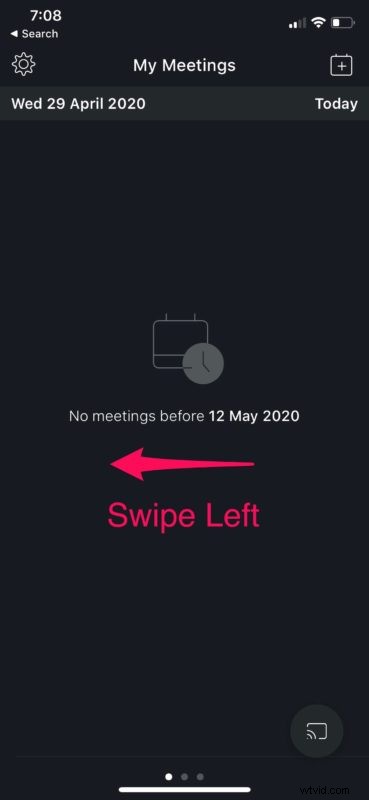
- Once you’re in the main menu of the app, swipe left to visit the next page.
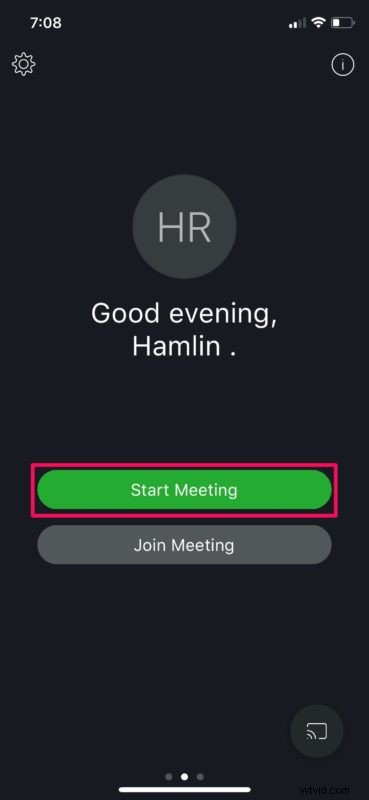
- Next, tap on “Start Meeting” as shown in the screenshot below.
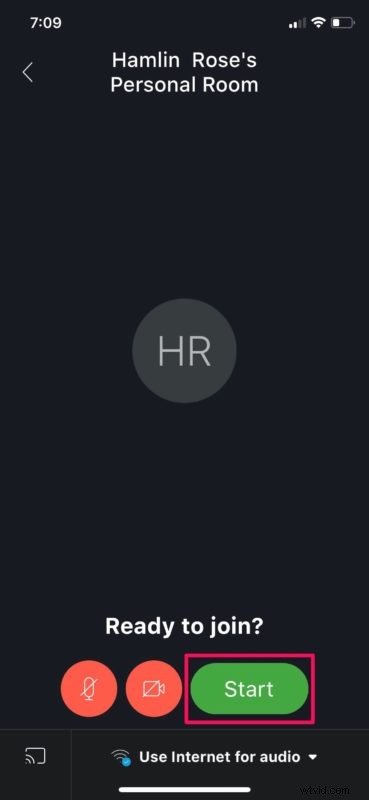
- Now, tap on “Start” to begin the conference call.
- Tap on the red “video” icon located at the bottom, as shown below.
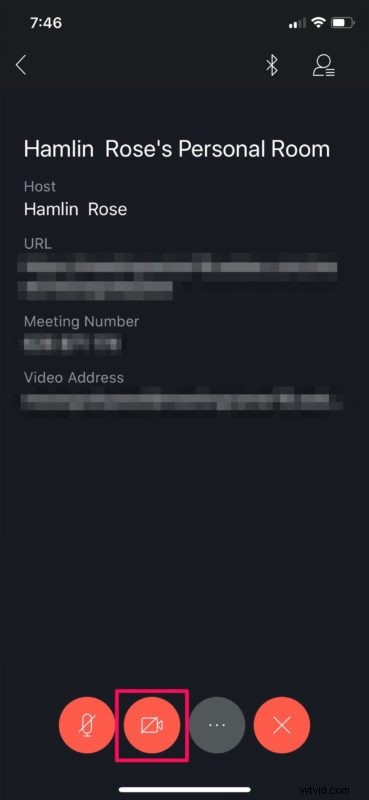
- This action will give you the option to begin transmitting the video feed from your iPhone or iPad. Since you want to mask your background, tap on “Virtual Background”.
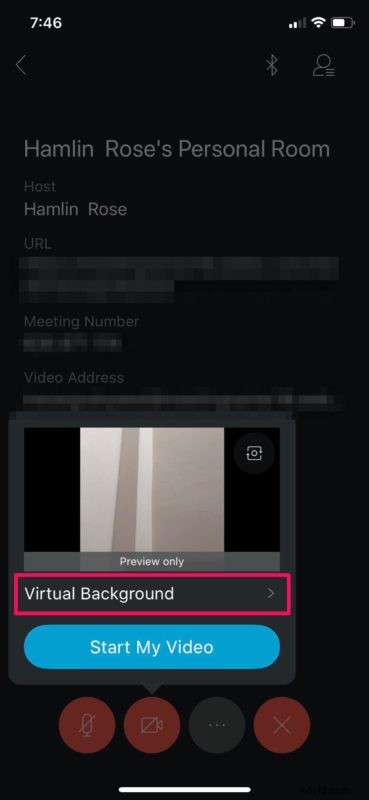
- Here, you’ll be able to choose from a couple of already available backgrounds. You can also blur your background using the Blur tool. Additionally, you can also add a custom background by using any image in your photo library as a virtual background. Simply tap on the “+” icon to access your photo library. Once you’ve selected your preferred background, tap on “Start My Video”.
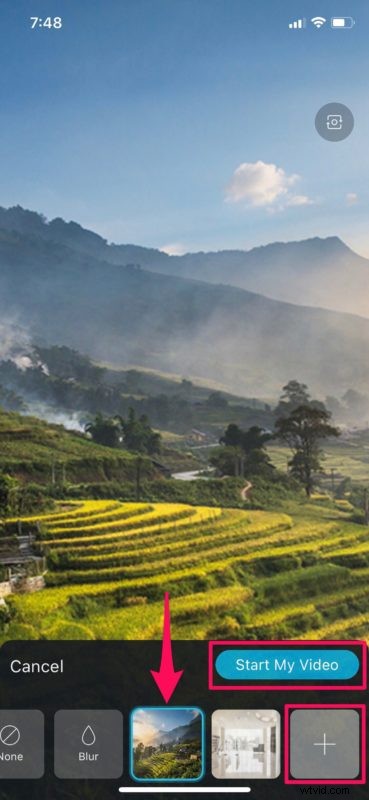
With that step, you’re set. Your iOS device will now transmit the video feed with the virtual background applied. Pretty easy, right?
Webex’s virtual background works best with a green screen and uniform lighting. This feature is similar to how streamers mask their backgrounds. The uniform background helps Webex to easily detect the difference between you and your actual background. Regardless, the feature works fine as long as you’re not moving around too much.
Apart from being able to customize your background, Webex also allows you to use your favorite Snapchat filters with the help of Snap Camera. You can also share your iPhone or iPad screen with other participants in the Webex meeting in a matter of seconds. This is pretty useful if you’re giving presentations and collaborating online.
Webex’s primary competitor Zoom offers a similar feature that lets you add your own virtual backgrounds, and Zoom allows you to use videos as backgrounds too, provided you’re on a PC or Mac. However, Zoom lacks Webex’s background blurring tool. Plus, there are no time limits on Webex’s 100-participant meetings that’s currently available for free.
We hope you managed to mask your room with a virtual background during your Webex meeting. What do you think about this handy feature and how well did it work for you? Do share your thoughts and experience in the comments section down below.