
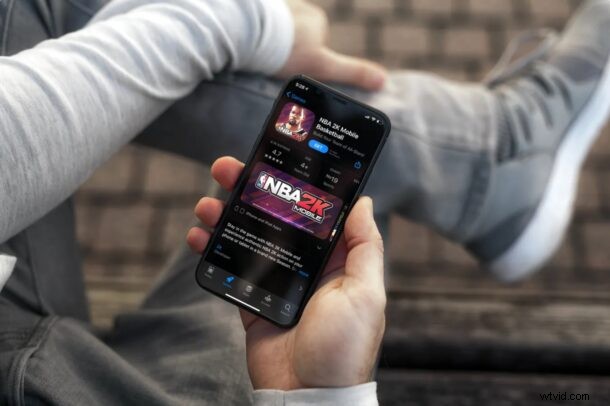
Are you unable to download large apps on your iPhone over the cellular LTE network? This is intended to avoid excessive data charges, but it’s something that can be overridden by tweaking the settings, if necessary.
Cellular data is fairly expensive in most parts of the world, and bandwidth is often capped, and as a result, Apple limits the size of apps that can be downloaded or updated over an LTE connection. This particular limit is set to 200 MB on both iOS and iPadOS devices. However, people living in certain regions have access to unlimited cellular data, so they don’t have to worry about a data cap or additional charges. Hence, you may want to disable this limit so that you can download huge apps, especially games onto your devices over cellular.
If you’re subscribed to an unlimited LTE data plan, then read on to learn how you can download apps over 200 MB via the cellular or mobile connection on your iPhone and iPad.
How to Download Apps over 200 MB with Cellular on iPhone & iPad
You can follow this procedure to override the limit set by Apple as long as your device is running iOS 13/iPadOS 13 or later. So, without further ado, let’s check out the necessary steps:
- Head over to “Settings” on your iPhone or iPad.
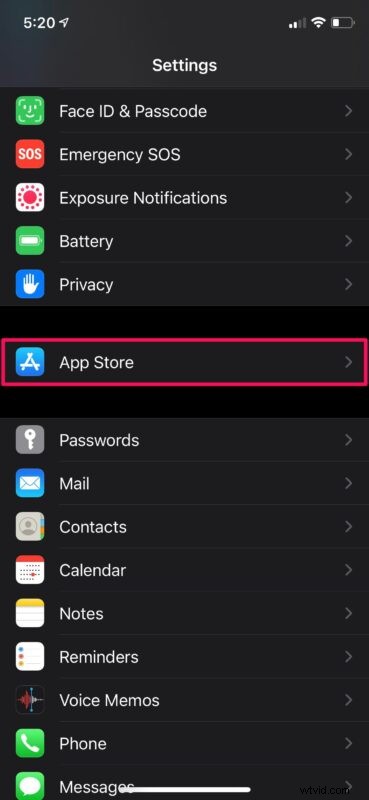
- In the settings menu, scroll down and tap on “App Store” which is located right below the Privacy option.
- Here, you’ll be able to access the settings for the App Store. Tap on the “App Downloads” setting located under the Cellular Data section as shown below.
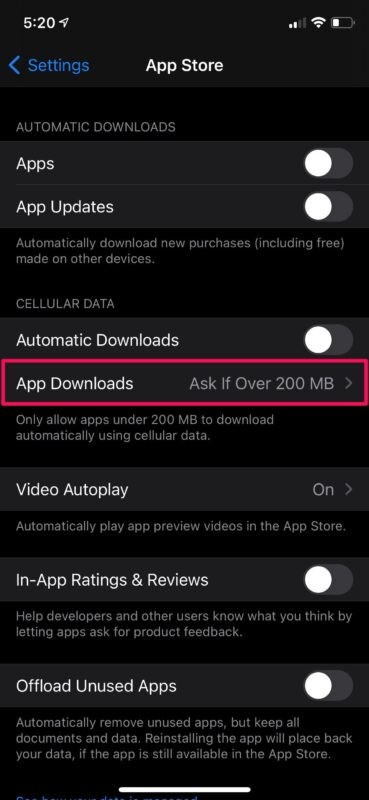
- Now, simply change the setting to “Always Allow” and you’re good to go.
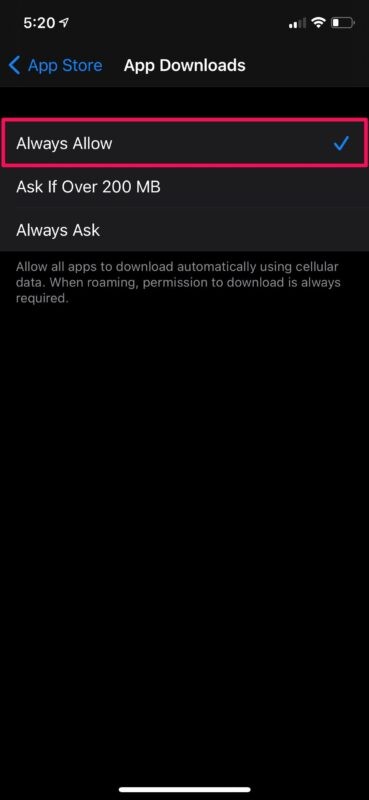
That’s all you need to do. You’re all set to download large apps and games over your cellular network.
By default, this particular setting is set to “Ask If Over 200 MB”. This meant that you’ll get a pop-up every time you try to download a large app over cellular and you’ll need to confirm whether you’re okay beginning the download using LTE. Until the release of iOS 13, there was no way to remove this cellular app download limit on iPhones and iPads (though you could use this workaround which relied on connecting to another devices Personal Hotspot), but we’re glad that it’s no longer the case.
Additionally, you have the option to turn on Automatic Downloads over cellular data in the same menu if you’re interested. However, only do this if you have access to unlimited data since the app purchases you make on other devices will be automatically downloaded on your iPhone using the cellular network.
Hopefully, you were able to finally remove the cellular download limit for apps set by Apple. How often do you rely on your cellular network to download and update apps? Let us know what you think by dropping your valuable opinions in the comments section down below.