
If you use a VPN with iPhone or iPad you may be wondering how to see how long you have been connected to the VPN for from an iPhone or iPad. Have you been connected for a few minutes, a few hours, or days? No reason to wonder, as you can find this information directly regardless of the VPN provider in use.
Both iOS and iPadOS make finding and viewing the connected time to a VPN easy to see, though this information is a bit hidden so it’s also easy to overlook if you’re not sure where to look. This article will show you how to view the amount of time you have been connected to a VPN for.
Obviously you must be currently connected to a VPN to be able to see how long you’re connected to a VPN, if you are not actively connected to a VPN then there will be no information for connection time available.
How to See VPN Connection Time Duration on iPhone & iPad
This process is the same on iOS and ipadOS:
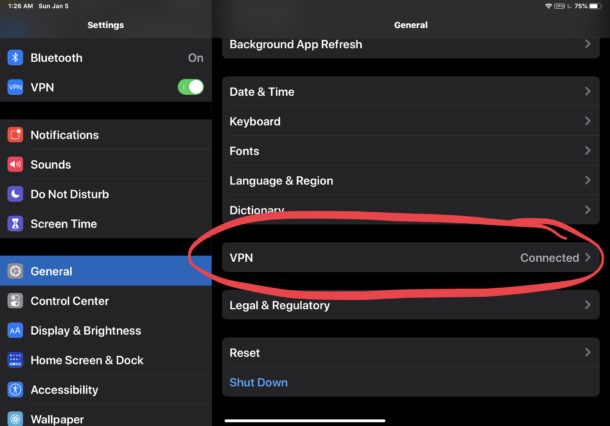
- Open the Settings app then go to “General”
- Choose “VPN”
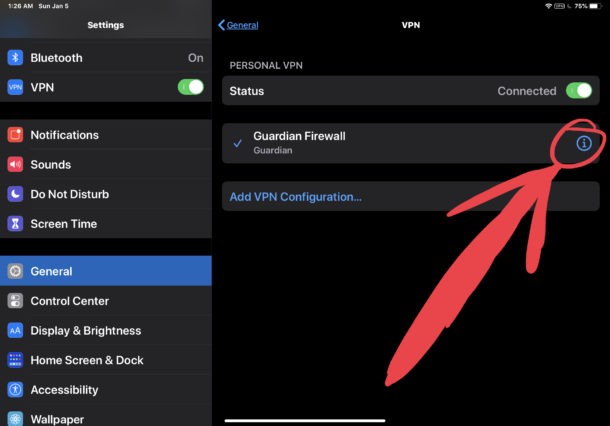
- Locate the VPN you are connnected to and tap on the “(i)” button
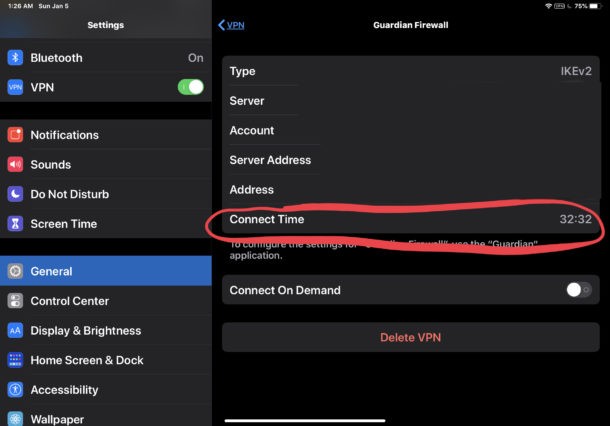
- Look for “Connect Time” to find the active connection length to the current VPN session
This information can be useful for many reasons, whether for keeping track of time for work purposes, or even if you use a VPN service that you pay hourly for, or have some other time allotment or quota to be working with.
This same VPN information screen also offers other information, like the VPN IP address (which is different from your regular internet IP address) and server information, as well as the ability to delete and remove the VPN profile from iPhone or iPad should you want to do that.
This applies to any VPN service you use on iPhone, iPad, or iPod touch, whether it’s a corporate or private VPN, a free VPN, or a paid VPN service does not matter. It also does not matter if you setup and configured the VPN profile manually, or setup and added the VPN to the iPhone or iPad through a VPN app like many third party paid VPN services offer that automatically install a VPN profile for you (as VPN apps like Guardian and Proton offer).
Do you use a VPN service for personal or work reasons with your iPad or iPhone? Do you keep track of how long you’re connected to it, or does your VPN connection time not matter to you? Do you have a particular VPN service you like, trust, and recommend? Let us know if you have any VPN tips, questions, or thoughts in the comments below.