
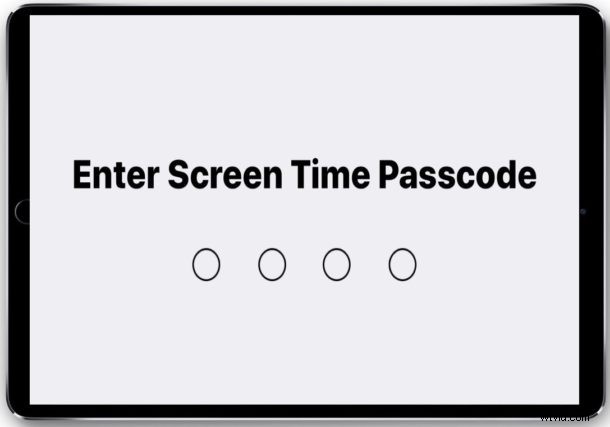
Screen Time is a feature on iPhone and iPad that tracks device usage for apps, websites, categories, and more, taking real-time usage data to report back just how long particular apps and types of apps are being used. You can even use Screen Time to block certain apps, websites, or even block and limit entire categories of apps and sites like social networking. Screen Time is quite helpful, and takes over the place that the Restrictions feature in iOS once held. But what if you’re going to use an app, or use Screen Time, and you’re presented with a Screen Time passcode screen, but you don’t know the Screen Time passcode?
For some users who updated to the latest iOS operating system, they may wander into Screen Time settings on an iPhone or iPad to discover that a passcode is already set, but they’re not sure what the Screen Time passcode is.
What is the Screen Time Passcode in iOS 13 & iOS 12?
The Screen Time passcode will be whatever it was set to, either in Screen Time for iOS 13 or iOS 12, or in Restrictions in prior iOS versions.
In other words, if you had previously used the Restrictions feature in iOS and now you updated to a modern iOS release, the Screen Time passcode will be that same Restrictions passcode that was set before.
Thus you will want to try your old Restrictions passcode as the Screen Time passcode, if it was never changed then it will be the same.
Many users may have setup Restrictions on prior iOS versions for things like limiting or disabling in-app purchases in Fortnite or other apps and games, blocking access to adult content on the web, disabling Private Browsing in Safari for iOS, and much more. Thus if you have setup Restrictions before, the passcode for Screen Time is the same as what you had set the passcode for Restrictions.
How do I get rid of the Screen Time passcode?
There are several ways to remove the Screen Time passcode from an iPhone or iPad.
One of the simplest methods is to remove the Screen Time passcode on iPhone or iPad completely by making a settings adjustment, this allows Screen Time to still be enabled, but it won’t be passcode protected. This obviously requires knowing the Screen Time passcode so that you can remove and disable it.
If you don’t want the passcode or the Screen Time feature in general, then you can disable Screen Time on the iPhone or iPad and you will no longer require a passcode for accessing the feature, nor will the passcode be necessary for using apps that were blocked or limited by Screen Time.
You can also remove a Screen Time limit in iOS from any app, site, or category, which will also remove the Screen Time passcode that may be encountered.
If you’re looking to remove the passcode because it is known by someone you’d like to have under the Screen Time limit, then another option changing the Screen Time passcode in iOS.
Either way, if you remove or disable the Screen Time passcode, you will no longer see the passcode request screen for Screen Time.
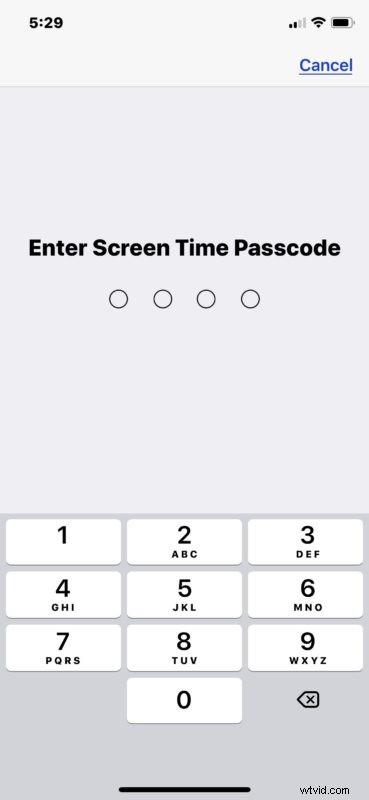
I can’t remember the iOS Screen Time passcode or Restrictions passcode, now what?
If you can’t remember the passcode that was set with Restrictions or Screen Time, you can always try guessing or using your passcode pin, as you may have set it the same.
The Screen Time passcode is separate from the general iOS lock screen passcode however, so unless you set them the same yourself, they are not the same by default.
If you completely forgot the Screen Time and restrictions passcode, you will need to follow instructions for how to reset a Restrictions passcode in iOS, which is basically the same for resetting a lost Screen Time passcode. This means resetting the device and setting it up as new, which you can then restore a backup made prior to the passcode getting set if one is available. If a backup is not available, then you’ll either lose the data, or have to try another route.
Other options for trying to recover a lost Screen Time or Restrictions passcode are available. You can contact official Apple support through apple.com or visit an Apple Store. Advanced users can also try third party tools like pin finder.
Do you know of any other methods, tips, tricks, or solutions for dealing with Screen Time passcodes? Do you know of another method to reveal a forgotten Screen Time passcode that doesn’t involve the reset step, or the use of the third party utility like the PinFinder tool? Share with us in the comments below!