
As one of the most popular computer brands, HP is accepted and used widely worldwide. Whether you are a gamer, student, or business person, you can always find a suitable model in HP. If you are new to the HP laptop or computer, you may want to know how to take screenshots on HP laptop, as it can show everyone what's on your screen or commemorate or archive a certain moment. But how to screenshot on HP?
In this article, we will show you 4 easy methods to snapshot on an HP laptop, including the built-in software and professional screencast software.
You may want to know: How to screen record record on HP laptop
How to Take Screenshots with Keyboard Shortcuts [Free But Limited]
When it comes to taking screenshots on HP computer, some built-in software can help you solve the problem. In the following, you will learn some simple and easy ways to complete the task directly.
#1. Screenshot on HP Full Screen
If you want to snapshot on the whole screen on Windows 7, you can press the PrtSc or PrtScn key on the keyboard, and they are short for Print Screen. Just simply hit the key, and it will capture the whole screen and save it to the clipboard on your HP computer.
For Windows 8/10, you can press Win + PrtScn key on your keyboard at the same time, and then your screen will dim for a moment. Finally, the screenshots will be saved automatically on your computer.
#2. Take a Screenshot of An Active Window on HP
Sometimes, you may only want to share with one single window instead of the full screen to display some unnecessary information or privacy. At that time, the method we mentioned above cannot work. Then how to deal with it? Don't worry, check the following tutorial:
Step 1. Make sure that the window you want to capture is in use.
Step 2. Next, press the Alt and PrtScn simultaneously, and the Microsoft Windows will take a shot of the window you are using.
#3. Take a Custom Screenshot on HP Laptop
Apart from capturing the full screen or a single window, you may need to screenshot a specific area on the screen, and then the below tutorial is best for you:
Step 1. Hold down the Windows logo key, Shift key, and press S. Next, the entire screen gets translucent or foggy, and the mouse pointer is transformed into a + sign.
Step 2. Then left-click on the mouse, and drag it over the area you want to snapshot. Once done, let go of the button.
If you want to cancel the screen capture operation, just press the Esc key on the top left of your keyboard.
How to Screenshot on HP Laptop/Computer with EaseUS RecExperts [Windows 11/10/8/7]
Although you can screenshot on an HP laptop or computer with the built-in software, it has many limitations. For taking screenshots on different areas, you need to try different methods, which are too complicated. Given that, we will share with you a versatile screen recorder and screencast software – EaseUS RecExperts, which lets you screenshot on your HP computer with a few simple clicks.
Compatible with Windows 11, 10, 8, and 7, this free screencast software can run perfectly on almost any Windows OS. To take a screenshot, all you have to do is to select the area and hit the "Screenshot" button or press the hotkey you set before on the keyboard, and that's it! In addition, it provides options for you to record your screen for unlimited time and enables you to take a snapshot while recording. If you forgot to screenshot when recording, you can even export certain frames when you play the recorded video in the Recordings.
Beyond being the screencast software, it is also an excellent screen recorder that supports:
- Record part of screen or a full screen flexibly
- Capture screen with webcam or audio simultaneously
- Support starting, stopping, and slipping recordings automatically
- Offer basic editing tools to modify your recorded files
- One-click to extract audio from recorded videos
You can download this powerful screencast software to explore more useful functions.
To improve your experience, here we offer you a step-by-step guide to screenshot on an HP computer or Laptop:
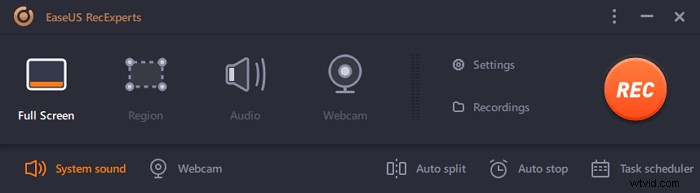
Step 1. Download and launch this program on your computer. You will see all features it offers, including Webcam recording, Audio recording, Region capturing, and other options like Settings and Full Screen recording.
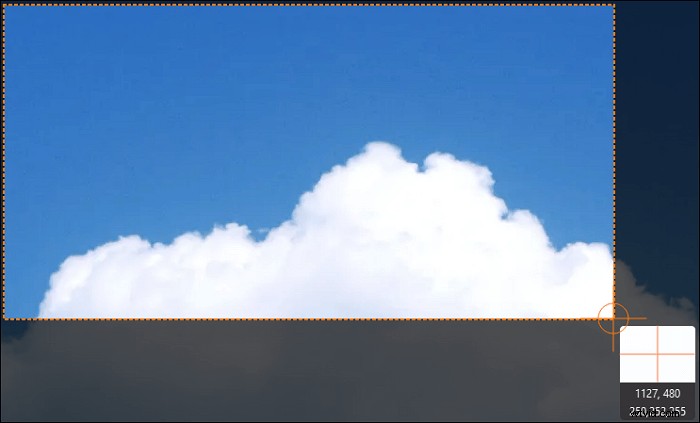
Step 2. Click "Full Screen" or "Region" according to your need. The screen will go dim, and drag your cursor covering what you want to capture.
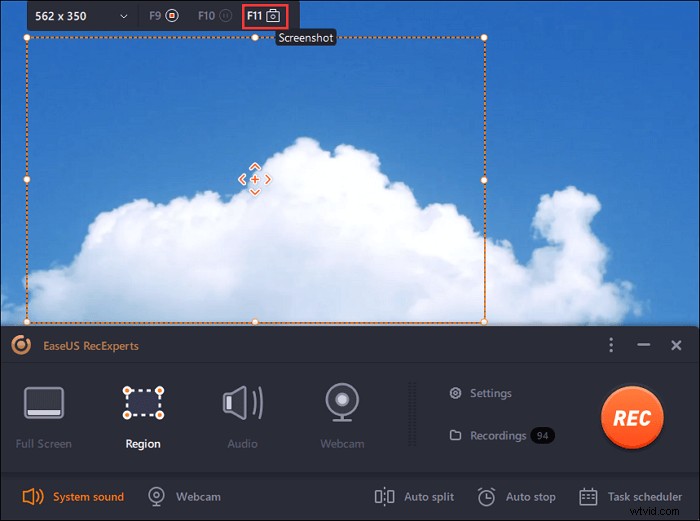
Step 3. Now press F11 or click the "Screenshot" icon to take screenshots.
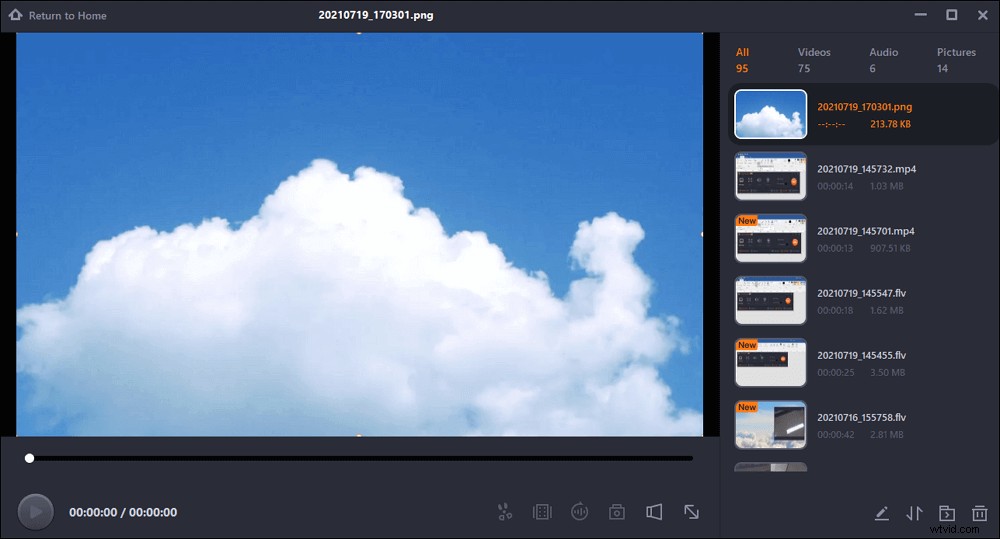
Step 4. The screenshots will be saved in the "Recordings" > "Pictures", where you can rename the screenshot with ease.
The Bottom Line
How to screenshot on HP laptop or computer? Here, in this post, we have talked about 4 ways to help you complete the task. Among those solutions, we highly recommend this all-in-one software called EaseUS RecExperts.
Whether you want to take a screenshot of the full screen, a single window, or a selected area, you can always rely on it within three easy steps. Moreover, this program can also act as a screen recorder, audio recorder, GIF recorder, game recorder, etc. In a word, it will never disappoint you!