
Is there any default screen recorder on a Dell laptop? Yes, you can use Xbox Gamebar to capture the screen as long as you use the Windows 10/11 OS. In this article, we also show you how to screen record on Dell laptops in other ways.
Screen record on a Dell laptop with Game Bar:
- 1. Press the "Windows" + "G" keys on your keyboard to launch Game Bar.
- 2. When a dialog box pop up, choose the "Yes, this is a game" option to continue.
- 3. Click on the "Start Recording" button to capture your laptop screen.
- 4. When you want to save the recording, hit the "Stop Recording" button.
Quick Navigation:
- How to Screen Record on Dell with EaseUS RecExperts
- How to Screen Record on a Dell Laptop with Xbox Game Bar
- How to Record Screen on Dell Computer with ShareX
- How to Record Video on Dell Laptop with OBS Studio
How to Screen Record on Dell with EaseUS RecExperts
Comparing the features and functionality of most screen recorders, we highly recommend EaseUS RecExperts as the most competent laptop screen recorder for Dell. It offers enough useful features in recording, and it's perfectly compatible with Dell devices.
With its help, you can choose to record full screen or part of screen freely, and then save the recordings in various formats. In addition, this software makes it easy to record screen with webcam or audio simultaneously, or you can capture the video, sound, and webcam as you want.
Apart from those basic functions, this Dell screen recorder offers an inbuilt snapping tool, which helps you take snapshots with one click before, during, or after recording.
EaseUS RecExperts
- User-friendly and easy-to-use for beginners
- Support auto-splitting recordings
- Schedule recording to capture video and audio automatically
- Support various output formats
- Come with some editing tools
How to Record Video on Dell Laptop with Best Laptop Screen Recorder:
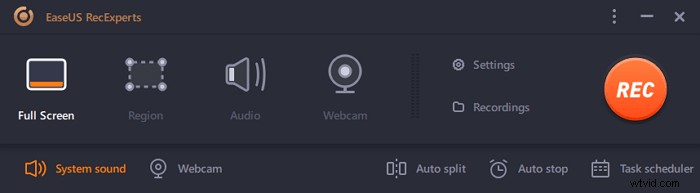
Step 1. Launch EaseUS RecExperts. There are two different options for screen recording, i.e., "Full Screen" and "Region". If you select "Full Screen", you will capture the whole screen.
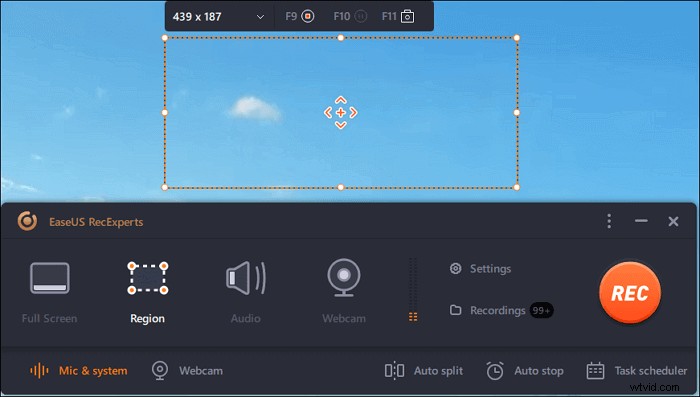
Step 2. If you select the "Region" option, this software will ask you to customize the recording area. Make sure that everything you want to capture is within the bounds of the select box.
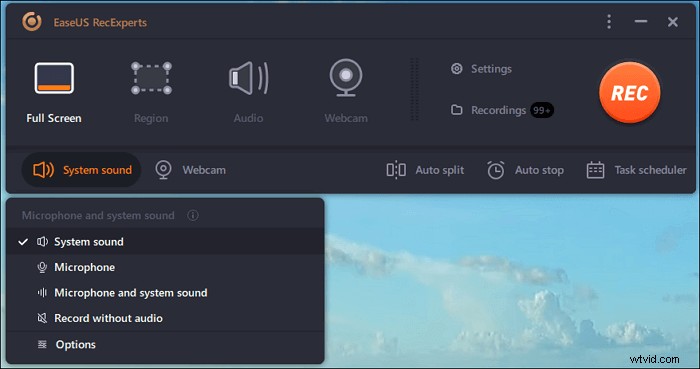
Step 3. Tap on the button at the bottom left side of the main interface, and there will be many options you can select. This recorder supports recording microphone and system sound separately or simultaneously. The "Options" button is for you to adjust the volume and microphone device.
Step 4. To record the webcam simultaneously, click on the "Webcam" icon at the bottom of the interface. Tap on the button to enable the webcam recording, and there will be a drop-down menu to select the recording device. Click on "OK" to confirm your settings.

Step 5. When you turn back to the main interface, click on the "REC" button to start recording. A floating toolbar offers you buttons to pause or stop the recording during the recording process. In addition, the camera icon can be used to take screenshots, and the timer icon can help stop it automatically.
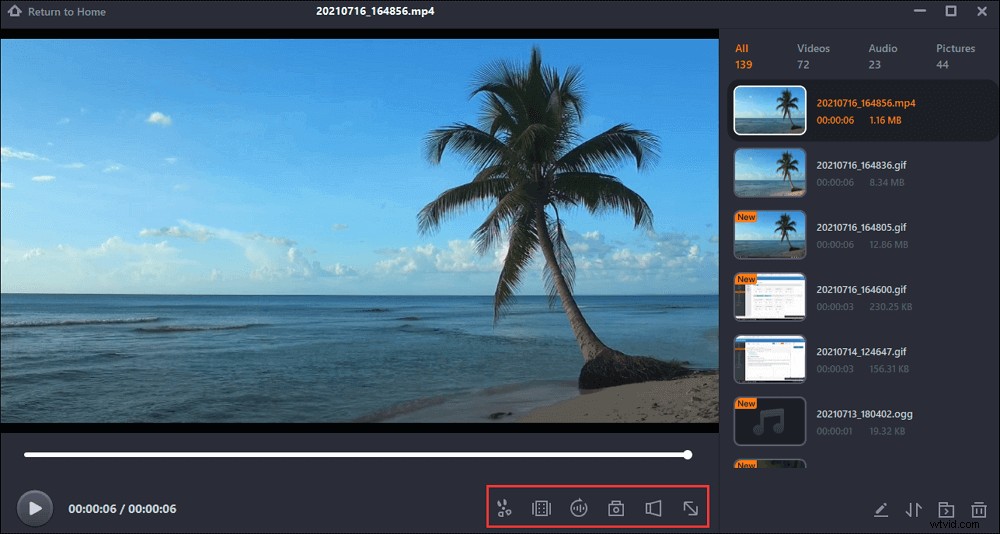
Step 6. The recorded video clips will be saved on your computer. When the media player appears, you see a set of tools you can use to trim the recordings, extract audio, and add opening title & closing credits to the savings.
How to Screen Record on a Dell Laptop with Xbox Game Bar
To record your screen on a Dell computer directly, you can rely on Xbox Game Bar. As its name shows, it is featured with recording most PC games on Windows devices. Moreover, it's also a Dell screen recorder that allows you to record anything on your screen and take screenshots easily without downloading any software.
How to Screen Record on a Dell Laptop with Xbox Game Bar:
Step 1. Type "Xbox" in the search box in Windows 10, and open the Xbox app by double-clicking the search result.
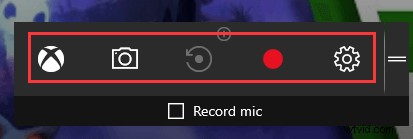
Step 2. Press Windows + G on your keyboard to open the Game Bar. Click "Yes, it is a game" to allow Xbox to record your screen.
Step 3. Click the red button "Start Record." When your recording ends, press Windows + G and click the red button to stop your recordings.
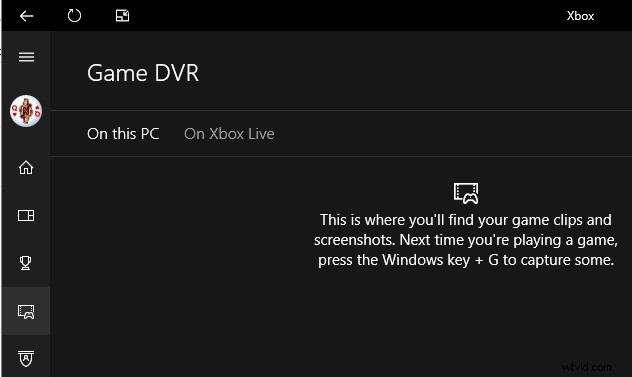
Step 4. You can access the recordings within the Xbox app by navigating to "Start > Game DVR." And you can locate and view the recordings here.
How to Record Screen on Dell Computer with ShareX
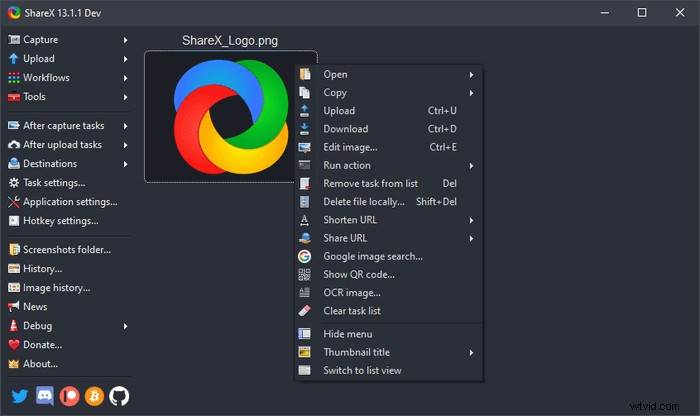
ShareX, an open-source and free screen recording tool that also gained popularity on the market. This freeware allows you to record the full screen, a locked window, and a specific region on your Dell laptop.
It also supports hotkeys to get things done quickly. After finishing recording, you can save your recorded video as GIF or MP4 file formats, and as well, you are allowed to share it on your social platforms.
How to Record Video on Dell Laptop with ShareX:
Step 1. Download and launch ShareX.
Step 2. Click "After Capture Tasks" and then hit the button "Upload Image to Host".
Step 3. Navigating to "Task Settings" > "Screen Recorder", the window "Screen Recording Options" will show. Then choose your "Audio Source" as "Microphone" if you want to capture your voice.
Step 4. Press Shift + PrtSc to start or stop screen recording. The recorder will save the recorded videos to your computer automatically. You can find it in the file folder the software shows you.
How to Record Video on Dell Laptop with OBS Studio
OBS Studio, also known as Open Broadcaster Software, is a free and open-source third-party application that fully supports screen recording and live streaming.
It can download and start streaming quickly and easily on Windows, Mac, or Linux, and as well it is compatible with Dell laptops. This freeware supports recording any area of your screen and sharing your video on various social media.
How to Screen Record on Windows 10 Laptop with OBS:
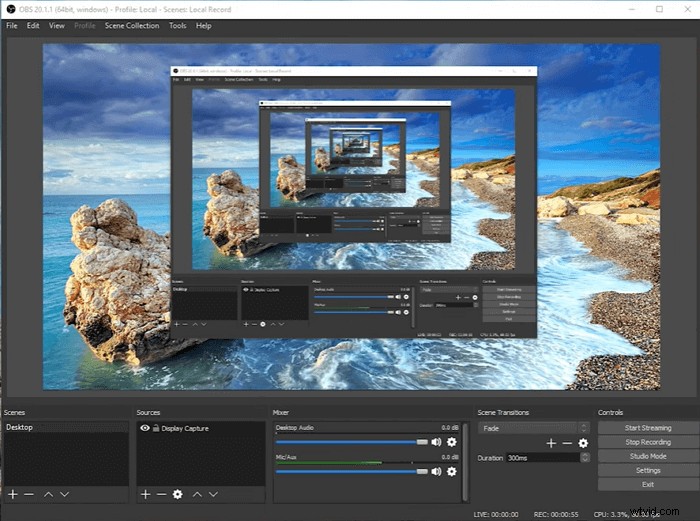
Step 1. Launch OBS Studio, click the "+" mark.
Step 2. Click "Display capture" > "Create new", and name your new recording.
Step 3. Customize the aspect ratio of the video to be recorded on the next page.
Step 4. Then OBS will start to record your screen. When the process is completed, you can find the recordings by clicking "File".
Conclusion
In sum, there exist loads of Windows built-in applications or third-party software that can help you record the screen of Dell laptops.
Whether you want to capture your full screen, specific regions, Webcam, and record audio and video simultaneously, or you would like to capture your gameplay, EaseUS RecExperts is the best option that you can't miss.
FAQs About How to Screen Record on Dell Laptop
A ton of hot topics about screen recording is discussed on the Internet. Here I collect some of these heated questions and offer you corresponding answers.
1. How can I record my laptop screen with audio?
Dozens of screen recorders can help you accomplish this task.
Step 1. Download and install the recorder.
Step 2. Start the app and navigate "Recording Screen".
Step 3. Click "System sound" and tick "Record with audio".
Step 4. Hit the red button "REC" to start recording.
In this way, you can record your laptop screen with audio.
2. How to zoom in on Dell laptop?
Local recording is available to free and paid subscribers. Local recording allows participants to record meeting video and audio locally to a computer. You can upload the recorded file to a file storage service like Dropbox, Google Drive, or a streaming service like YouTube or Vimeo.
3. How do I record my laptop screen Windows 7?
Step 1. Open Recorder, select the "Start" button, and navigate "Windows Accessories > Steps Accessories > Problem Steps Recorder" (in Windows 7 or Windows 8.1).
Step 2. Select "Start Record".
Step 3. When you're done, select "Stop Record".
4. Why does my game lag when I screen record?
If you are using the pre-installed screen recorder, there are two major causes for lag: low specification Android device with overloaded memory (RAM) and CPU, or low specification Android device with incompatible settings.
5. How to screenshot on a Dell laptop?
If you are using a Dell laptop with Windows 8/8.1/10 operating system, there are some methods you can use to take a screenshot.
Step 1. When you need to capture the entire screen, you can press the Windows logo key + the PrntScrn key simultaneously.
Step 2. When you need to capture all active windows, you can press the PrntScrn key.
Step 3. When you only need to capture a single active window, click on the window you want to record and press Alt + PrntScrn keys.
6. How do I record my screen on Windows 10 Dell laptop?
How to use the Windows 10 Game Bar to capture video on Windows 10 Dell laptop? Here is the answer to that question. Follow those steps to capture what you need now.
Step 1. Firstly, make sure that what you want to record can be recognized by Windows Game Bar. Launch the recorder by pressing the Windows key + G on your keyboard.
Step 2. Secondly, click on the "Start Record" button to start capturing. After you recorded all the contents you want to save, click on the red button to end the recording.
Step 3. Lastly, you can navigate to "Start > Game DVR" in the Game Bar, where you can find your recordings in MP4 format.