
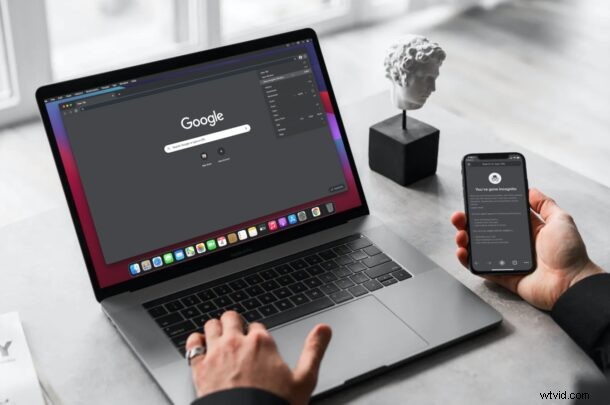
Looking for a way to browse the web without having to delete your browsing history every now and then? If so, you may be interested in taking advantage of a privacy-oriented browser feature called Incognito mode that’s available on Google Chrome. It’s accessible on all platforms including iPhone, iPad, and Mac, and it’s easy to use.
Google Chrome is the most popular web browser out there, and it’s even preferred by some iOS, iPadOS, and macOS users over Safari that’s pre-installed on Apple devices. Whether you’re one of these users or someone who recently switched to Chrome, Incognito mode might be one of those features you would frequently want to use. Once you enter Incognito mode, anything you enter in the address URL will not be saved in your history. The cookies and other data gathered while visiting websites aren’t stored by Chrome either. Privacy buffs may find themselves using this feature often.
How to Use Incognito Mode on Google Chrome for iPhone & iPad
We’ll start with the iOS/iPadOS version of Chrome. If you’re a macOS user, you can skip this section and scroll further below. This feature has been around forever, so it doesn’t matter which version of Chrome you have installed. Let’s take a look at what you need to do:
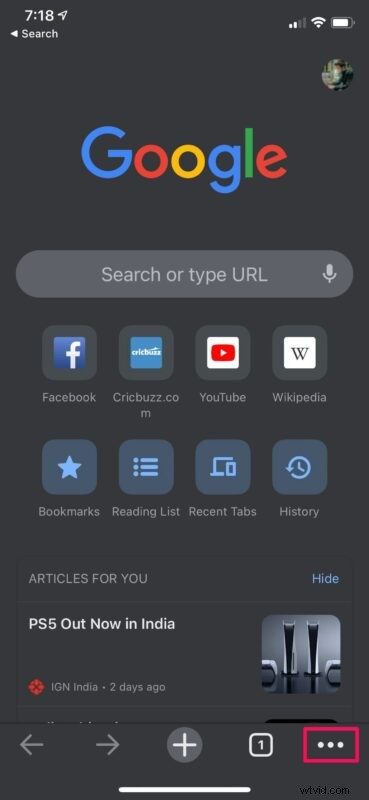
- Launch the Chrome app on your iPhone or iPad and tap on the triple-dot icon located at the bottom-right corner of your screen.
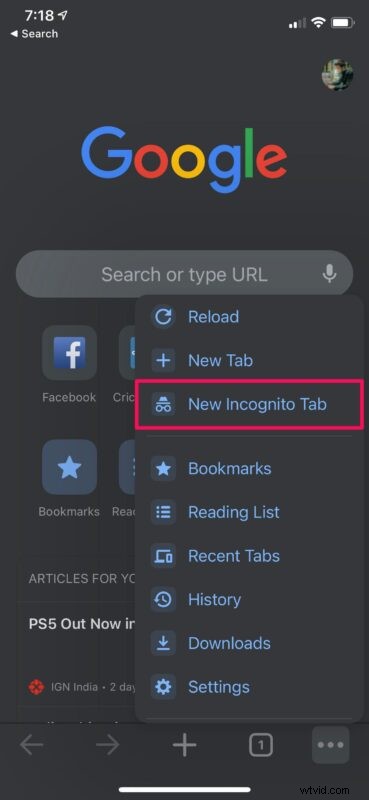
- This will give you access to Chrome options. Here, tap on “New Incognito Tab” as shown below.
- A new tab will open up within Chrome and you’ll be shown a brief description of this feature.
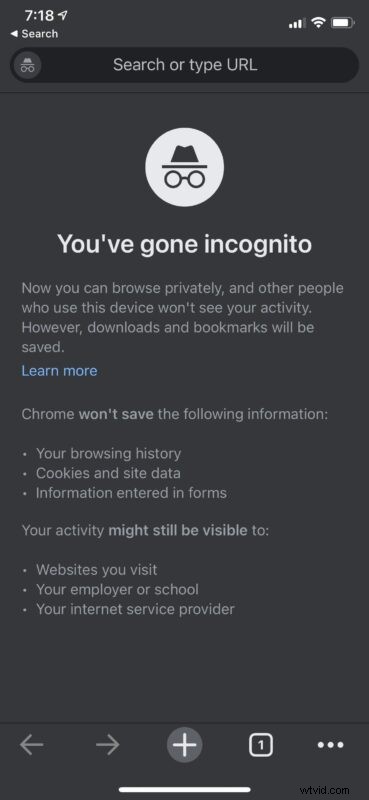
At this point, you can continue browsing the web normally without having to worry about your search data being saved. However, make sure you don’t switch to a different tab. Incognito tabs will display the Incognito icon instead of the Google logo next to the search or address bar.
How to Use Incognito Mode on Google Chrome on Mac
The steps to access and use Incognito mode is equally easy on macOS devices. So, without further ado, let’s get started:
- Open Google Chrome on your Mac and click on the triple-dot icon located next to the profile icon, as shown in the screenshot below.
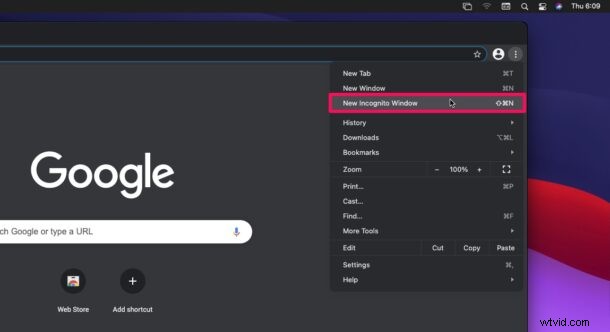
- Now, choose “New Incognito Window” from the dropdown menu. This will launch a new Google Chrome window that can be used to browse privately.
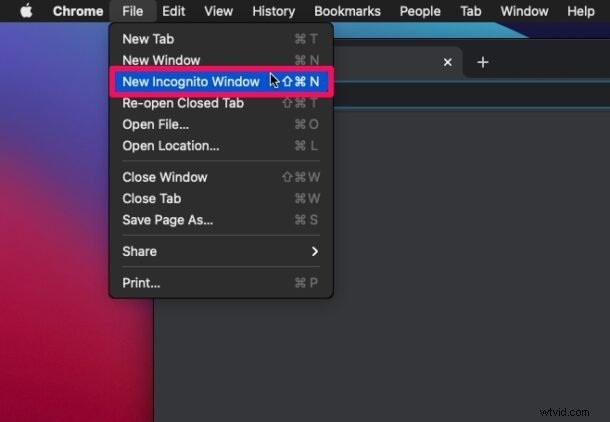
- Alternatively, you can launch a new Incognito window from the menu bar by clicking on File -> New Incognito Window. Or, you can use the keyboard shortcut Command + Shift + N.
There you go. Now you know how to use Chrome’s Incognito mode on both iOS and macOS devices.
It’s worth pointing out that Incognito mode does not completely hide your browsing activity as a VPN would. Your activity might still be visible to the websites you visit, anything that tracks IP address or MAC address, and your internet service provider. Also, if you’re accessing the internet from work or school using their network, the system administrators will still be able to track your activity.
You don’t have to feel left out if you make use of Safari to browse the web on your iPhone, iPad, or Mac. This feature is available on Safari as well, except that Apple calls it Private Browsing Mode. It can be accessed in a similar way and pretty much does the exact same thing. You can learn more about using Private Browsing with Safari on iPhone and iPad. Before you ask, Mac users can access Private Browsing too and even open links in a new Private Browsing window if needed.
Now you should be familiar with using Chrome’s Incognito mode regardless of what device you’re using. Is this a feature that you use on a regular basis? What do you think of Safari’s Private Browsing mode? Share your thoughts and experiences in the comments.