
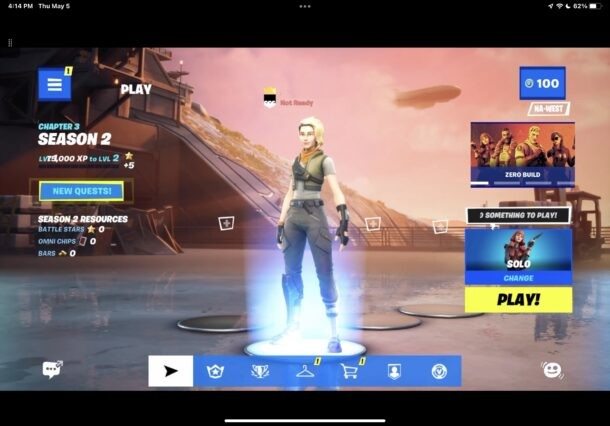
Want to play Fortnite on your iPhone or iPad again? You can do that for free, thanks to Xbox Cloud Gaming.
Fortnite is one of the most popular online games ever made, but because of the drawn out Epic v Apple legal battle, Fortnite was officially pulled off of the App Store, making the game unavailable to iPhone, iPad, and Mac users. But not anymore, thanks to the magic of cloud gaming.
While playing Fortnite in a browser has been possible for a while with GeForceNow from Nvidia, now a new offering is available from Microsoft that allows users to play Fortnite on their phones and tablets again, courtesy of Xbox Cloud Gaming.
How to Play Fortnite on iPhone or iPad with Xbox Cloud Gaming
Ready to play Fortnite on your device? All you need is an iPhone or iPad with Safari, a (free) Microsoft account, and a decent internet connection. Here are the steps:
- From Safari, go to https://www.xbox.com/play
- Sign-in to a Microsoft account (you can make one for free if you don’t have one, but any @outlook.com or @hotmail.com email address will work as well)
- Tap on Play, and you’ll be told you have to add the URL to your home screen, do this by tapping the Sharing button (it looks like a box with an arrow flying out of the top) and choosing “Add to Home Screen”
- Now go to the Home Screen and tap on the ‘Cloud Gaming’ icon that appears on your iPhone or iPad home screen
- Tap to play Fortnite
- Wait a moment or few and Fortnite will load, ready to play as usual
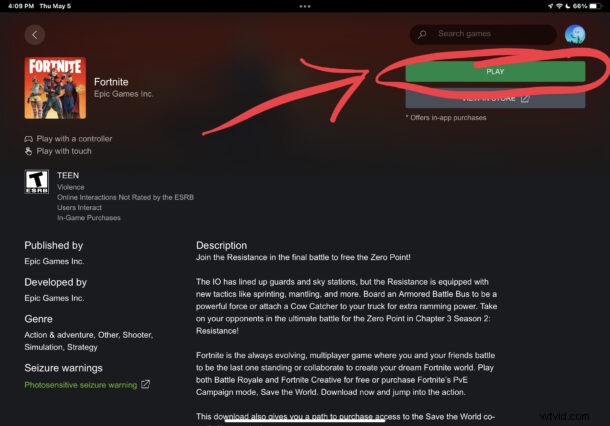
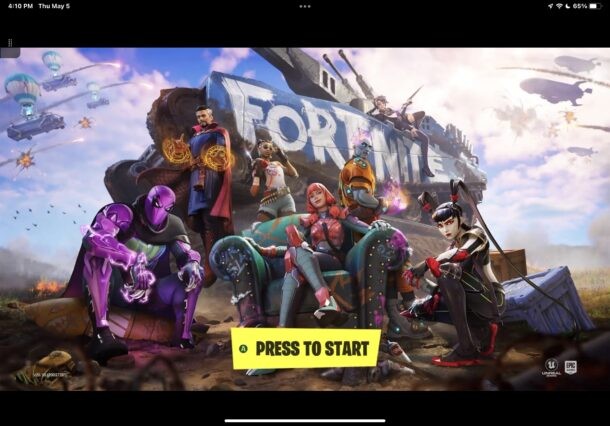
Easy, no downloads are required, the entire game is streamed over your internet connection.
You can sign into a (free) Epic Account if you’d like, or just play what is available away from Xbox Cloud Gaming.
The game offers touch screen controls, but if you have paired an Xbox One controller, Nintendo Switch controller, PS4 controller, or any other game controller to your iPhone or iPad, you can use that to play as well.
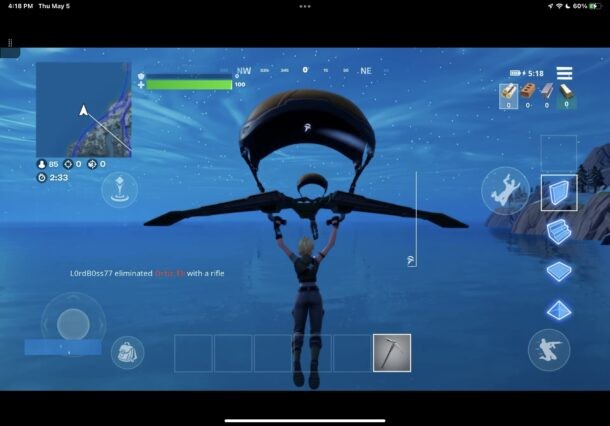
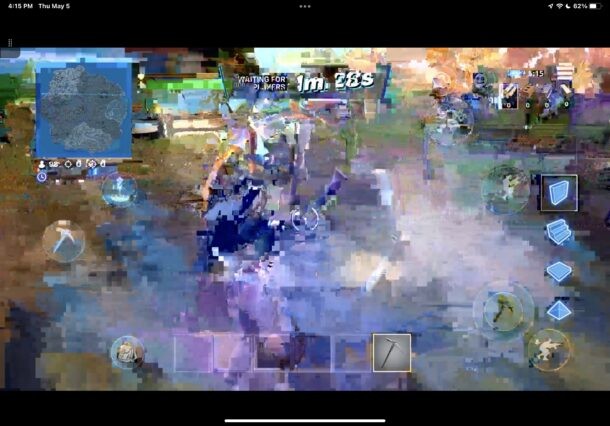
Performance is actually pretty good, and it’s more than playable if you have a decent internet connection. Occasionally, you may get some graphical glitches and hiccups, especially on slower internet connections, which can be quite distracting:
Overall it’s pretty impressive, so if you’re wanting to play Fortnite on your iPhone or iPad again, give it a try. It’s free and easy to setup, with no large downloads required or anything.
Happy gaming!