
If you have an Apple Silicon Mac, you can install and run iPhone and iPad apps directly on the Mac. Yes that means the iOS and iPadOS App Library is available to run on the Mac now, assuming you have hardware to support it.
The new Apple Silicon Macs have the ability to not only run Mac apps natively and through Rosetta 2, but iOS and iPadOS apps too, bringing a plethora of apps and games to the Mac that were previously not available on the platform.
This capability is limited to new Macs with Apple Silicon chips, like the M1 series of MacBook Pro, MacBook Air, and Mac mini, and of course future Macs will be running Apple Silicon chips too. If you do not have an Apple Silicon Mac, the capability will not be available to that hardware.
This works easiest if you download an app that you already have downloaded before to an iPhone or iPad. Remember, you must use the same Apple ID on the Mac as the iPhone or iPad as well, but you’d want to be doing that anyway, assuming all of the devices are your own anyway.
How to Run iPhone & iPad Apps on Mac with Apple Silicon
Ready to download, install, and run an iPhone or iPad app on an M1 Mac? Here’s all you need to do:
- Open the App Store on the Mac
- Click the lower left corner to select your account
- Click the “iPhone & iPad Apps” tab at the top of the App Store screen
- Locate the iPhone or iPad app or game you wish to download to the Mac, then click the download button (it looks like a cloud with an arrow flying out of the bottom)
- The iPhone or iPad app will download to the Mac and be placed in the Applications folder alongside other Mac apps
- Launch the downloaded iPhone or iPad app as usual, it will run in a new window on the Mac

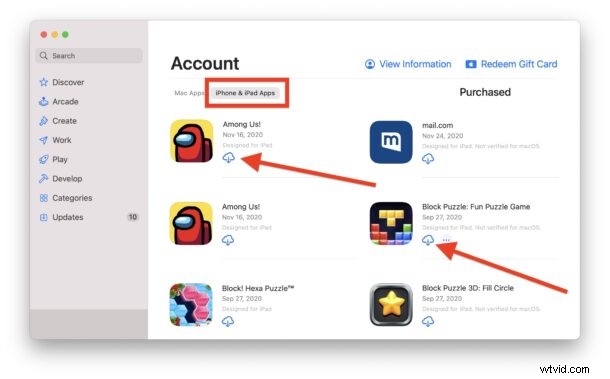
You can download and run iPhone and iPad apps or games, both will run just fine on the Apple Silicon Mac.
For example, here’s an iPad Block Puzzle game running on the Mac:
And here’s the iPhone PayPal app running on a Mac:

Of course not every game or app is optimized to be running on the Mac, due to interface or design or iPhone specific features, but for the most part that doesn’t mean they won’t run on the Mac.
Rather than using touch to interact with the iOS and iPadOS apps on the Mac, you’ll see the trackpad or mouse and keyboard.
For the most part, the iOS and iPadOS apps work great on the Mac as little mini-apps, so if you have an iPhone app you keep turning to your iPhone to use, you can now throw it on your Mac and use it there too, or instead.
As Apple continues to bring more Macs into their own Apple Silicon CPU architecture umbrella, surely the capability of running iPhone and iPad apps atop MacOS will evolve and expand as well.
What do you think of this capability? Do you have any interest in using iPhone or iPad apps on the Mac? Let us know your experiences and thoughts in the comments below.