

As you may already know, Skype makes video calling easy, but did you know that you can also make group video calls with Skype from iPhone and iPad too?
Skype group video calling offers an easy way to stay in touch with your friends, family members, and colleagues while you’re physically distant from one another. And one of the great things about Skype is that it’s available on almost any smartphone, tablet, or computer, so platform support isn’t an issue because you can use Skype on Mac, Windows, iPhone, iPad, Android, and even Linux.
If you’d like to use Skype to make group video calls on your iPhone or even iPad, take a look at the step-by-step procedures we’ll be discussing here.
How to Make Group Video Calls with Skype on iPhone & iPad
Before proceeding, you’ll need to install the official Skype for iPhone app from the Apple App Store. You will also need a Microsoft account to initiate a call over Skype. Assuming those are met, follow the steps below to get started with group video calling on your iOS device.
- Open the Skype app on your iPhone or iPad.

- Tap on “Sign in or create” to log on to Skype with your Microsoft account.

- Once you’ve logged in and you’re in the main menu of the app, tap on “Sync Contacts” if your contacts don’t show up automatically. Then, tap on the “notepad” icon located at the top-right corner of the menu to start a new chat.

- Here, choose “New Group Chat” as shown in the screenshot below.

- Give the group a preferred name and tap on the “arrow” icon.
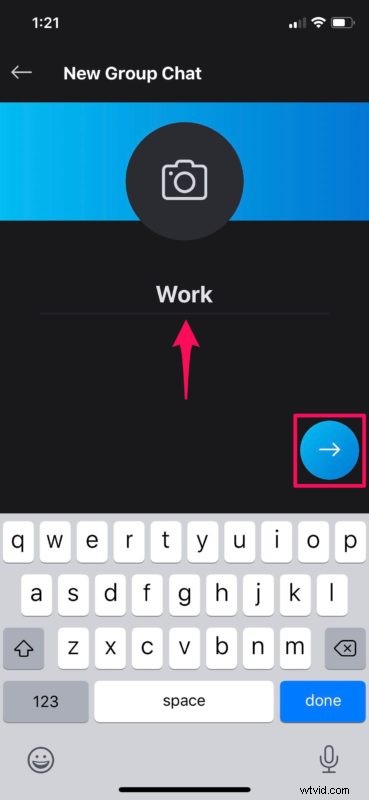
- Now, go through your contacts and select the ones you want to add. Alternatively, you can also search for people by their Skype usernames. Once you’re selected your group participants, tap on “Done”.

- Now, Skype will create a new group chat for you. Here, you can simply tap on the “video” icon in order to start a group video call. Group members can join at any time as long as the call is active.

That’s all there is to it. It just takes a few seconds you start video calling your friends, family members and colleagues using the Skype app that’s available for iOS device.
Microsoft recently introduced a “Meet Now” feature that’s accessible from the New Chat section within the Skype app, which lets users without Skype accounts join your group video call. It’s identical to how you manually create a group and add people to it, but here, you also get a unique invite link to the group which can be shared with anyone who wants to join the call without having to sign up for the service.
Apart from that, if you’re on desktop or laptop, you don’t even need to download the Skype app, as the invite link will redirect users to the web client. This move from Microsoft comes shortly after the huge spike in popularity that Zoom has gained recently, especially among students.
Skype allows users to group video call up to 50 people for free on just about any supported device. This might not necessarily seem as much, in comparison to Zoom meetings, but it’s still a very reasonable amount considering Apple’s FaceTime is limited to 32 people. Nonetheless, FaceTime calling remains an excellent choice particularly if you’re only attempting to video chat with others in the Apple ecosystem, and you can learn about using Group FaceTime here for iOS and iPadOS if interested.
Not quite content with Skype? There are so many alternative options you can try out, like Google Hangouts, Google Duo, Snapchat, Instagram, and WhatsApp to name a few. All of these services are multi-platform and can be used to stay connected with your loved ones while you’re at home.
We hope you managed to create a group to video call your family, friends, loved ones, or colleagues using Skype on your iPhone and iPad.
Do you prefer to use Skype over the competition? Do you have any particular tips or tricks for using Skype? Share your thoughts and opinions in the comments!