
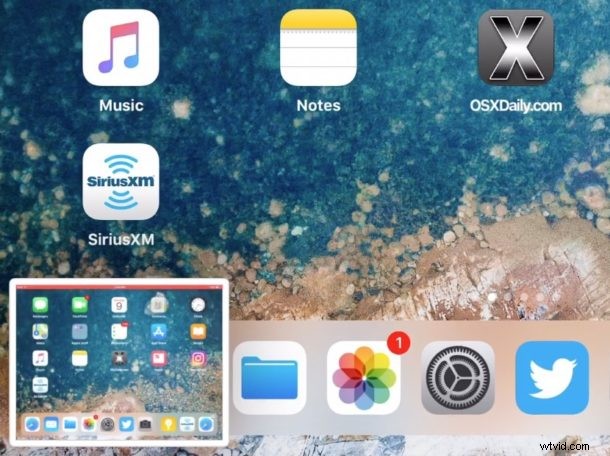
After you take a screenshot of an iPhone or iPad in iOS 11 or later, a little thumbnail preview of the screenshot appears in the bottom left corner. Tapping on that screenshot preview opens Markup where you can draw on the screenshot or quickly share it, but if you’re not going to markup your screenshot then you might prefer the screenshot preview to not be on the screen any longer.
Currently there is no way to disable the screen shot previews in iOS, but you can easily dismiss the screenshot thumbnail previews and push them off the screen of an iPad or iPhone.
How to Dismiss the Screenshot Previews in iOS 12, iOS 11, and newer
Hiding the screenshot previews once they appear on the iOS screen is quite simple, here’s how it works:
- Take a screenshot as usual in iOS (by pressing the Home button and Power button concurrently, except for iPhone X, XS, XR, XS Max, iPad Pro 2018 +, instead use Power + Volume Up)
- When the screenshot preview appears in the lower left corner, tap and swipe the screenshot preview to the left to instantly dismiss the thumbnail image
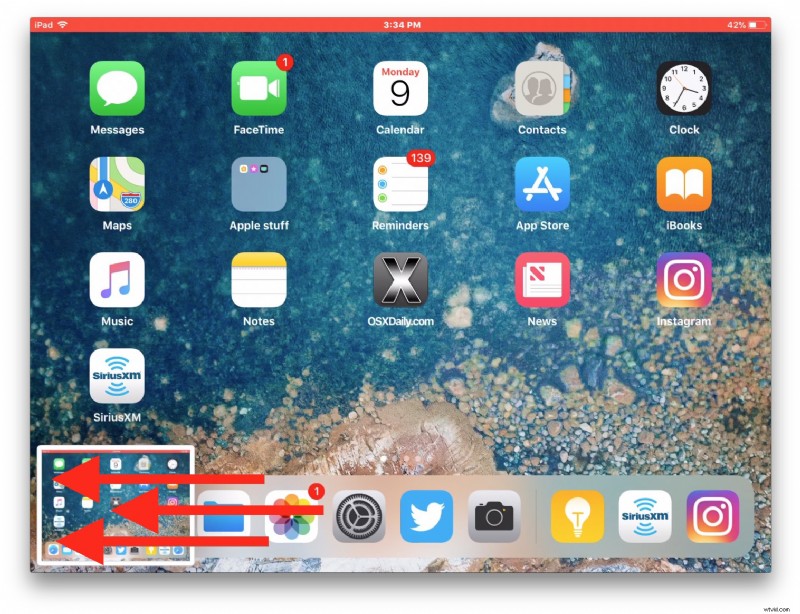
You can repeat this as many times as you need to dismiss the screenshot previews.
The animated GIF below demonstrates this in action, swiping away to the left on the screenshot thumbnail to dismiss the preview.
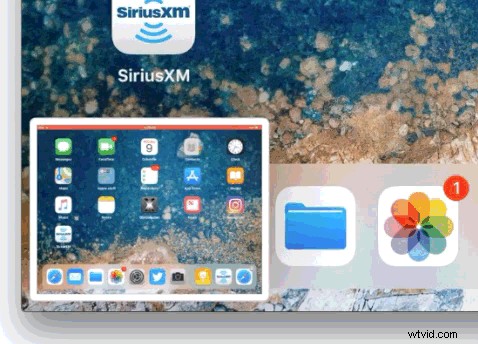
Remember, if you tap on the screenshot preview it will open into markup instead of dismissing. To hide the screenshot preview you have to swipe it away off the left of the screen.
You’ll find that if you take many repeated screenshots in iOS 12 or iOS 11 or newer, then a stack of thumbnails will appear in the lower left corner. You can dismiss the entire stack of screenshot previews with a swipe left as well.
For now this is the only method to hide the screenshot previews in iOS 11 and newer that show up in the corner of the iPhone or iPad display, but perhaps a future release of iOS will offer a settings toggle to adjust this feature or disable the screenshot thumbnail preview entirely.