
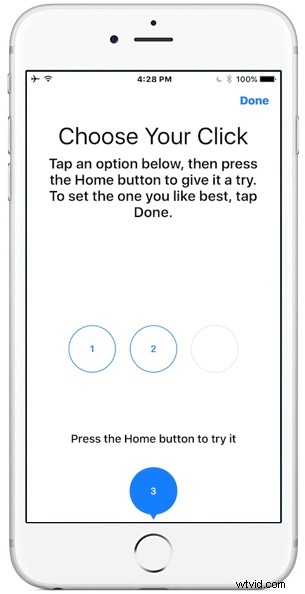
The new iPhone models don’t have a physical clicking Home button, and instead it senses pressure and gives haptic feedback instead, similar to how 3D Touch works on the screen and on Mac trackpads. If you decide you want to change how that Home button click feels, you can adjust the Home button click strength and feedback in a settings option of iOS.
This setting adjustment can be particularly important to change for iPhone 7 and iPhone 7 Plus users who keep their iPhone in a case, since it appears that some cases may damper the physical sensation of the click and make it difficult to notice. For case users, choosing a stronger click setting is recommended, but you can easily test all three Home button click feedback options to determine which works best for you.
While you can change this setting at anytime, it’s best to adjust it while the iPhone is in a state of typical use, meaning if that’s without a case or with a case, or against a hard surface or soft surface, adjust it in that state.
Adjusting the iPhone 7 Home Click Feedback Strength
This applies to both iPhone 7 and iPhone 7 Plus with haptic Home buttons:
- Open “Settings” and go to “General”
- Choose “Home Button” to access the Home button click preferences
- Tap on the 1, 2, or 3, and then press the Home button to test how it feels
- 1 – soft and subtle feedback when Home button is pressed
- 2 – moderate feedback on pressing Home button
- 3 – strongest feedback when pressing Home button (personally I recommend “3” to feel most like a real click)
- Exit Settings when satisfied with the Home button feedback
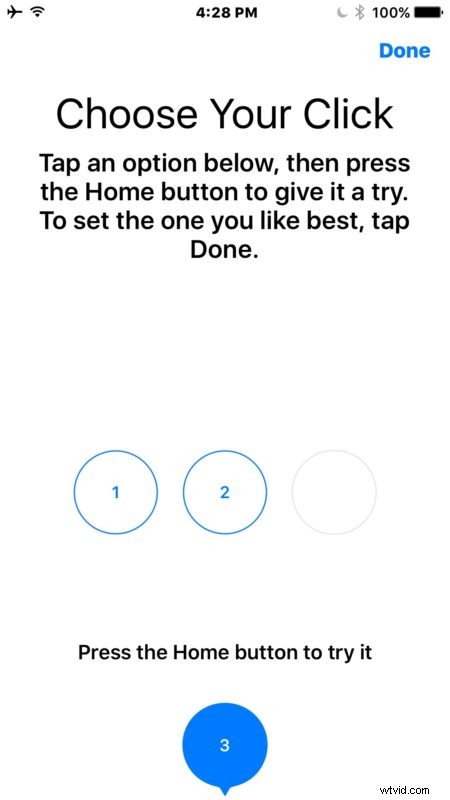
Remember this setting will impact all uses of the Home button and how it feels, including the new “Press Home to Unlock” screen option, taking screen shots, returning to the Homescreen of the device, accessing multitasking, and much more. The Home button gets a lot of use, so you’ll want to choose a setting that you’re happy with.
And yes this is the same “choose a click” Home button screen that users see when they are setting up and migrating to a new iPhone 7 or iPhone 7 Plus. Since many of us just picked a setting quickly without thinking much about it, it’s not surprising that some users may change their mind after the fact and want to adjust the click strength.