
 The iOS Mail app will automatically suggest recently used email addresses in the recipient feel when compiling a new email message or forwarding an email. While this is often accurate and helpful, sometimes an unwanted email address can pop-up in the automatic suggestion list, as can email addresses of people who are no longer in use. With a quick trick, you can clean up the recent email suggestion list on the iPhone, iPad, and iPod touch, and rid iOS Mail of any unwanted recommended email addresses and contacts.
Note this relies on email addresses you have actually reached out to and communicated with before, making this different from the “contacts found in Mail” suggestion feature of iOS, which can also sometimes incorrect contact information and can be disabled separately.
How to Remove Email Suggestions from Autocomplete in iOS Mail
This works the same on iOS Mail for iPhone, IPad, and iPod touch.
- Open Mail app in iOS if you haven’t done so already and compose a new mail message
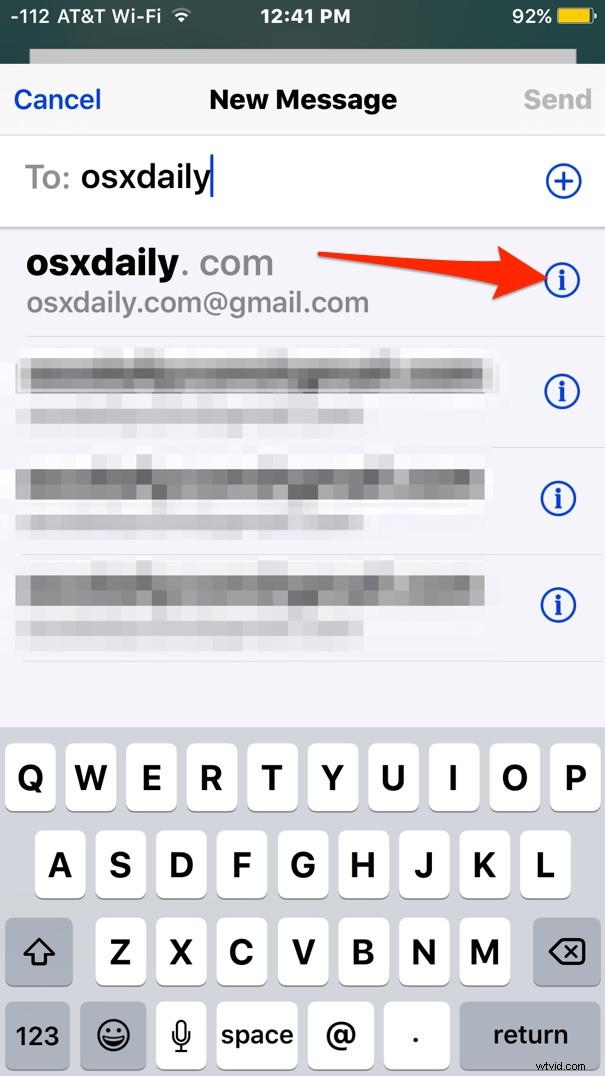
- Tap in the “To” field as usual and start typing the email address where unwanted suggestions start popping up (to remove general suggested email recommendations enter the specific address to remove, like hello@osxdaily.com)
- Tap the (i) button next to the email address of the contact you wish to remove from the suggested list
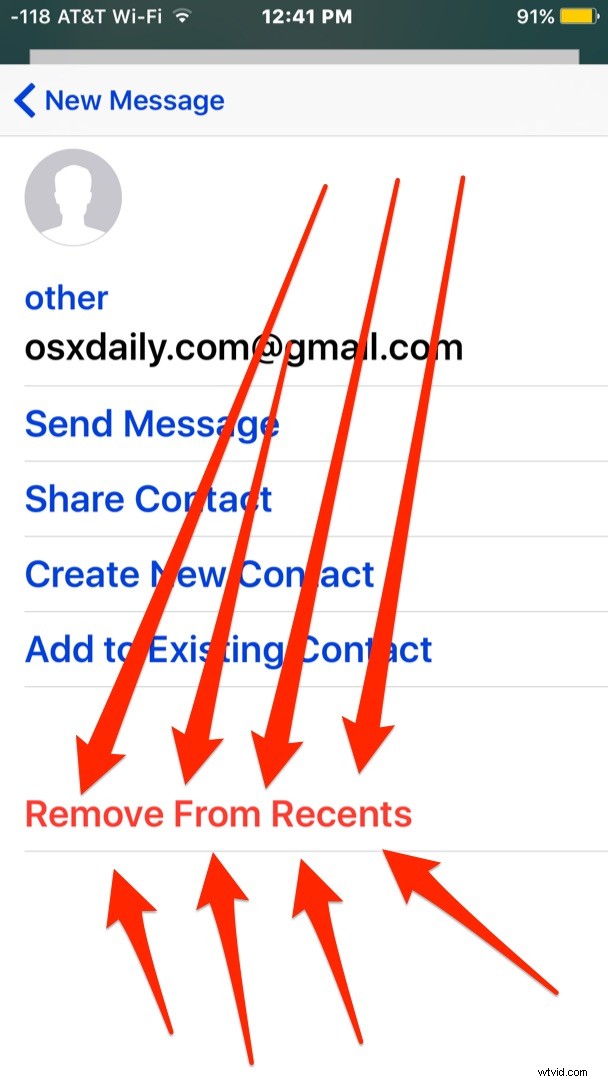
- Look for the “Remove From Recents” button option at the bottom of the contact information to remove it from the suggested email to list
- Repeat with other email addresses and contacts as desired
Once a contact has been removed from the suggested list they will not appear again unless the same email address is used again continuously for a while.
This can be very helpful to clean up old email addresses from the ‘to’ suggestion field, or to remove a recommended address that may no longer get much use. You’ll find this useful if coworkers, friends, or family have changed their email address recently as well, since it’s pretty frustrating for all parties involved to have emails being sent to the wrong address and never get a reply if it’s no longer active or checked often.
Note this only removes the contact and email address from the suggested email list that were recently used. This won’t delete the contact from your general address book, if you do want to remove the contact from the iPhone you can do that here via the Contacts app in OS X, iCloud, or on iOS.