
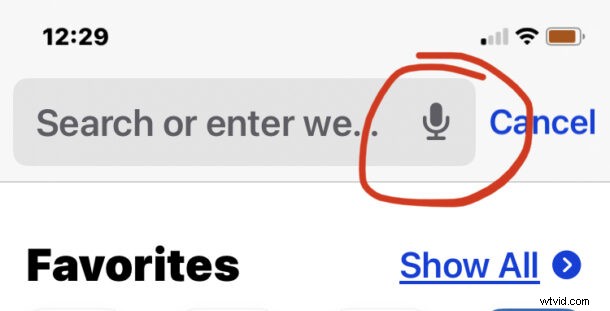
You may have noticed a microphone button in the address bar of Safari on iPhone or iPad, and when the microphone icon is tapped it will activate dictation, turning your voice into text.
Many users may accidentally tap on the microphone dictation button in Safari on iPhone or iPad, and thus may want to disable and remove the dictation button from Safari on their device.
It turns out that removing the microphone button in the Safari search bar is not as simple as you may hope it to be however, because by doing so you also have to disable Siri and the dictation feature. Whether or not that is acceptable to you is for you to decide, but here’s how it is done.
How to Remove the Microphone / Dictation Button in Safari Address Bar on iPhone & iPad
Removing the microphone dictation button means disabling Siri and dictation features broadly:
- Open the “Settings” app
- Go to “Screen Time”
- Go to “Content & Privacy Restrictions”
- Choose “Allowed Apps”
- Choose “Disable Siri & Dictation”
Now the dictation microphone button will be removed from the Safari address/search/URL bar on the iPhone or iPad.
Currently, there is no way to remove the dictation buttons from Safari without also disabling Siri and the dictation feature everywhere else, but if you don’t use those features then you won’t be missing them. Keep in mind this is not the only way to disable Siri if you don’t use the voice assistant, but as far as we know, this is the only way to remove the microphone button from Safari and the Messages app.
Thanks to @lapcatsoftware on Twitter for the tip idea.
If you know of another way to remove or disable the dictation microphone buttons in iOS and iPadOS, let us know in the comments!