
 Notes app includes a variety of enhanced features for iOS and OS X users, but one that is particularly useful is the ability to make checklists easily in the app. As you probably guessed, the checklists are interactive, so you can check things off your own created lists or notes easily to help you keep track of progress or tallies, essentially turning a regular note into a To Do list.
Whatever you intend to use the checklists feature for, it’s easy and a welcome addition to Notes for Mac and on iPhone and iPad. Assuming you’re using iCloud Notes, the checklist will even sync between Mac and iOS as well. Here’s how to use it for both platforms:
Create a Checklist in Notes for iOS
- Open Notes app and create a new note (you can place a checklist into an existing note too)
- Tap the (+) plus button hovering above the iOS keyboard then tap on the little circle around a check icon in the corner
- Type your checklist items, hitting return once to create a new checklist item, and hitting return twice to end the checklist
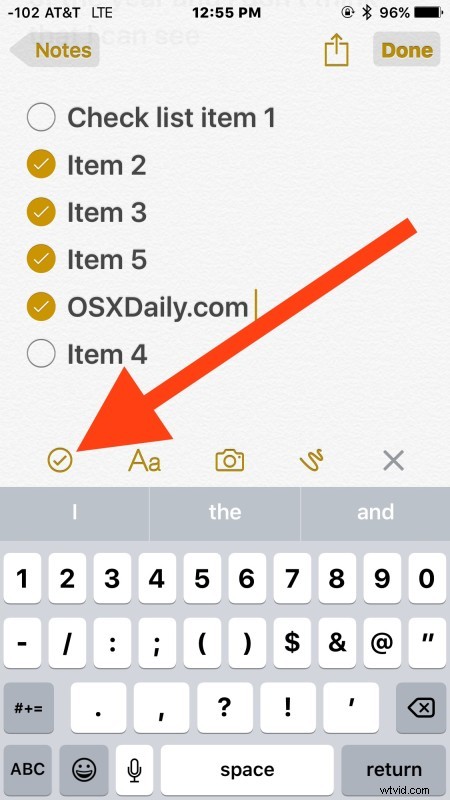
You can place a checklist in Notes for iOS amongst other items added to notes, whether that’s pictures and images that have been inserted or your own drawings made in the app.
How to Make a Checklist in Notes for Mac OS X
- Open Notes app and either create a new note or select an existing one
- Click the (V) circle checkbox button in the apps toolbar to insert a checklist
- Add checklist items by typing and hitting return, hit return twice to exit and stop creating additional checklist items
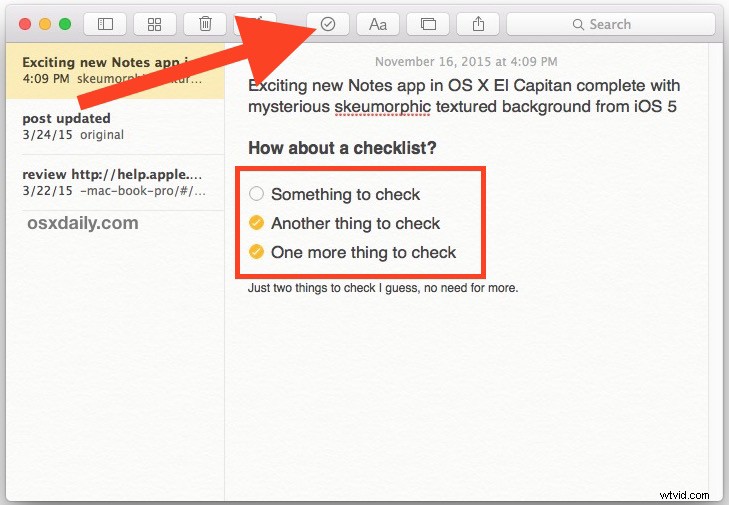
Just like in iOS these can be inserted just about anywhere with any notes, and they’re interactive too.
Assuming you have iCloud enabled with Notes, your iCloud Notes with checklists and other changes will quickly sync between any Macs, iPhones, and iPads using the same Apple ID.
A useful and welcome feature for list makers on both OS X and iOS, whether it’s for tracking getting things done, shopping, preparation, or otherwise.