
Subtitle Editor for Mac
This is because captioned videos are indexed by sites such as YouTube and Vimeo as metadata, ensuring they’re found easier in Google searches, which is bound to boost your viewership and search engine ranking.
On top of this, many video-hosting websites translate the attached subtitles in your movie depending on the location they’re being watched, meaning audiences across the world can understand what’s being said in your clips. An instant way of growing the number of views!
While traditionally you’d need some subtitle software for Mac to do all of this, you can now add subtitles to your videos online and for free, meaning you don’t have to download and install any dodgy or costly programs. Here’s how...
Upload your video clip
Open your browser and head over to Clideo’s Subtitle Creator for Mac. This can be accessed from any web browser - all you need is an internet connection!
To begin, navigate to the ‘Choose file’ button on the tool’s homepage. Click this and you’ll be given the option to upload from your Mac computer’s storage drive.
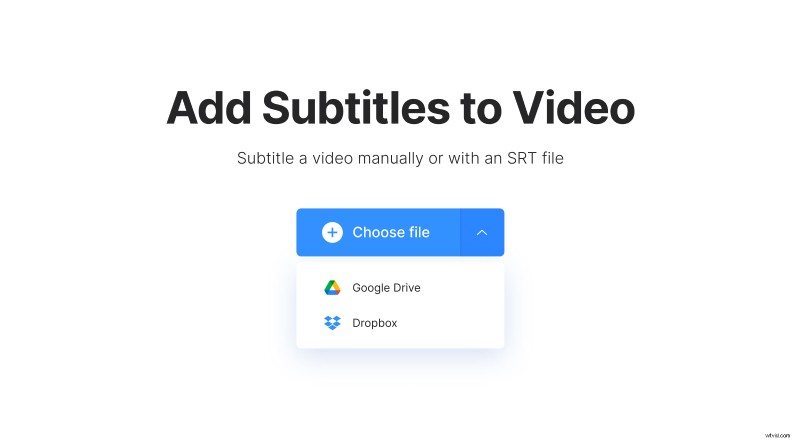
If your movie is stored on the cloud instead, you can upload a video directly from Dropbox or Google Drive cloud storage accounts by simply tapping the down-arrow on the side of the same button.
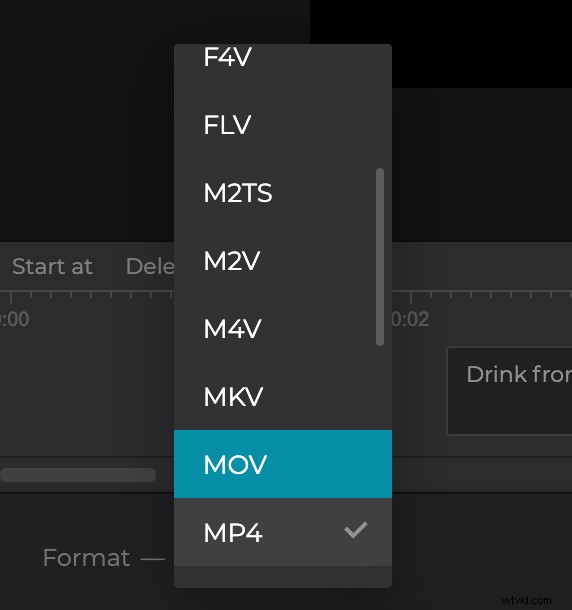
Please note that Clideo’s tool accepts files up to 500 MB in size and not only supports MP4 clips, but all major formats as well, including MKV, AVI, MOV, and many others.
Add subtitles to a movie on Mac
Once your video has been uploaded, you’ll be taken to the editor page where you can add the subtitles.
You’ll have several options to input the captions, for example, manually or by uploading a subtitle (.SRT) file. The latter is ideal if you already have subtitles created for your video. If not, don’t worry - you can tap to add them manually.
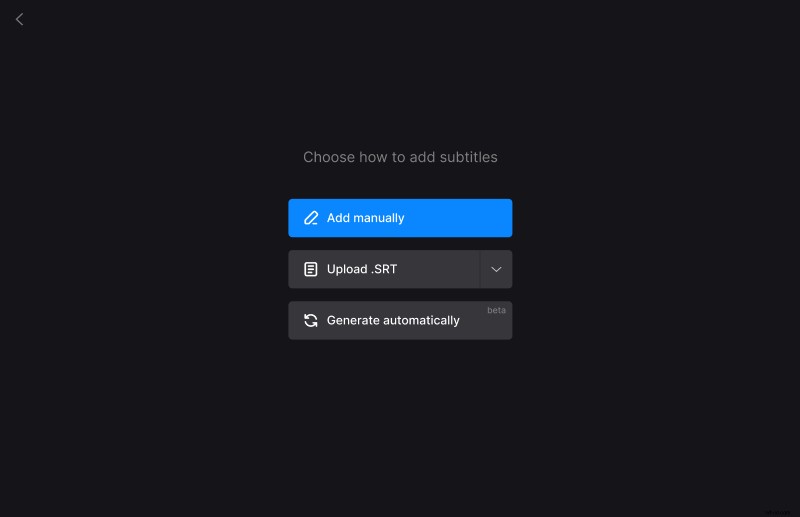
When the subtitle maker for Mac opens, add the captions and the timing within the clip that you want them to appear on the frame.
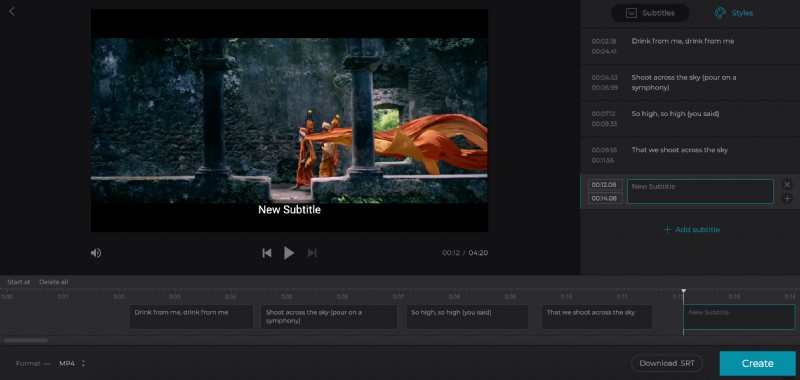
Once you’re all done adding subtitles, click on the ‘Styles’ tab on the top right to select a font, its colour, background, size, and alignment.
In the bottom right, you’ll see a ‘Download .SRT’ option, which is especially useful as it lets you save your captions as an SRT file. Separately.
Finished? Just tap the blue ‘Create’ icon on the bottom right and the video will begin processing with the new subtitles burnt in.
Please note that the tool adds hard subtitles only. Hard subtitles are burned in, or hard coded, as an overlay over your video and cannot be turned off or on later in a player.
Download your subtitled clip
Once processing is complete, you’ll be able to give it a preview to ensure it’s to your liking. If so, it’s time to save it back to your Mac, To do this, hit the ‘Download’ button.
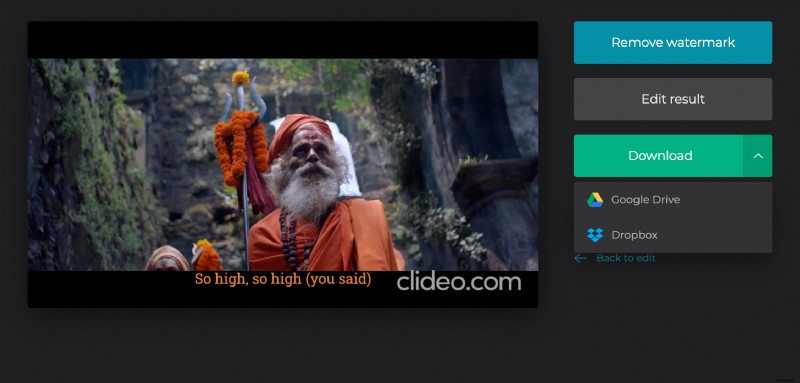
As before, you can also upload straight to Dropbox or Google Drive via the down arrow.
If, instead, you’d like to make some more edits, select the ‘Back to edit’ link and it will take you right back to the editor without having to start over.