Add subtitles manually or with SRT to MKV online
But no worries! Our handy tool not only allows you to add SRT to MKV or write subtitles manually, but also enables you to change the file extension to MP4 or any other format to make it meet, for example, Facebook, YouTube, or other social media specs.
Clideo works online, so you don’t have to download, install, and set up any complicated applications. It is free for files up to 500 MB, and you can add as many of them, as you need, their combined size is not limited.
What is even more important – our service is so easy-to-use, that you don’t need any technical or editing experience to handle it.
Follow three simple steps and merge SRT with MKV or add your own subtitles.
Import a video to the tool
Open Clideo’s Subtitle Editor in any browser and add a recording from your personal device by hitting the pane “Choose file”.
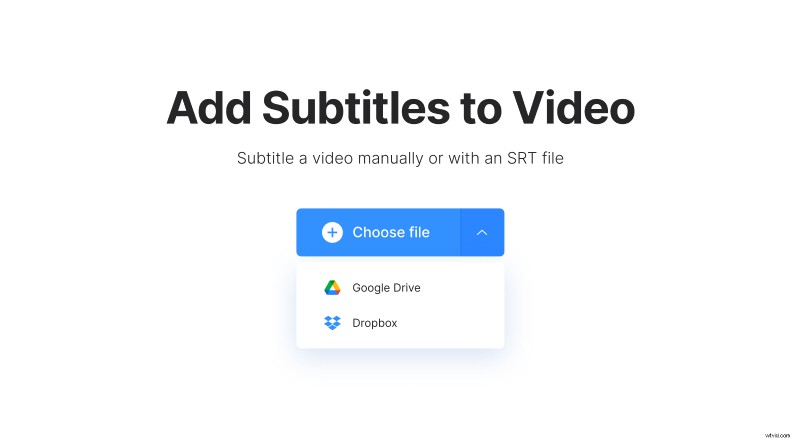
You can also call the drop-down menu on the same pane and upload a file from your cloud storage accounts.
Add subtitles to MKV permanently
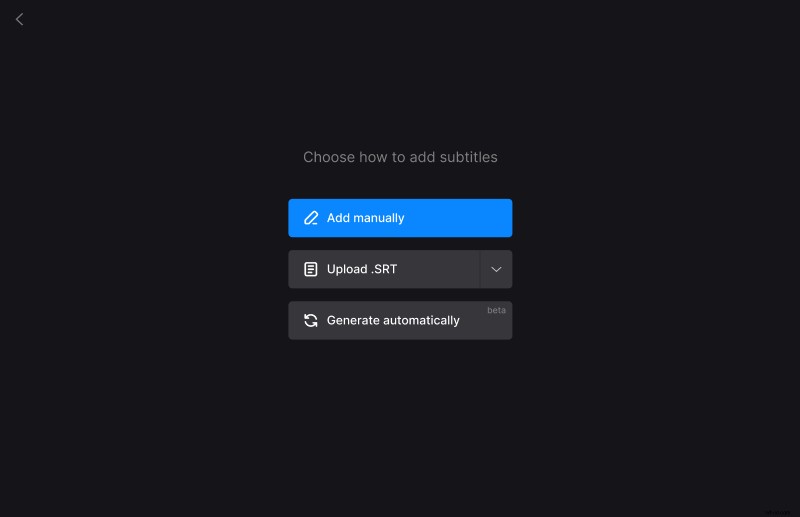
At this step you can choose how to add subtitles. Several options are available: for example, you can combine SRT files with MKV video (Upload .SRT) or add them manually. Whatever you choose, you’ll be transferred to the editor.
Find the pane on the right from the player – here you can edit, rewrite, delete or add captions for each frame. They’ll immediately appear on the timeline below. Here you can drag them, overlap, extend or shorten, change their timing, etc.
“Styles” tab allows you to change the font, size, position, alignment, colour and background of the captions.
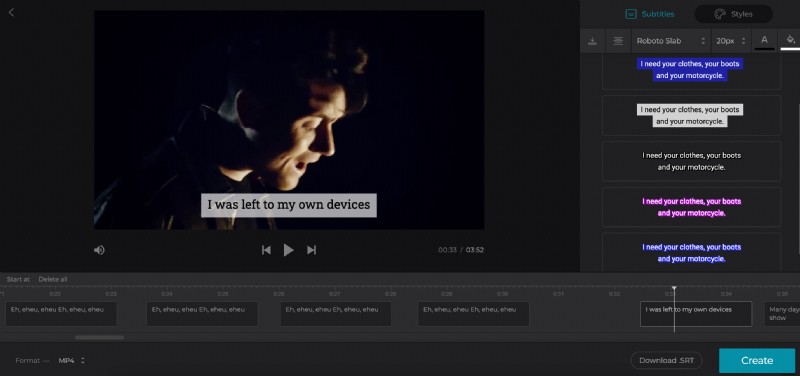
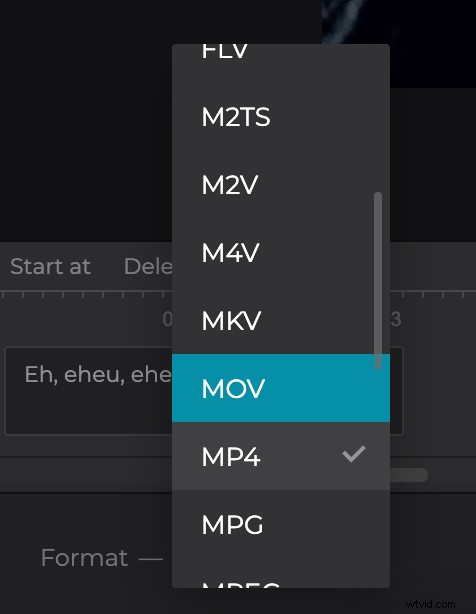
If you want to change the video’s format, you can do it in the bottom left corner below the player.
If you added the subtitles manually or just edited them and want to keep the enhanced version in a separate file, click on the “Download .SRT” button.
When you are fully done, hit “Create” and give the tool several moments to do its job.
Please note that the tool adds hard subtitles only. Hard subtitles are burned in, or hard coded, as an overlay over your video and cannot be turned off or on later in a player.
Save the video with subtitles
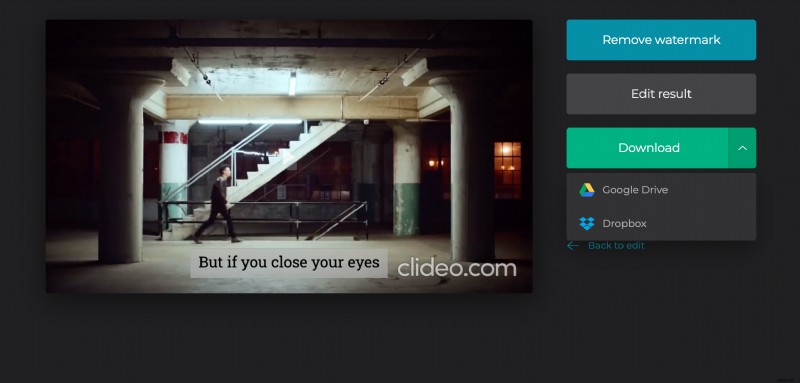
Give the clip the final run to get sure that every caption has its proper place. If you are happy with the result, save it to your personal device, Google Drive or Dropbox. If you want to change something, hit the “Back to edit” arrow.