
If you use the iOS Notes app often and juggle a myriad of individual notes lists, you may find the new notes pinning feature to be helpful. By pinning a note to the top of the Notes list, you can access any particular note easier and faster than ever before, without having to scroll through a lengthy list of notes on the iPhone or iPad since it will be at the very beginning.
Pinning notes is really easy, but like many other notable features in iOS the capability is hidden behind a swipe gesture that may not be immediately obvious to most users until it’s pointed out. Fortunately once you know it exists, it’s a piece of cake on any iPhone or iPad with the Notes app and the latest version of iOS.
How to Pin Notes in iOS for Quick Access
Want a note to appear at the top of the Notes list on the iPhone or iPad? Here’s how to pin one at the top:
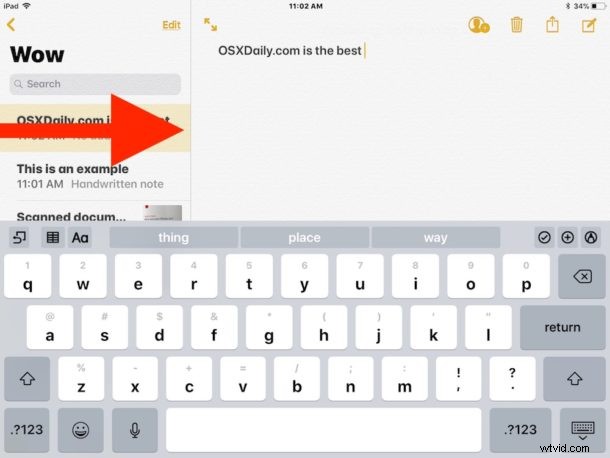
- Open the Notes app and find and identify the note you wish to pin to the top of the notes list
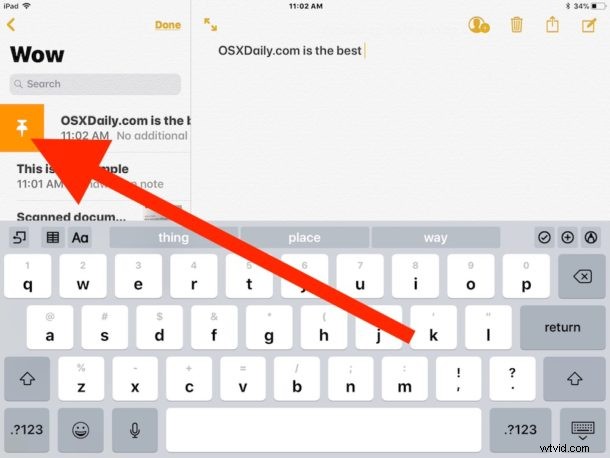
- Swipe right on the note to pin
- Tap on the pin icon that appears next to the note name, it looks like a pin
- The note will now be pinned to the top of the notes list, repeat with others if necessary, any pinned note will be identified with the pin icon and a small faint text that reads “pinned”
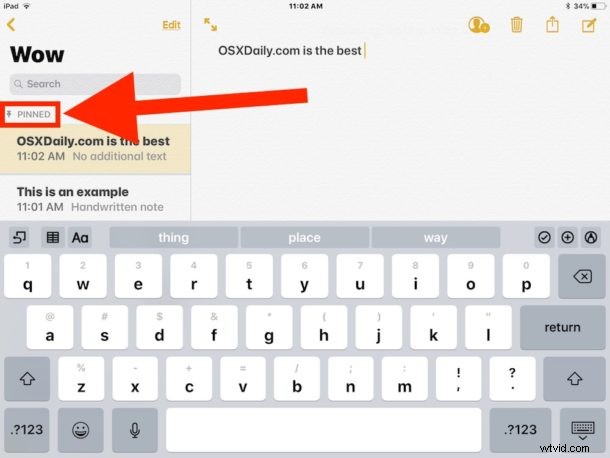
Now anytime you open the Notes app and look at the notes list, your pinned note(s) will appear at the very top of the notes list for quicker access.
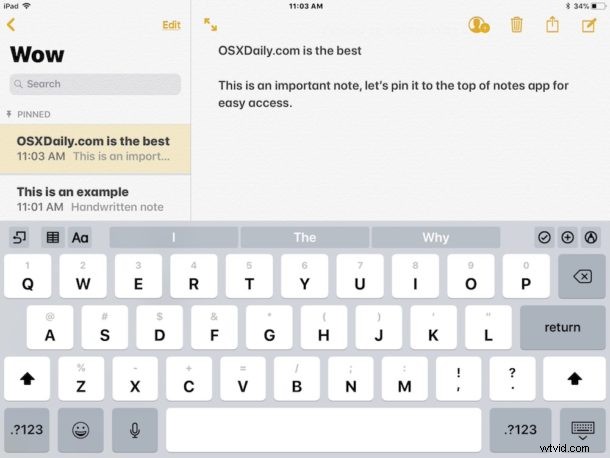
This feature is great with any note, even for collections of doodles, but it’s particularly useful for important shared notes and with password protected notes, or with any other note that is important enough or that you don’t want to have to search for to locate when needed.
How to Unpin a Note in iOS
Decided you no longer want a particular note pinned to the top of the list? Here’s how to remove the pin:
- Swipe right on the pinned note you want to unpin
- Tap on the pin icon to remove the pinning of the note
- Repeat with other notes to unpin if necessary
Pinning and unpinning notes is a new feature and requires iOS 11 or later on the iPhone or iPad. If you do not have the pinning ability you’re likely not on the latest version of system software.
The Notes pinning feature is also available on the Mac with Notes app in macOS High Sierra 10.13 and newer.
The Notes app is quite useful and has many more features than meet the eye, check out more tips for Notes app for Mac and iOS here.