
Keeping apps updated on an iPhone and iPad is generally a good idea, as app updates frequently include bug fixes, performance improvements, enhancements to compatibility, or even entirely new features to apps and games. iOS users can update apps by opening the App Store and going to the “Updates” tab, but sometimes an update may not show up despite being available either on other devices or to other users. The solution to such a situation is to refresh the Updates section and check for new app updates available
You can refresh the Updates section of the App Store on an iPhone or iPad, though how you refresh the Updates tab in the App Store has changed in the latest versions of iOS 11 compared to prior versions. The good news is the change is for the better, and now checking for new updates to the App Store is better and easier than before.
How to Check for Updates in the App Store for iOS 11
Want to see if new app updates are available in iOS 11 App Store? You can use a nice little gesture to force the App Store Updates tab to refresh, here’s how this works:
- Open the App Store in iOS as usual by tapping on the icon on your Home Screen
- Go to the “Updates” section of App Store
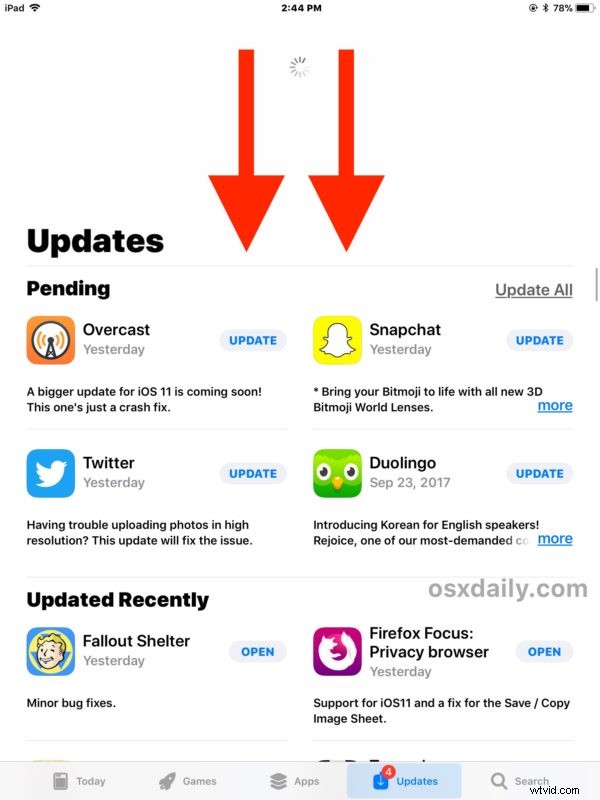
- Tap near the top of the screen near the ‘Updates’ text, then hold and pull down, then release
- When the spinning wait cursor finishes spinning, any new app updates will appear

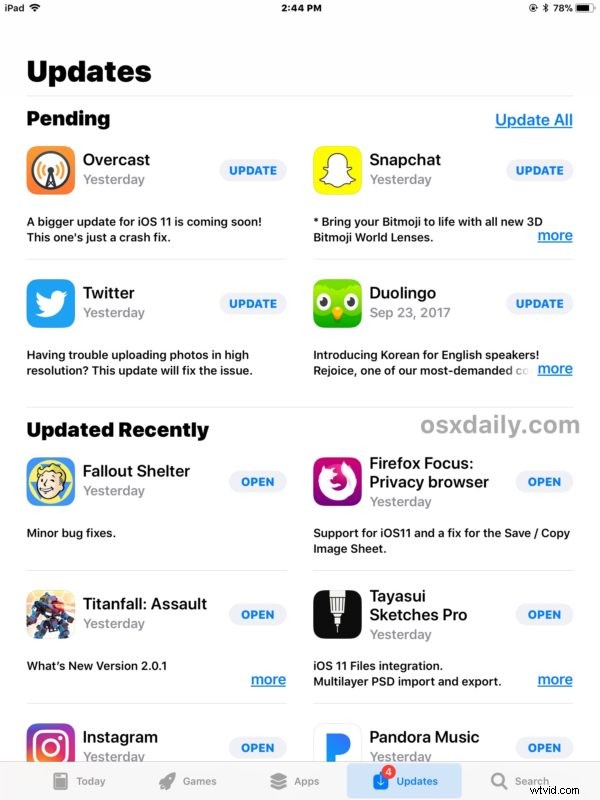
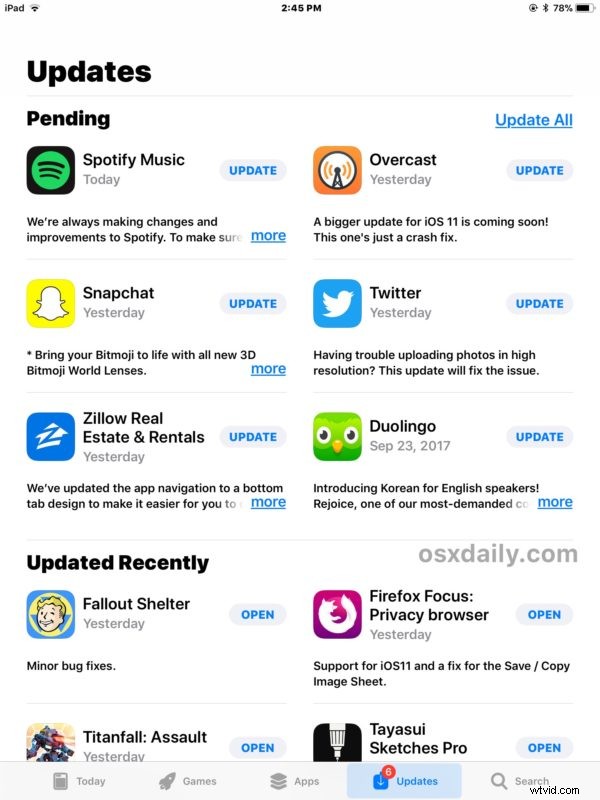
Once the Updates section has refreshed, you can find additional updates if they’re available, and the little badge indicator on both the Updates tab and the App Store icon will update accordingly as well.
As usual, you can update all existing apps that have new versions available by tapping on the “Update All” section, or by individually updating each app as desired.
This “pull down and release to refresh” gesture now introduced into the App Store is actually the same in various other iOS apps. In fact, this is the same pull gesture that will check for new email in Mail for iOS, though many users seem to not know about that capability either.
Keep in mind that prior versions of iOS App Store used either a series of quirky tricks, or a repeated tap of the Updates tab trick to refresh the App Store, so ultimately the change with the latest versions of iOS 11 are a notable improvement. Meanwhile on Mac OS, the Mac App Store can be refreshed via a keyboard shortcut that has remained the same since the introduction of the App Store on the Mac.