
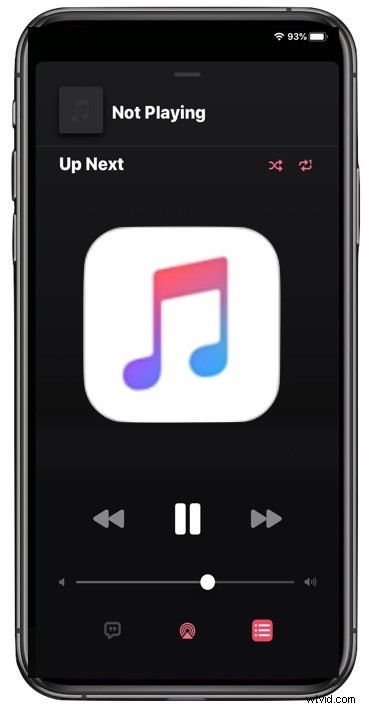
Found a song you want to listen to on repeat in Music app on iOS 13 or ipadOS 13 and later? If you have an iPhone running iOS 13 or iPad running iPadOS 13, you might be wondering how to repeat songs and repeat albums in the iOS 13 Music app since it is now different from before.
Fortunately repeating songs and albums in Music app of iOS 13 is easy, as you’ll quickly see, so whether you’re on iPhone, iPad, or iPod touch, you’ll be repeat playing songs, albums, and playlists in no time.
How to Repeat Songs in iOS 13 Music App
- Open the Music app on iPhone or iPad and start playing a song if you haven’t done so already
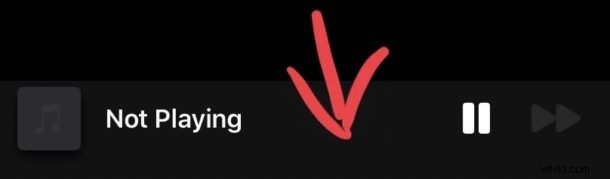
- Tap on the “Now Playing” section at the bottom of the Music app
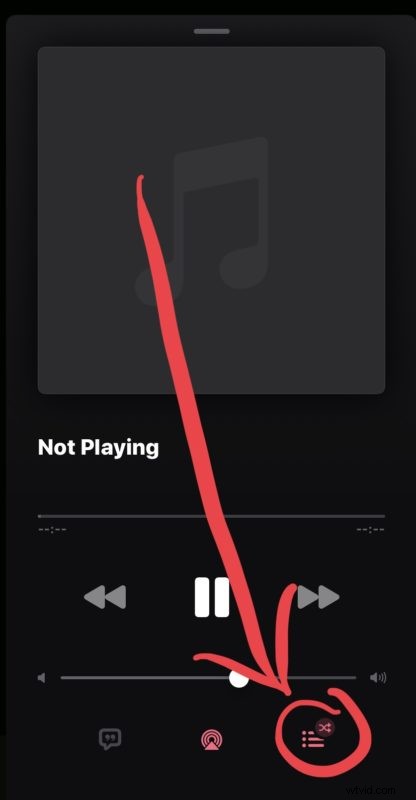
- Tap the three lines button in the corner
- Tap on the repeat button alongside the “Up Next” label, it looks like two arrows circling one another
- Tap once to repeat the entire album (or the entire playlist)
- Tap twice to repeat the current song, this will show a little tiny ‘1’ indicator on the repeat button
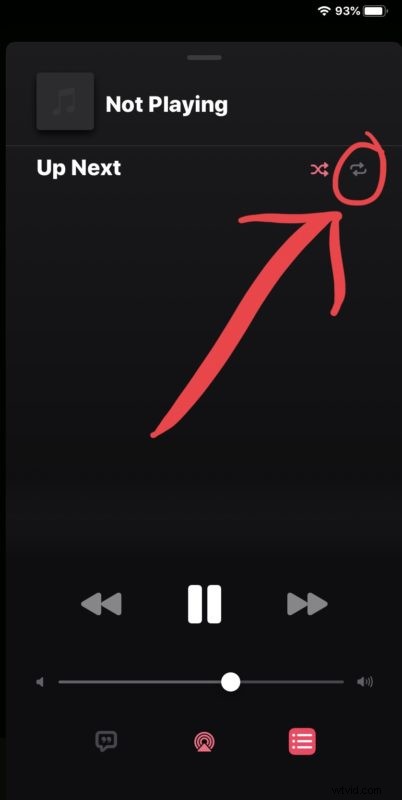
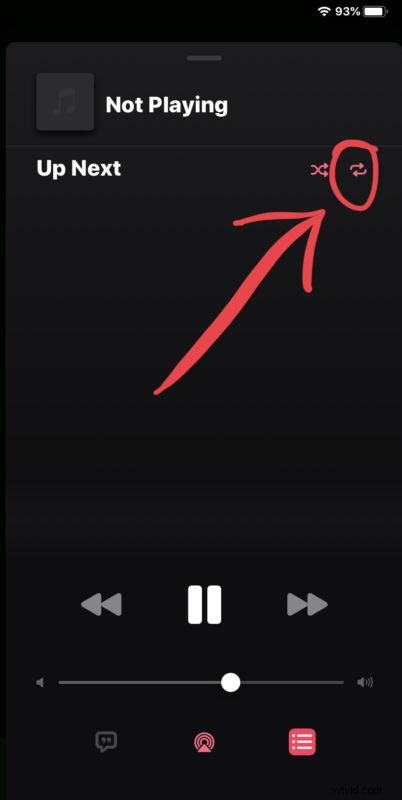
To stop a song or album from repeating in Music app, just tap on the Repeat icon again until it is no longer highlighted.
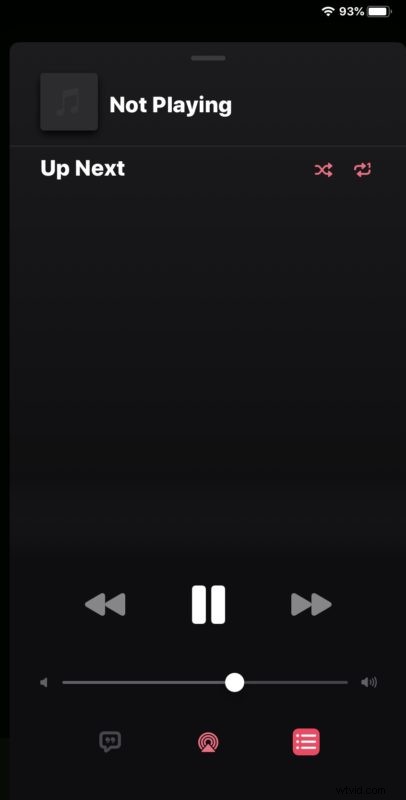
Remember this change to repeating songs and albums applies to the Music app in both iOS 13 for iPhone and iPod touch, and iPadOS 13 on iPad models, and presumably going forward with future Music app versions as well.
So if you updated your iPhone and are now wondering “how can I repeat a song in iOS 13” or “where’s the repeat songs button in iOS 13 Music app” now you know.
Similarly, you’ll also find the Shuffle Music feature in Music has been relocated in the latest versions of iOS and iPadOS as well, as you may have noticed when you were accusing the repeat functionality in the new versions of Music app.