
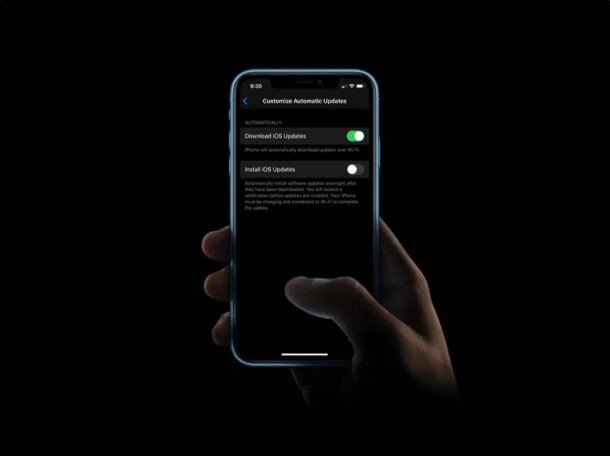
Have you ever wanted to stop your iPhone or iPad from automatically installing software updates while being charged and connected to Wi-Fi? If so, you’ll be pleased to know that this is possible, and you can customize the automatic update process for iOS and iPadOS.
One of the more helpful additions to the newer iOS and iPadOS versions is the ability to customize software updates on your device. Although Apple has allowed users to disable automatic updates for quite a while now, the option to stop installations overnight wasn’t available until now.
How to Customize Automatic Updates on iOS & iPadOS
Your device will need to be running a modern iOS or ipadOS release to have this feature available:
- Head over to “Settings” on your iPhone or iPad.

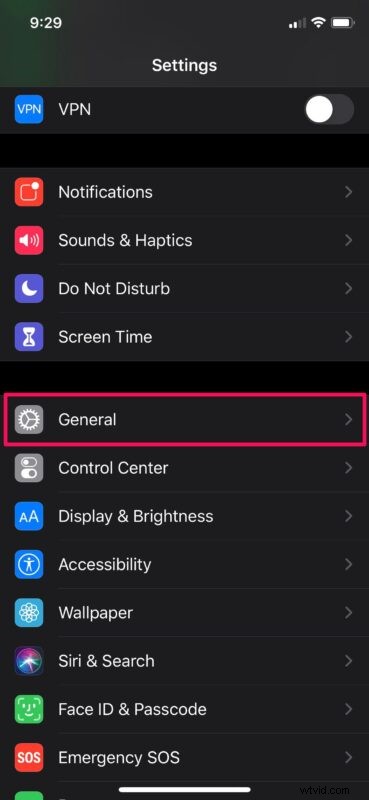
- In the settings menu, scroll down and tap on “General”
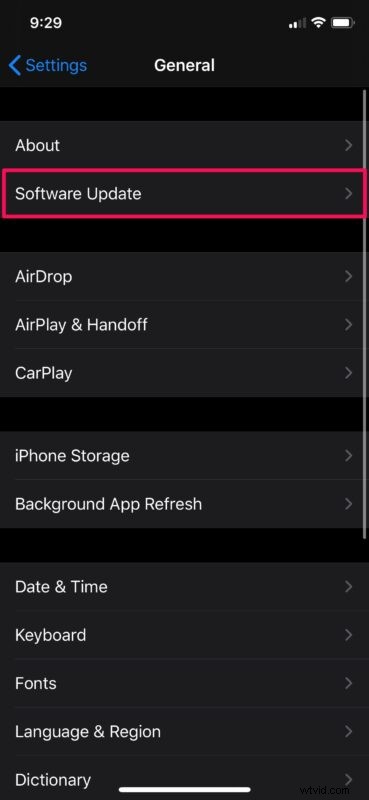
- Next, tap on “Software Update” located just below “About” at the top.
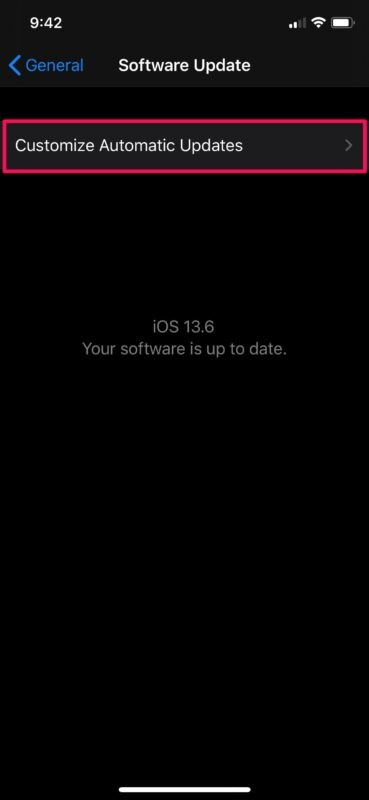
- Now, tap on “Customize Automatic Updates”.
- Here, you’ll have the option to just turn off automatic installations or completely disable automatic updates altogether. Simply use the toggle to choose your preferred settings. Be mindful that automatic updates must be turned on, in order to access the “Install iOS Updates” toggle.
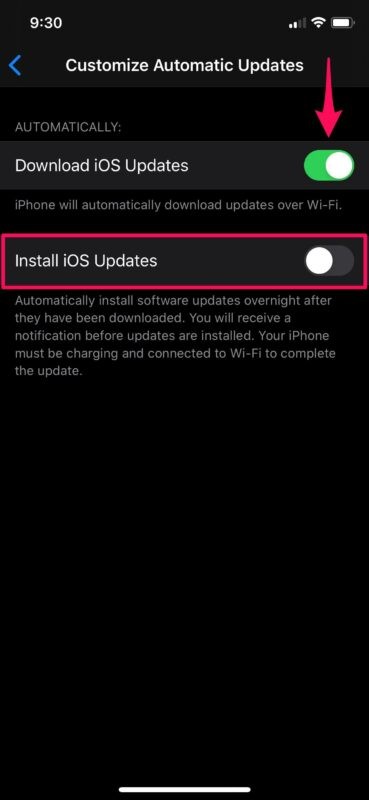
There you go. Now you know to customize software updates according to your preferences on an iPhone or iPad.
As you can see here, this is a fairly simple and straightforward procedure. It’s worth noting that even if you keep automatic installation enabled, you will receive a notification on your device before updates are installed.
This procedure can be extra useful for people who’re running developer and public beta versions of iOS and iPadOS, as they are more prone to be impacted by bugs and glitches. By preventing your device from installing updates automatically, you can check if there are any major issues with the firmware on the internet before you proceed to manually install them.
What are your update settings? Did you just turn off automatic installation or did you disable automatic updates altogether? Share your thoughts and experiences with this feature in the comments.