
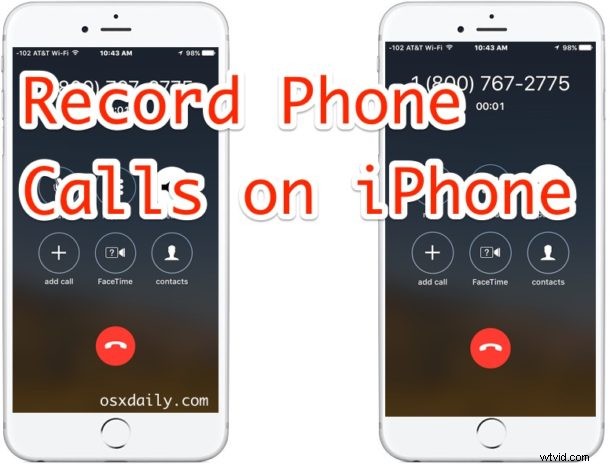
Want to record an iPhone call? Did you know there is a very easy way to record iPhone phone calls using nothing but your iPhone and a voicemail trick? I know you’re thinking what does recording an iPhone call have to do with voicemail, but it turns out that a simple trick allows you to use the service to record any phone call, and it works great. Not only will you get the recorded phone call, but you’ll be able to save and share the call recording as an audio file as well.
You can try this out yourself and record your own phone calls this way, but do keep in mind you’ll need to get permission from the other party before you attempt to record the phone call.* The only catch is that you must have voicemail set up with your phone number.
How to Record iPhone Calls with a Voicemail Trick
Essentially what you’re doing here is merging a call with your own voicemail, thereby creating a conference call with yourself, your voicemail, and the other person or place you are calling. Once the call is completed, the recorded call will appear in your voicemail. Here’s exactly how it works and how to try it yourself:
- Open the Phone app and call the person (or place) as you normally would
- Explain to the person that you are about to record the phone call, get their permission, and explain in order to do so you need to put them on hold for a moment to merge with the call recording function
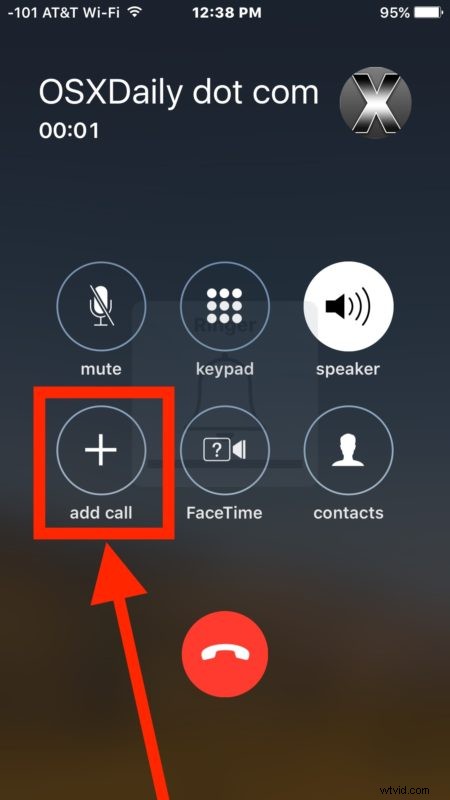
- Tap on the “Add Call” button and dial your own phone number, this will send you directly to your voicemail answering service
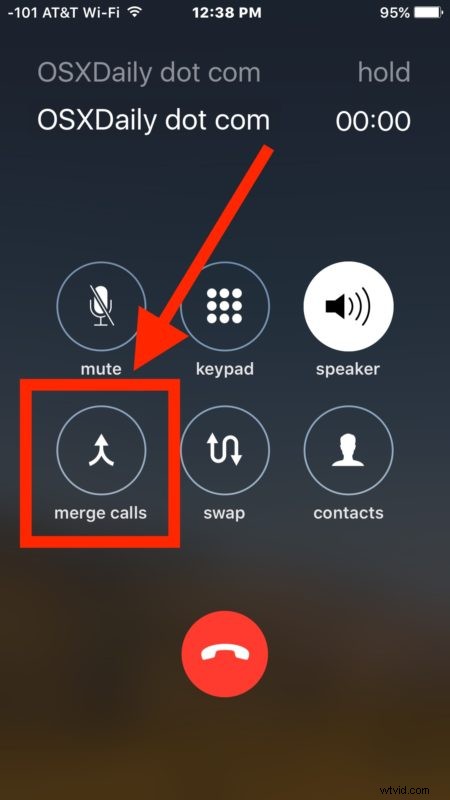
- Once the voicemail starts recording as usual, tap on the “Merge Calls” button to merge the recording voicemail message with the live call in first step
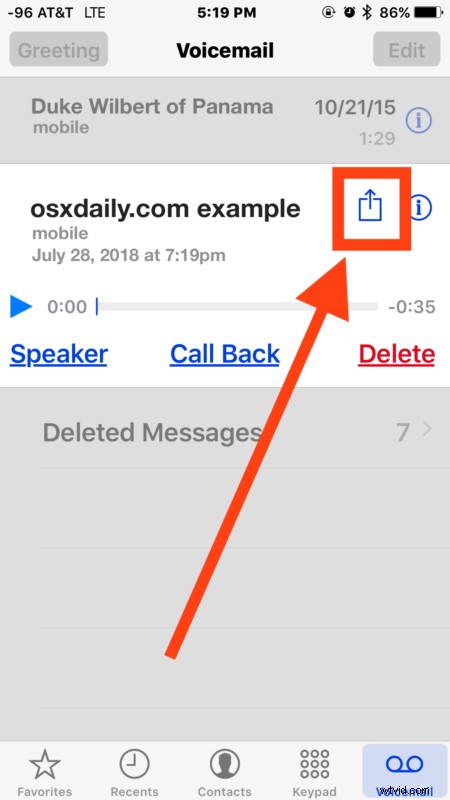
- Have your conversation as usual, when the call is finished end them as usual by hanging up then wait a moment for the recorded phone call to appear in the “Voicemail” section of the iPhone Phone app
That’s all there is to it, it works perfectly too. This is a popular trick that many interviewers and journalists use to record a call easily without other equipment and directly from their iPhone, and it likely has other purposes as well.
Another variation of this for users without visual voicemail is to use “Add Call” to call the person already on the phone connection, and they just need to let it go to voicemail. Then, the other person on the phone gets the call recording and can save it or forward it to you.
This method works whether you have visual voicemail or not, but if you want to be be able to save and share the voicemail as an audio file from the iPhone you must have the visual voicemail function and ability to call your own voicemail box. If you don’t have visual voicemail, you can still record the calls this way, but you wouldn’t be able to save, share, or access the call recording as a file on the iPhone.
Always Get Consent Before Recording Any Phone Call with iPhone or Otherwise
* Always get permission to record a phone call, and be sure to explain to the person you are going to record the phone call. In many regions it is illegal to record a phone call without consent to do so. Thus you’ll want to be sure if you’re trying this with a friend or family member, that you ask if it’s OK to record the phone call first, and they must agree. Knowing the legality of recording phone calls varies per region, it is entirely your responsibility to know and understand these rules otherwise you could be breaking the law. You can learn more about telephone recording calls here on Wikipedia or with your state, and the information here from Digital Media Law Project is useful too.