
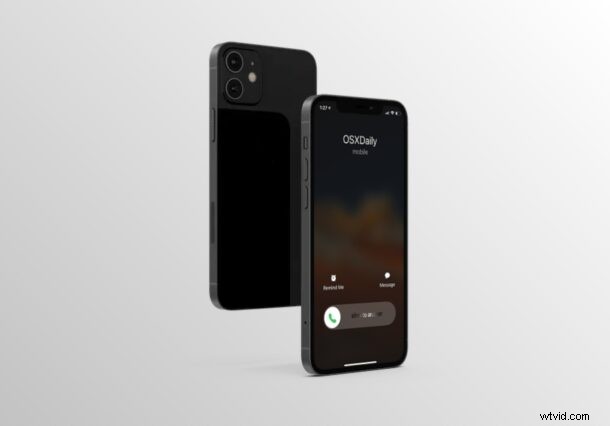
Got a call coming in that you don’t want to take on your iPhone? If you’re new to the iPhone, you may not be familiar with the process of declining a phone call on iPhone. Fortunately, declining calls is a super easy trick that you’ll master in no time at all.
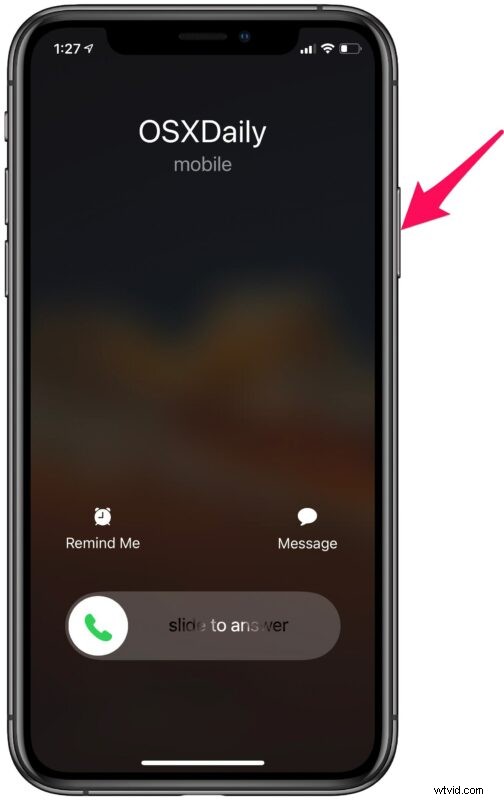
Typically when you receive an incoming call on most smartphones, you’re given the option to accept or decline the phone call on your screen. This is pretty straightforward. However, on iPhones, you may have noticed that you don’t always see the decline option when you receive phone calls. Instead, you just get a “slide to answer” option. This might confuse a lot of new iPhone users when they’re looking to reject the call.
Fortunately, regardless of whether the decline option shows up or not, you can still reject the call on iPhone.
How to Decline a Phone Call on iPhone
Once you finish reading how it’s done, you might wonder how you never thought of this. It’s that easy.
- If you receive an incoming phone call when your iPhone is locked, you won’t get the decline option on the screen. However, you’ll be able to reject the call by pressing the Power/Side button twice.
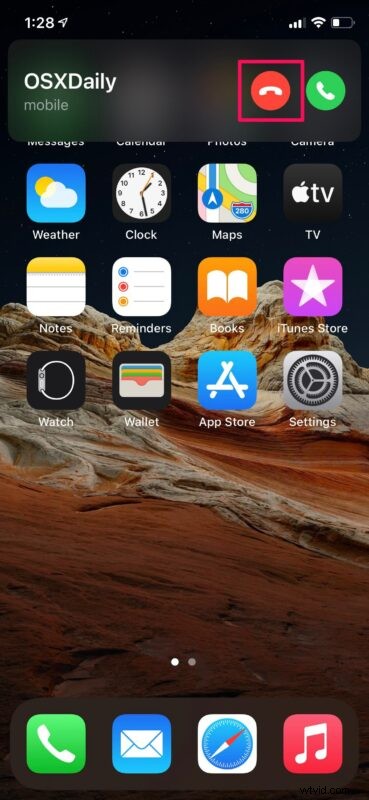
- On iPhones that are running iOS 14 or later, you’ll be shown a compact call-interface if you receive an incoming phone call when your iPhone’s unlocked. The decline option shows up in this new compact interface as you can see in the screenshot below.
There you go. Now you know how to reject phone calls on your iPhone even if the decline option doesn’t show up.
The decline option shows up for incoming calls only when your iPhone is unlocked. However, regardless of whether this option shows up or not, you’ll be able to reject it by simply pressing the side/power button twice.
If you don’t want to reject the phone call but silence the call instead, you need to press the side/power button. Your iPhone will continue vibrating but the ringtone sound will be muted. You may be surprised to know that not a lot of iOS users were aware of this method, especially new iPhone owners.
Do you use an Apple Watch alongside your iPhone as a companion device? In that case, you may also be interested in learning how to accept and reject phone calls directly on Apple Watch.
So, now you know how to reject and decline calls to iPhone, whether the iPhone is locked or unlocked, and you can start declining all those annoying junk calls or just annoying people contacting you. Happy iPhone call rejecting!