
Two of the the most common questions asked by people after updating iPhone to iOS 15 is “can I revert back to the old Safari design?” and “how do I get the Safari search / address bar back to the top of the screen?”
If you don’t like the new Safari design with the address search bar on the bottom of the screen, you’ll be happy to find out that you can reverse this change and get the old Safari design back again.
How to Move the Safari Address / Search Bar Back to Top on iOS 15 for iPhone
If you’re dissatisfied with the new Safari design you certainly aren’t alone, here’s how you can switch the search/address bar back to the top of the iPhone screen:
- Open Settings on the iPhone
- Go to “Safari”
- Scroll down and select “Single Tab” to restore Safari to the old design with URL bar on the top
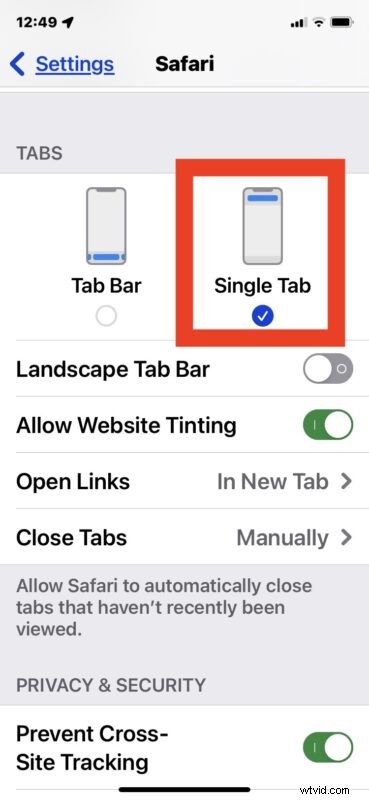
The change is instantaneous, and the next time you open Safari on iPhone you will find the search bar / address bar is back to the top where it used to be.
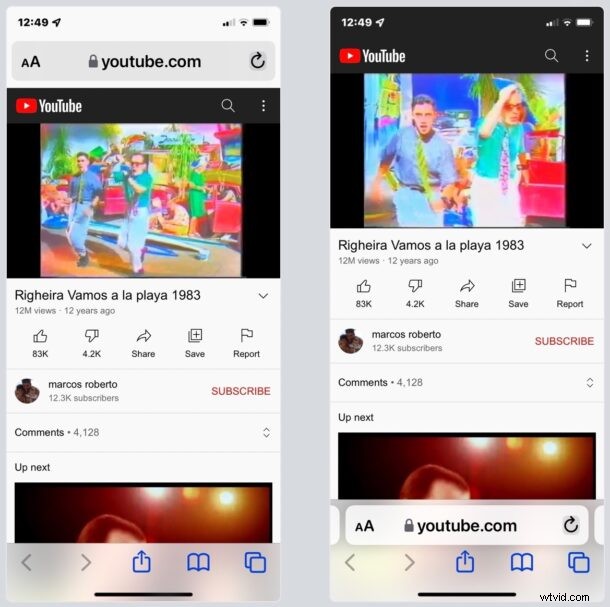
Here is the Safari Address/Search/URL bar back in top on an iPhone with iOS 15:

And this is what the same webpage looks like with the Safari address/search/URL/toolbar on bottom in iOS 15, which is the new default setting:

Other changes to Safari were made with iOS 15 as well that are proving too bother some users, like the search/toolbar color tinting, and the new card view of Safari tabs which some users say makes it hard to read the title of websites and webpages.
Users who don’t like the toolbar tinting in Safari can disable that in the same Safari Settings menu, by turning off “Website Tinting”.
The new Safari tab card view is not adjustable, however, so that is one you’ll have to get used to.
Do you love or hate having the Safari search bar and address bar on the bottom of the iPhone screen? Did you make the change to switch the address bar back to the top of Safari? Let us know your thoughts and experiences in the comments.