

Many of the more casual users who beta tested iOS 15 and iPadOS 15 on their iPhone and iPad may wish to remove the beta updates from their devices, and leave the beta program. And now that the final versions of iOS 15 and iPadOS 15 are available, perhaps you’re no longer interested in the new beta builds of 15.1 etc.
By leaving the iOS/iPadOS beta program, you will no longer receive beta updates on that device, instead you’ll get the final stable versions that the general public gets.
So, want to leave the iOS/iPadOS 15 beta program and stop getting the beta updates on your iPhone or iPad? It’s pretty easy, though it has changed slightly from how this was done in years before.
How to Remove iOS 15 & iPadOS 15 Beta and Leave the Beta Programs on iPhone & iPad
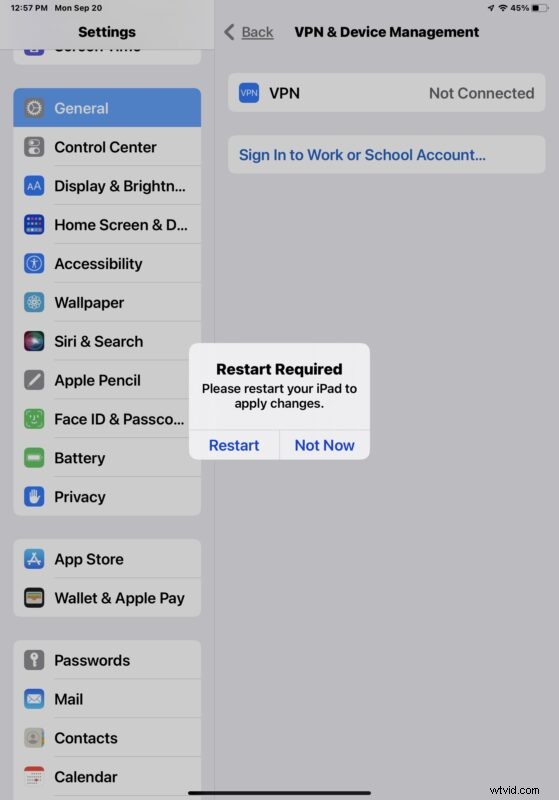
Removing the beta profiles will require the device to restart.
- Open the Settings app on iPhone or iPad
- Go to “General”
- Choose “VPN & Device Management”
- Choose the configuration profile for “iOS 15 Beta & iPadOS 15 Beta Software”
- Choose to “Remove Profile”
- Verify that you want to remove the beta profile from the iPhone or iPad, then restart the device to complete the process

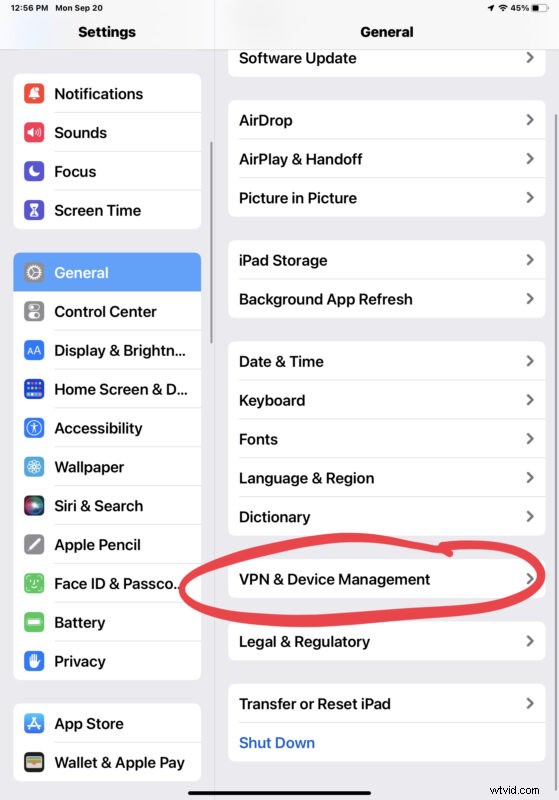
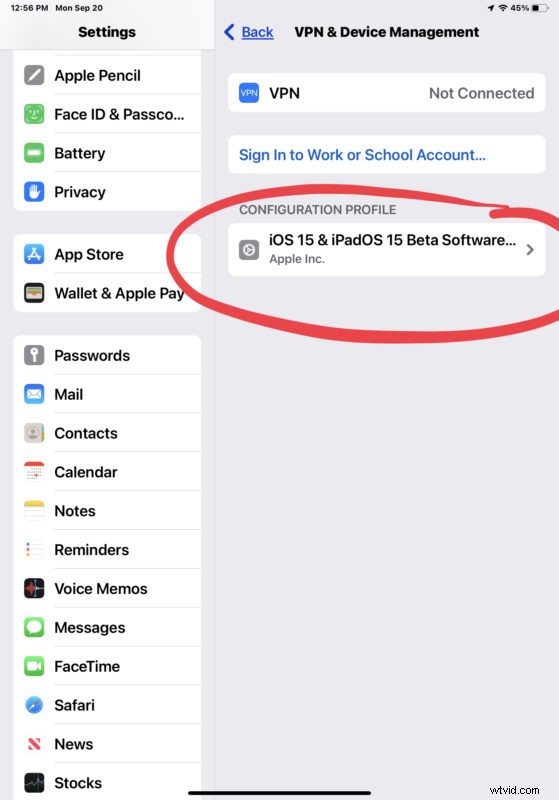
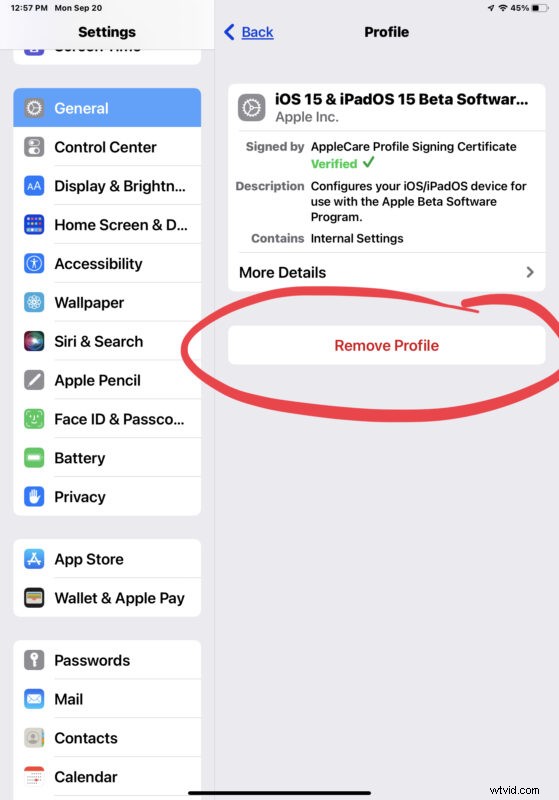
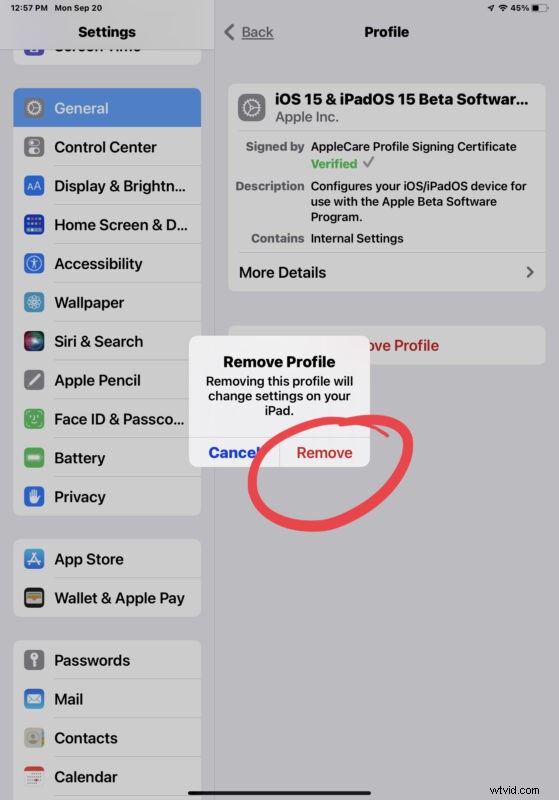
You must reboot to remove the beta profile, though you don’t have to reboot right at that moment if you don’t want to, but it’s a good idea to do so to stop receiving the beta updates and to get final software updates right away.
What if I remove the beta profile and I’m currently on a beta version of iOS 15 / iPadOS 15?
If you are currently running a beta version of iOS 15 or iPadOS 15 and remove the beta profile, your device will get the next final stable version available the next time it is offered. You can then update directly to that. (For example, if you’re running iOS 15 beta and want to remove the iOS 15.1 beta update, you’ll get offered the final version of iOS 15.1 when it becomes available).
And yes, you can update directly from a beta to a final version or iOS / iPadOS, without needing to downgrade.
This approach applies to removing both the developer beta and public beta profiles from an iPhone or iPad.
Like many things in iOS and iPadOS, the process of leaving the beta program has changed slightly from earlier versions, with Apple moving the settings around from time to time. You could make an argument that listing it under Profiles and separate from VPN like in past versions was more obvious, but sometimes corporate VPN’s are installed through a device management profile as well, so perhaps it was done to clarify that.