
Are you in the iOS 16 or iPadOS 16 beta testing programs and want to stop getting beta updates now that the final version is out? Whether you’re in the public beta or developer beta, you can leave the iOS 16 and iPadOS 16 beta programs at any time by removing the beta profile from your device.
Whether you downloaded iOS 16 and no longer want beta updates, or you simply installed only the beta profile and not the beta system software itself, and now want to remove it, you’ll find it’s simple to leave the beta testing program.
It’s important to point out that leaving the beta program does not downgrade iOS 16 beta back to iOS 15 (or revert iPadOS 16 beta back to iPadOS 15), that process is different.
How to Leave iOS 16 Beta / iPadOS 16 Beta on iPhone or iPad
Leaving either beta program is just a matter of removing the beta profile from your device.
- Open the “Settings” app in iOS
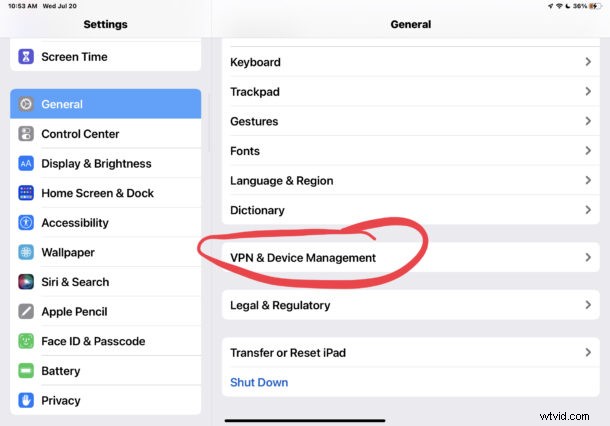
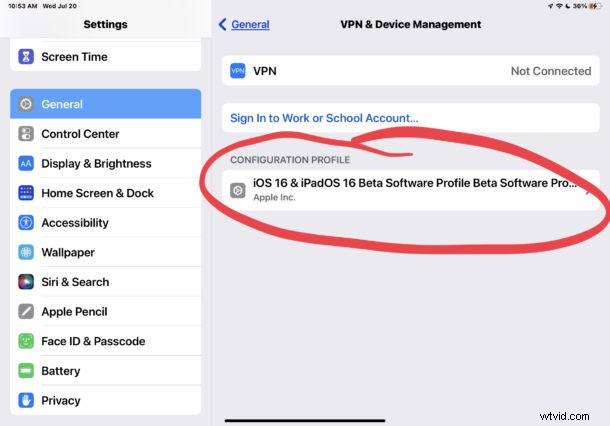
- Go to “General” and then to “VPN & Device Management”
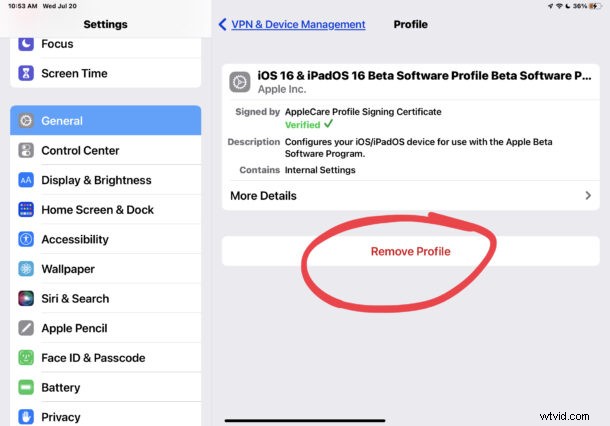
- Tap on “iOS & iPadOS 16 Beta Software Profile”
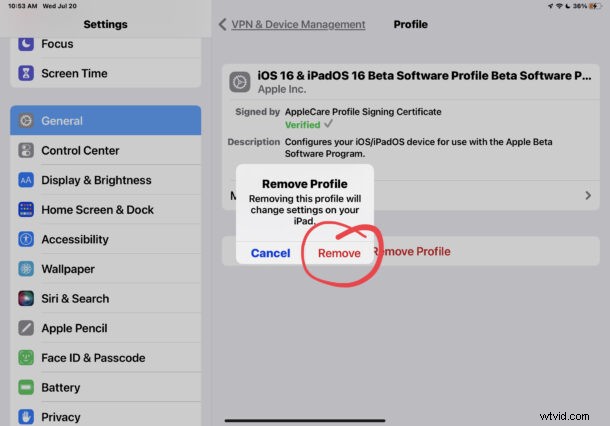
- Choose “Remove Profile” and enter the device passcode to confirm you want to remove the beta profile
- Tap “Remove”
- You will have to restart the iPhone or iPad for the change to take effect, and for beta builds to stop appearing and final stable versions to show up

Remember, only final stable versions of iOS 16 or iPadOS 16 or later will appear if you remove the beta profile and you’re already running an iOS 16 version. This means you will not get updates to any iOS/ipadOS 15 version, but will get updates for iOS 16.1, iOS 16.2, etc, as expected.
Note this removes the iOS 16 beta profile from an iPhone or iPad, but it does not remove the iOS 16 system software that is already installed. For that, you would need to downgrade from iOS 16 and back to iOS 15, while it’s still possible. For most users who are in the beta program, simply updating to the final version of iOS 16, and then removing the beta profile, is perfectly reasonable.
Note that by leaving the beta program you will stop receiving beta builds, but you will receive future final versions of iOS and iPadOS. This means if you leave in the middle of the beta program, you’ll be stuck on the current beta build until a final stable version comes out. For this reason it’s generally best to wait until the primary beta period is over to opt out of beta updates, but what you decide to do is up to you.